
How to Auto-Match Receipts and Income Documents with Bank Transactions
Prerequisites
- ✓You have an active Instant Receipts account — free to start, no credit card required
- ✓You have receipts, income documents, or both already uploaded — or are ready to upload them during reconciliation
- ✓You have a connected bank account, or your bank statement available as a PDF export from your bank's internet banking portal
Outcome
- All expense receipts matched to debit bank transactions
- All income documents and invoices matched to credit bank transactions
- Unmatched transactions resolved via manual search, on-the-spot upload, or manual entry
- Period marked as reconciled with closing balance confirmed against bank statement
- Fully reconciled report exported in your preferred format for your accountant or BAS lodgement
Steps
Add Receipts and Income Documents Anytime
There is no need to batch your receipts at the end of the month. Add receipts and income documents to Instant Receipts as you go — scan a receipt immediately after a purchase, or upload an invoice when you send it. The OCR engine extracts all relevant data automatically. Your documents are stored securely in the cloud and are ready to be matched whenever you choose to reconcile — whether that is weekly, monthly, or quarterly at BAS time.
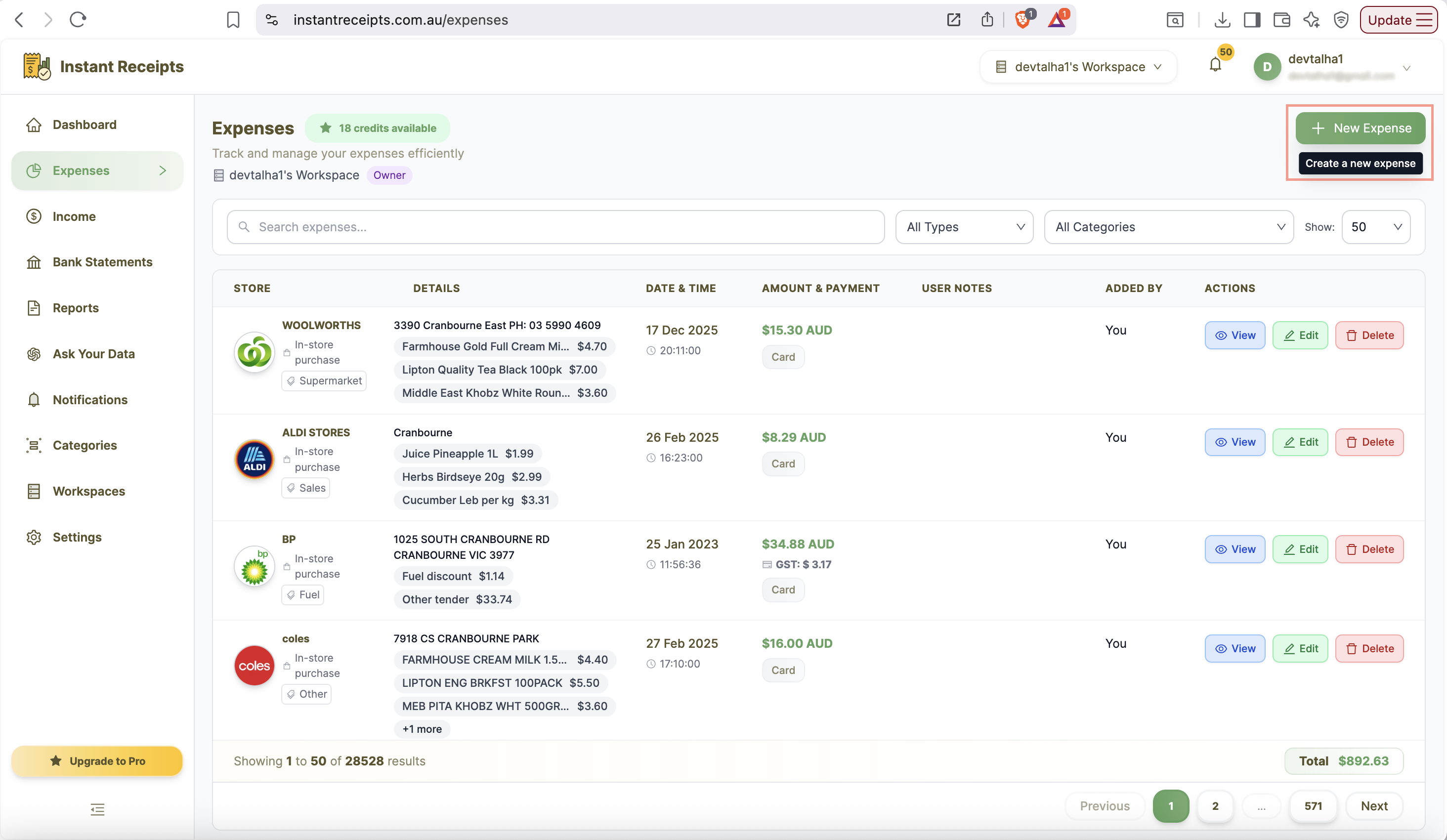
Upload Your Bank Statement PDF When Ready to Reconcile
When you are ready to reconcile — whether that is after one week, one month, or at the end of a BAS quarter — navigate to the Banking section and upload your bank statement PDF. Instant Receipts supports PDF statements from any Australian or international bank: CommBank, NAB, ANZ, Westpac, Bendigo, ING, Macquarie, and all others. Simply export your statement as a PDF from your bank's internet banking portal. No bank login is required for PDF uploads. If you would rather not upload PDFs, open the Connected Accounts tab and click Connect Bank (paid plans). After you give consent with your bank, transactions sync automatically and you can reconcile them the same way.
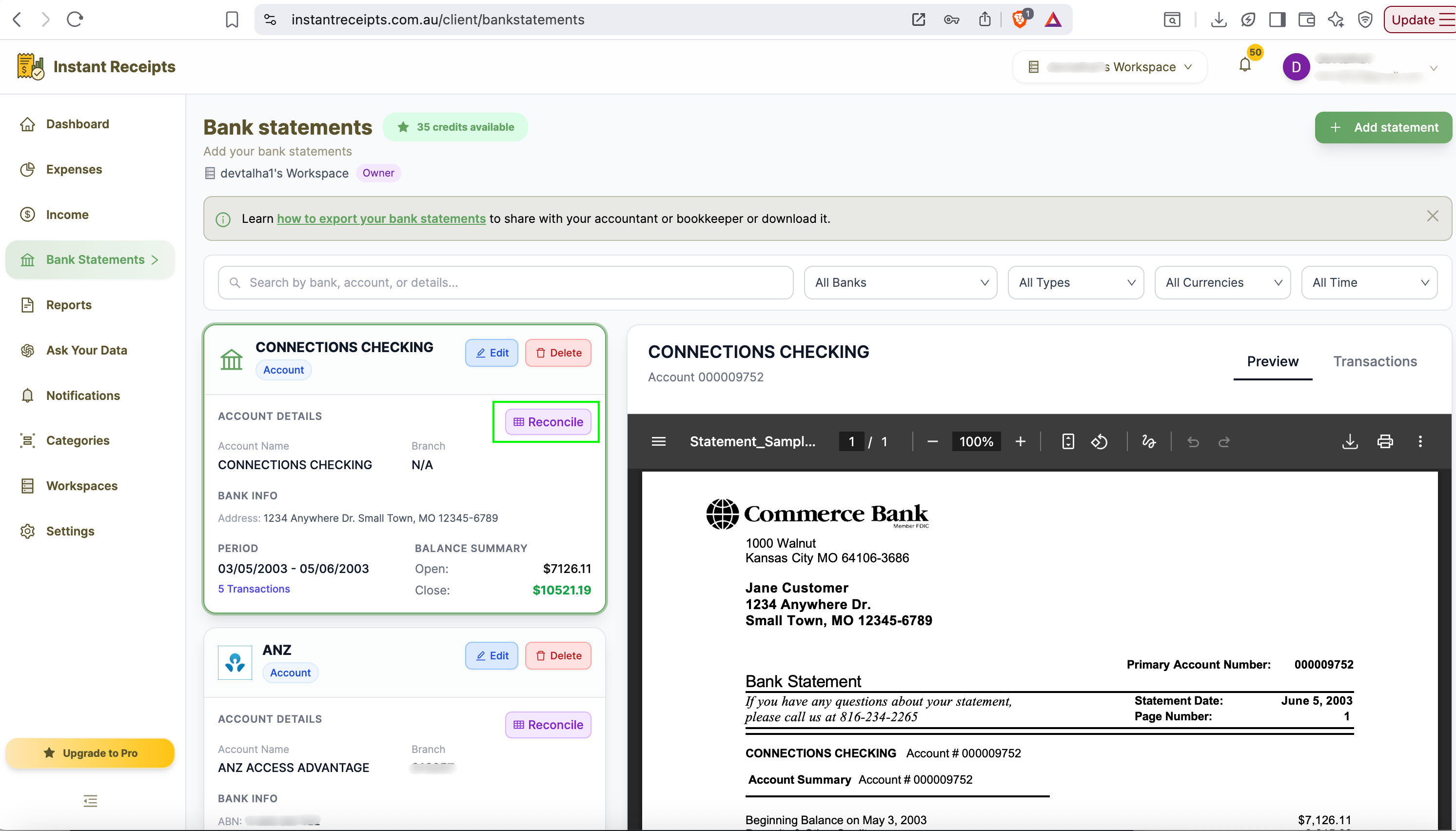
Auto-Match Runs Against All Your Existing Documents
Auto-match runs automatically against every bank transaction in the uploaded statement, comparing it against all documents already in your system — expense receipts, income documents, invoices, and any other uploaded files. Expense receipts are paired to debit transactions and income documents are paired to credit transactions. The matching engine uses three signals: transaction amount (exact or within a small rounding tolerance), transaction date (within a configurable window), and merchant or payer name (fuzzy matched via OCR). Matched pairs are highlighted in green with a confidence score.
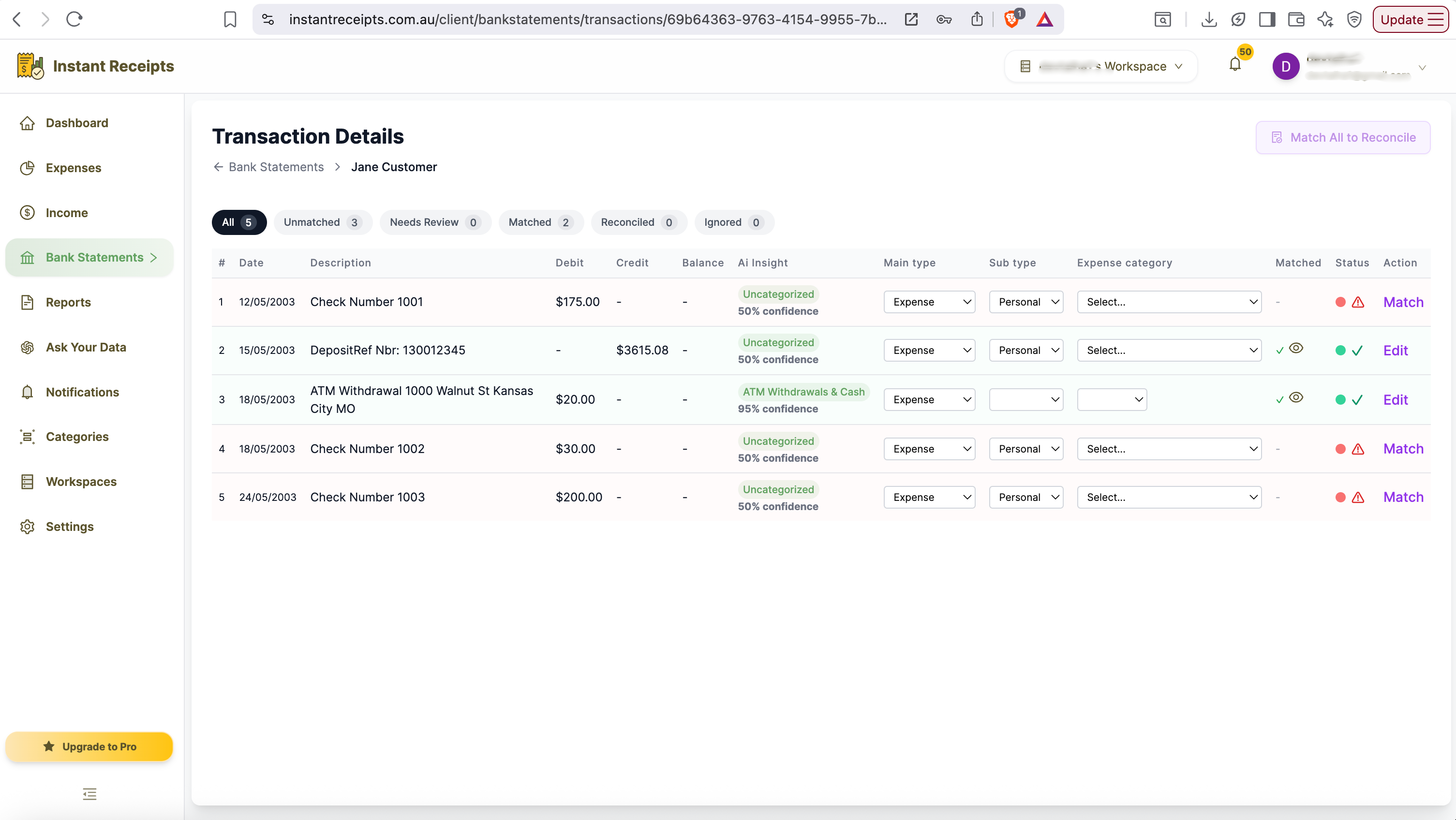
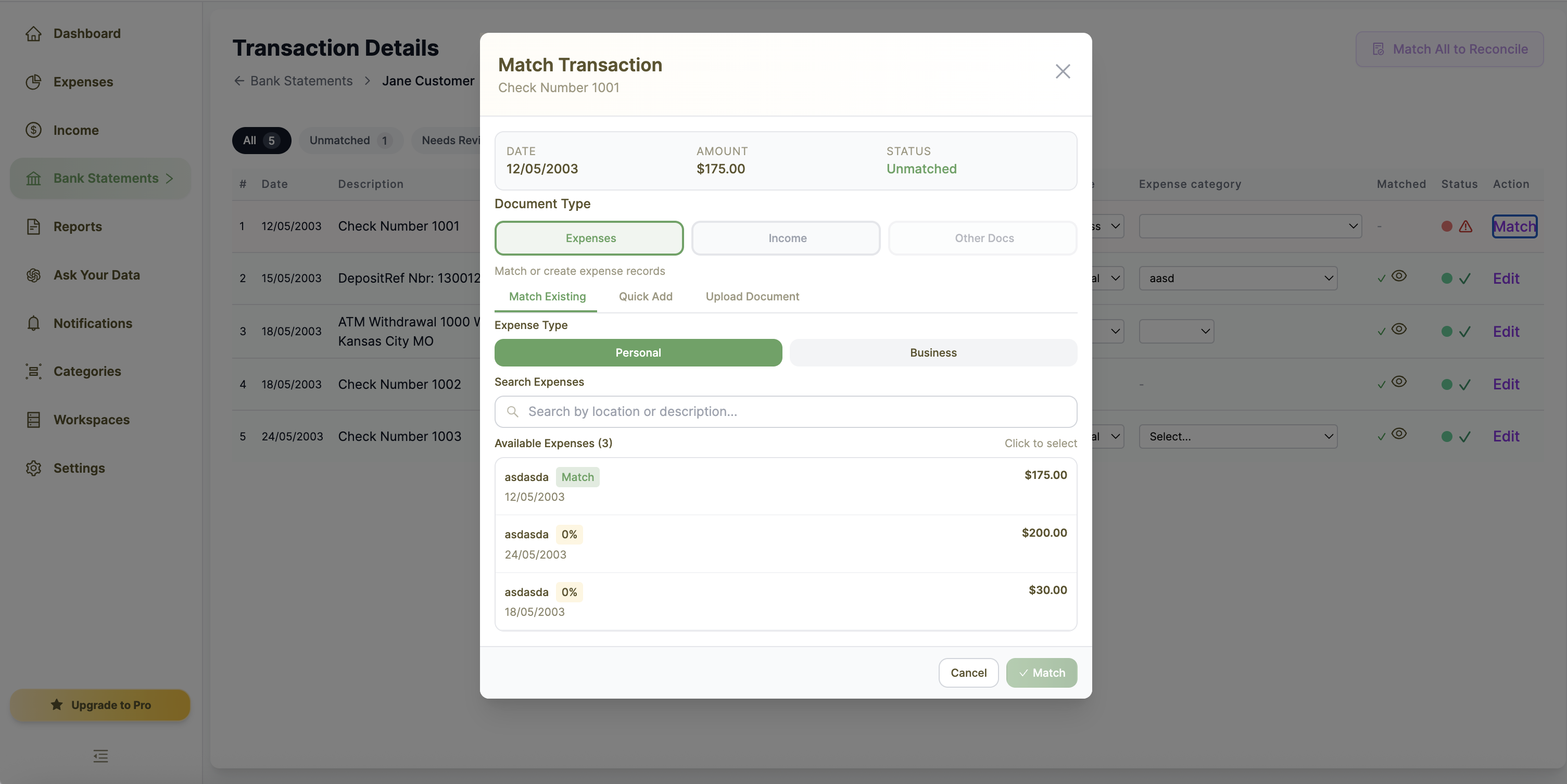
Review Unmatched Transactions
Any bank transactions that could not be automatically matched appear in the Unmatched Transactions queue. For each one you have four options: search your existing documents and match manually; upload the receipt or income document on the spot; add a manual expense or income entry without an image if no document exists; or dismiss the transaction if it needs no receipt — such as bank fees, direct debits, or personal expenses. This flexible approach means you can fully reconcile every transaction regardless of whether a document is available.
Mark the Period as Reconciled
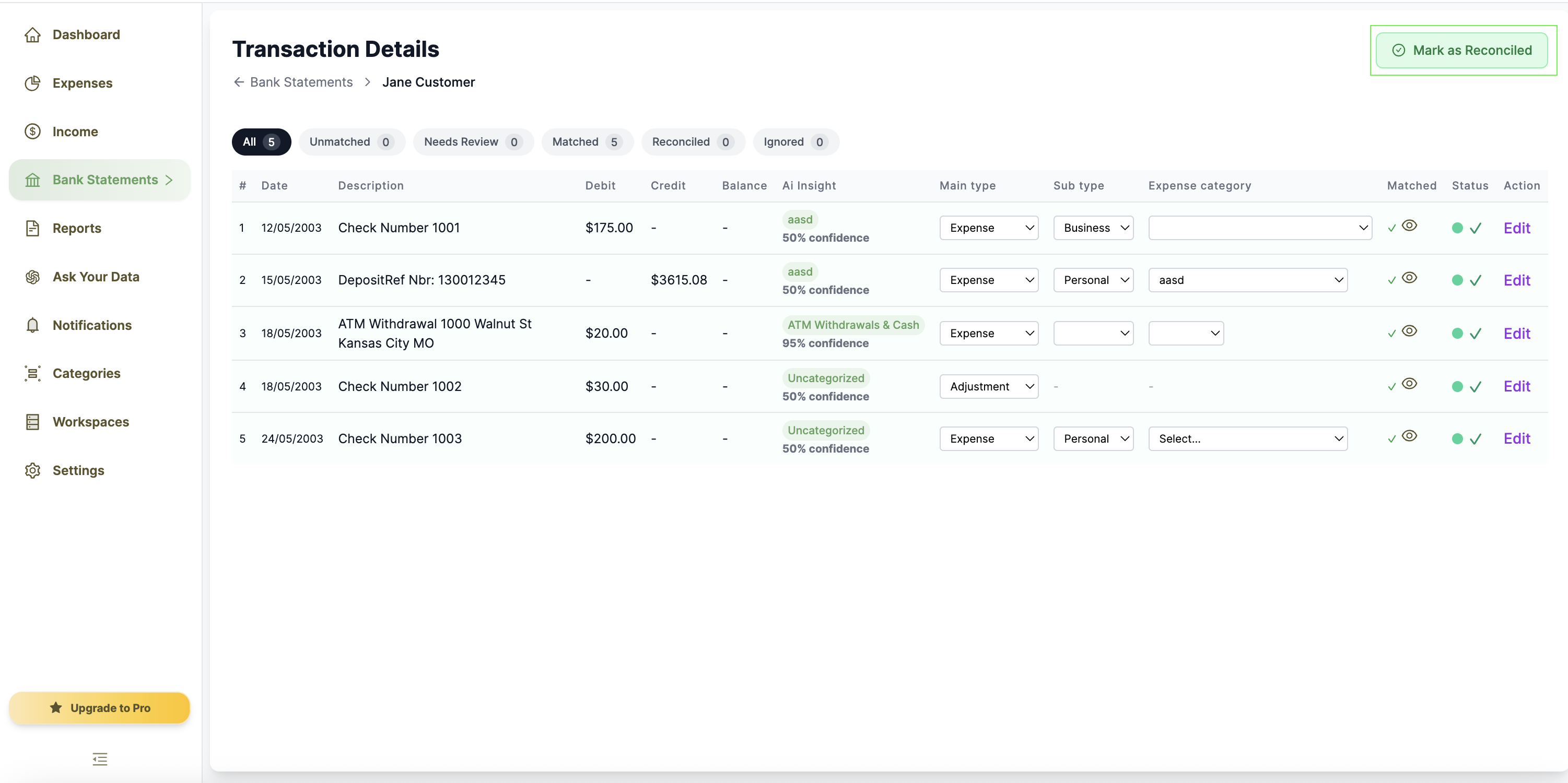
Once every transaction has been matched, manually resolved, or dismissed, review the reconciliation summary to confirm the closing balance matches your bank statement. When everything checks out, click Mark as Reconciled to lock the period. This flags the statement period as complete in your reconciliation history, protects matched records from accidental changes, and signals to your accountant that the period has been reviewed and signed off. A reconciled period is your audit-ready confirmation that your books match your bank.
Export Your Reconciled Report
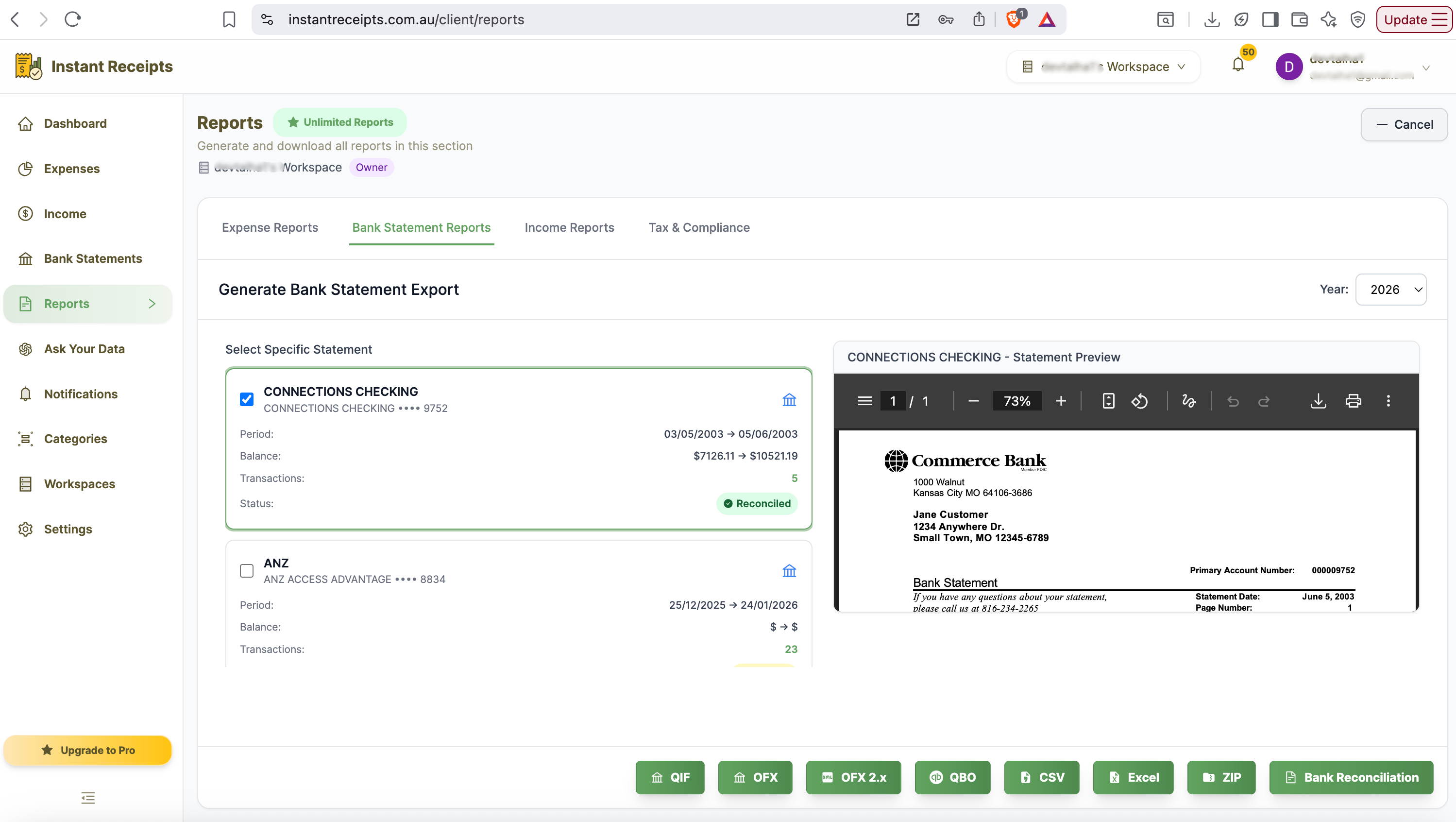
With the period marked as reconciled, export your final report for your accountant or BAS preparation. Go to Reports, select Bank Statement Reports, click New Report, choose your date range, and select your format: CSV for Excel, Xero, or QuickBooks; PDF for a formatted report with document images attached; or OFX/QIF for direct accounting software import. Each export includes matched document images, extracted data fields, GST amounts separated from the base price, and the corresponding bank transaction reference — everything your accountant needs for BAS lodgement.
Review Your Generated Report
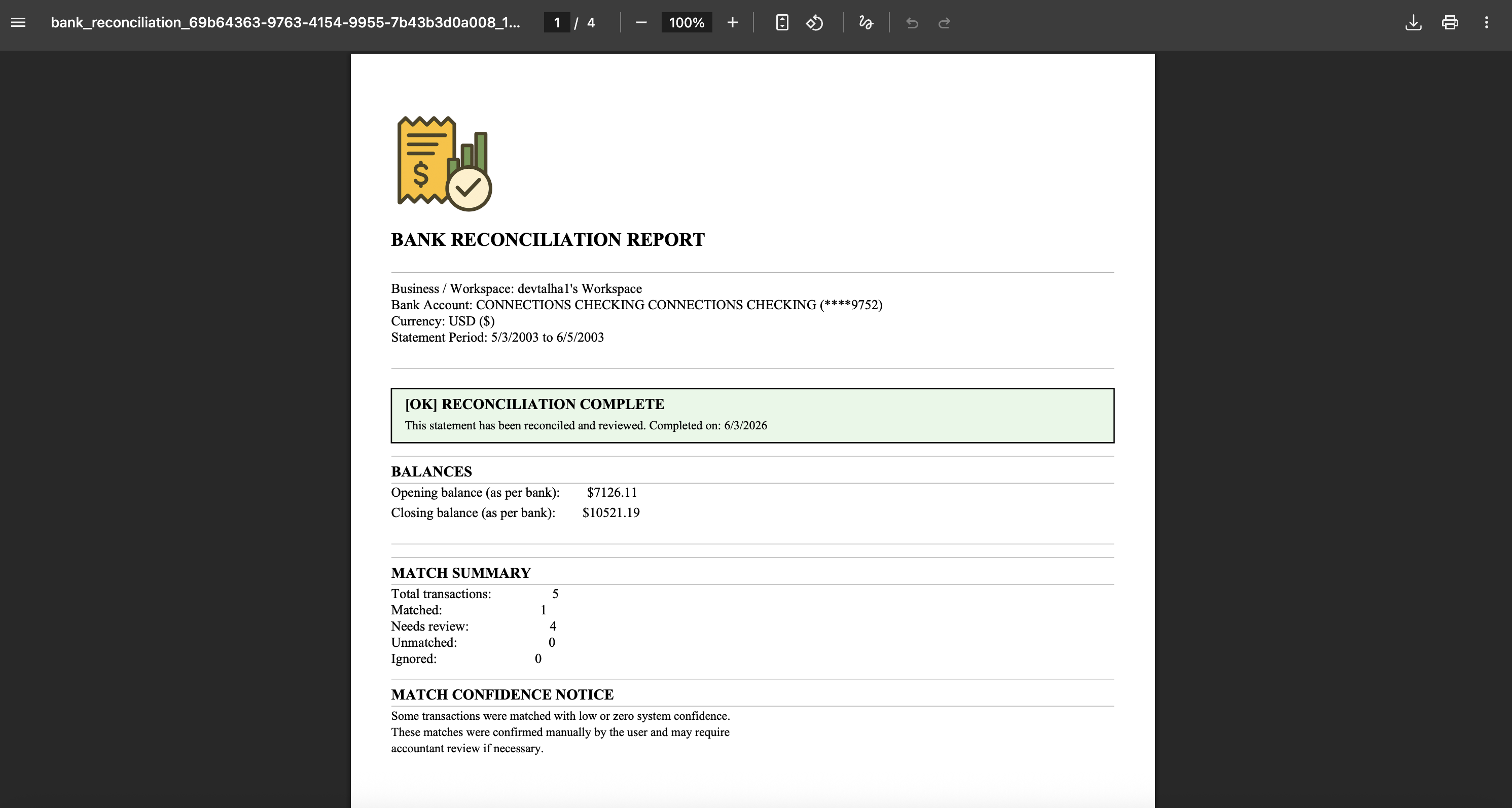
Once generated, your reconciliation report appears in the Generated Reports section. Preview it to confirm all matched transactions, GST splits, and document references are correct before sending to your accountant. The report includes a full transaction listing with matched receipt and income document images, GST collected and paid totals, opening and closing balances, and a reconciliation status summary. Want to see exactly what your report will look like? Download our sample bank reconciliation report (PDF) before you get started.
Troubleshooting
Bank statement PDF will not upload
Make sure the file is a true PDF exported from your bank's internet banking portal and not a scanned image saved as PDF. Try downloading a fresh copy from your bank. If the problem persists, contact support with the bank name and statement format.
Auto-match is not finding matches I expect
Check that your receipts or income documents were uploaded before running auto-match, and that they cover the same date period as the bank statement. If a document date differs from the bank processing date by more than a few days, use the manual search in the Unmatched Transactions queue to pair them.
A document matched to the wrong bank transaction
Click the matched pair to open it and select Unmatch. The document and transaction will return to the unmatched queue where you can manually pair them with the correct counterpart.
No bank transactions appear after uploading the PDF
The PDF may still be processing. Wait 30 seconds and refresh the page. If transactions still do not appear, the PDF may be password protected or in an unsupported format. Download a fresh copy from your bank and try again.
I do not have a receipt for a transaction
You have two options: add a manual expense or income entry without an image directly from the Unmatched Transactions queue, or mark the transaction as personal or dismissed if it does not require a record.
Income documents are not matching to bank deposits
Check that the income document amount matches the deposit amount exactly, including GST. Partial payments or deposits that combine multiple invoices will not auto-match. Use the manual search option in the Unmatched Transactions queue to pair these manually.
OCR extracted incorrect data from a document
Open the document and edit the extracted fields manually. Correcting the amount or date will improve the chance of a successful match when you run auto-match again.
Cannot click Mark as Reconciled — button is greyed out
The Mark as Reconciled button is only available when all transactions in the period have been matched, manually resolved, or dismissed. Check the Unmatched Transactions queue — there may be remaining items that still need attention before the period can be locked.
Closing balance does not match my bank statement
Do not mark as reconciled until the balances match. Check for any transactions that may have been dismissed incorrectly, duplicate imports, or transactions outside the statement period. Review the reconciliation summary line by line to find the discrepancy.
Need more details?
See How to Import Bank Statements for the complete workflow and all available options.