
Export Bank Statements as OFX
Prerequisites
- ✓You have uploaded your bank statement in the Banking section
- ✓You have access to the Reports page
Outcome
- Standard format compatible with Xero, QuickBooks, and most banking apps.
- Import directly into Xero or Quickbooks without manual formatting
Steps
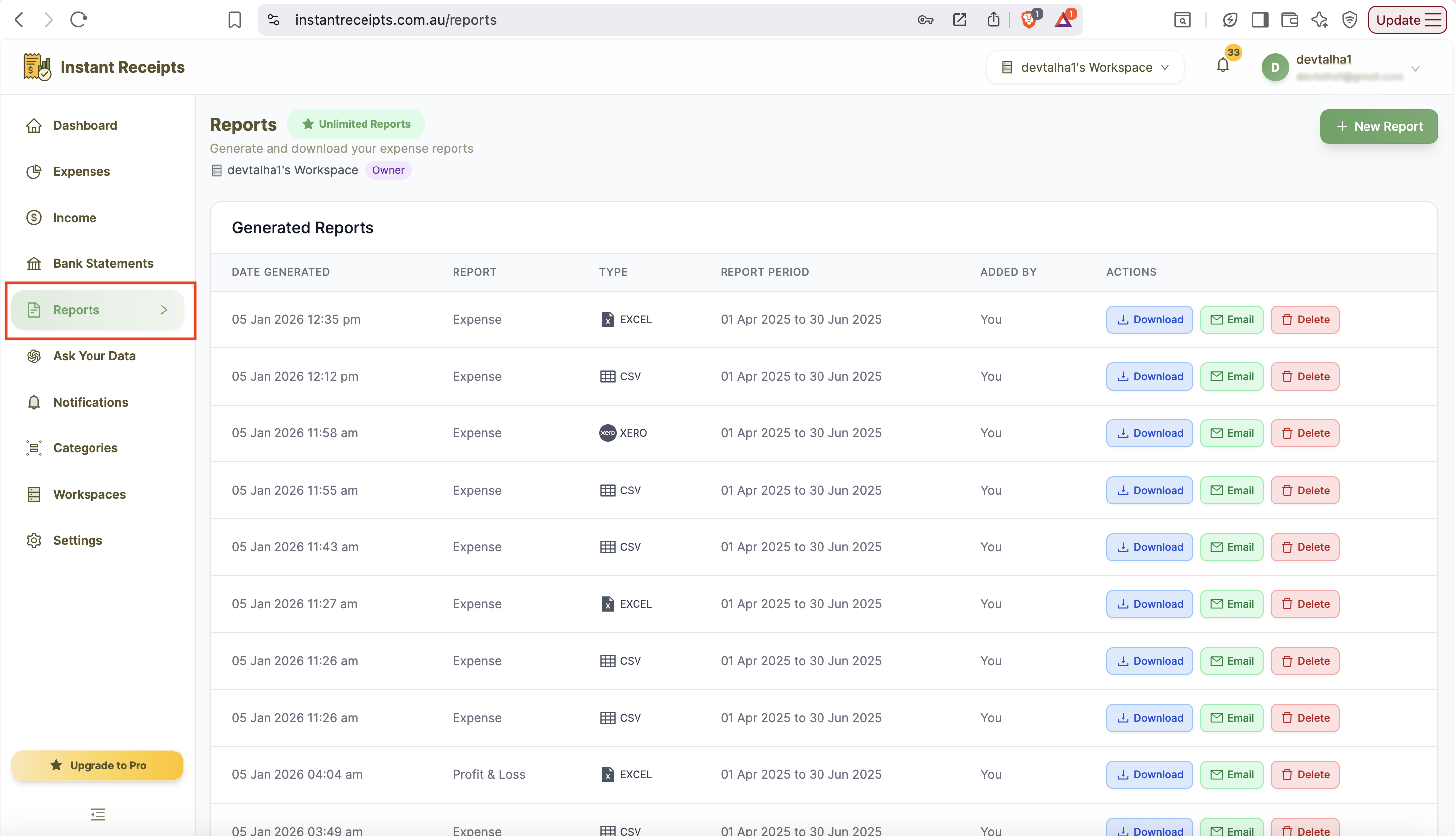
Navigate to Reports
From your dashboard, click on the Reports section in the main navigation.
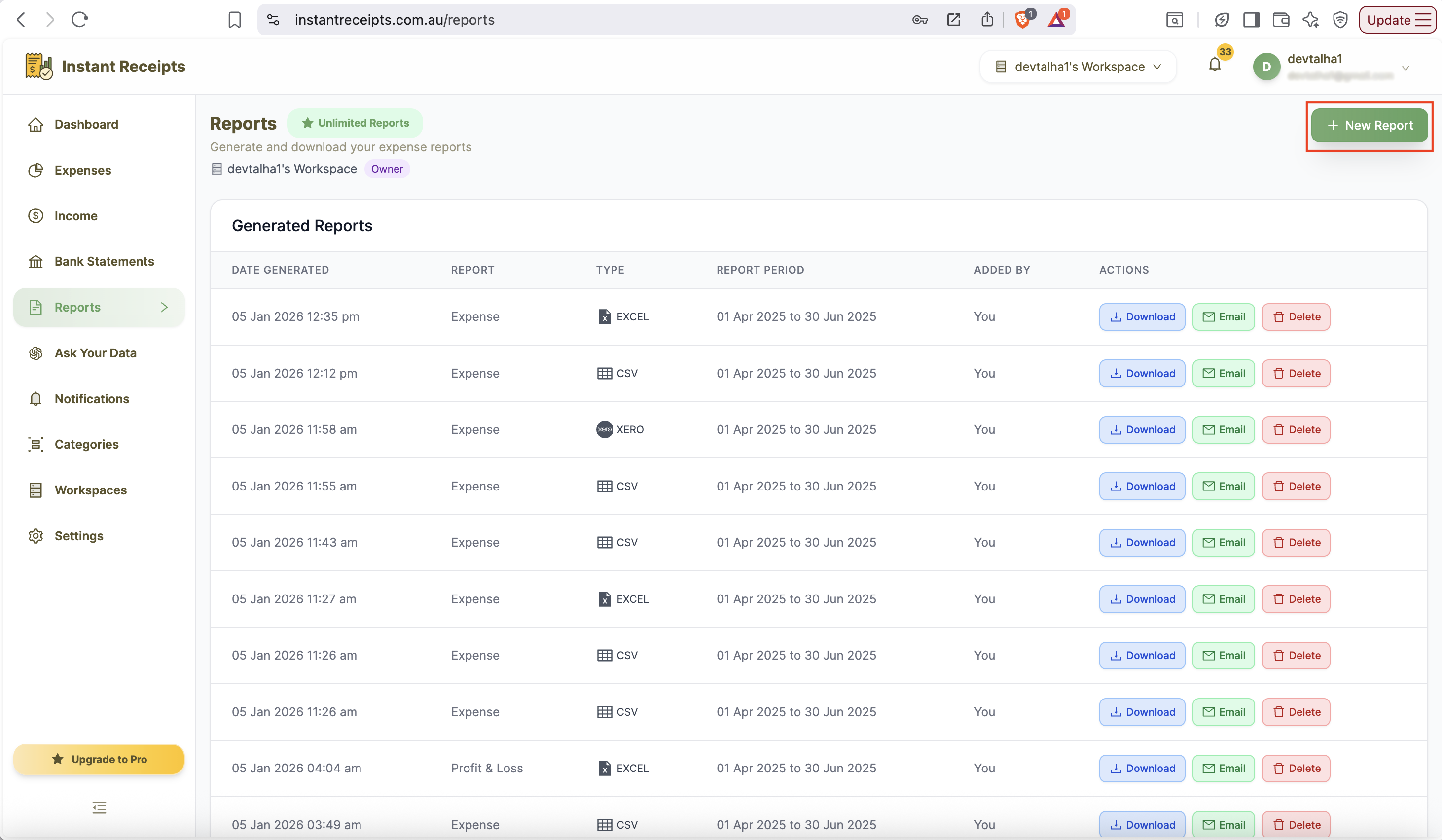
Click New Report
In the top-right corner, click the green New Report button to start creating a new bank statement report.
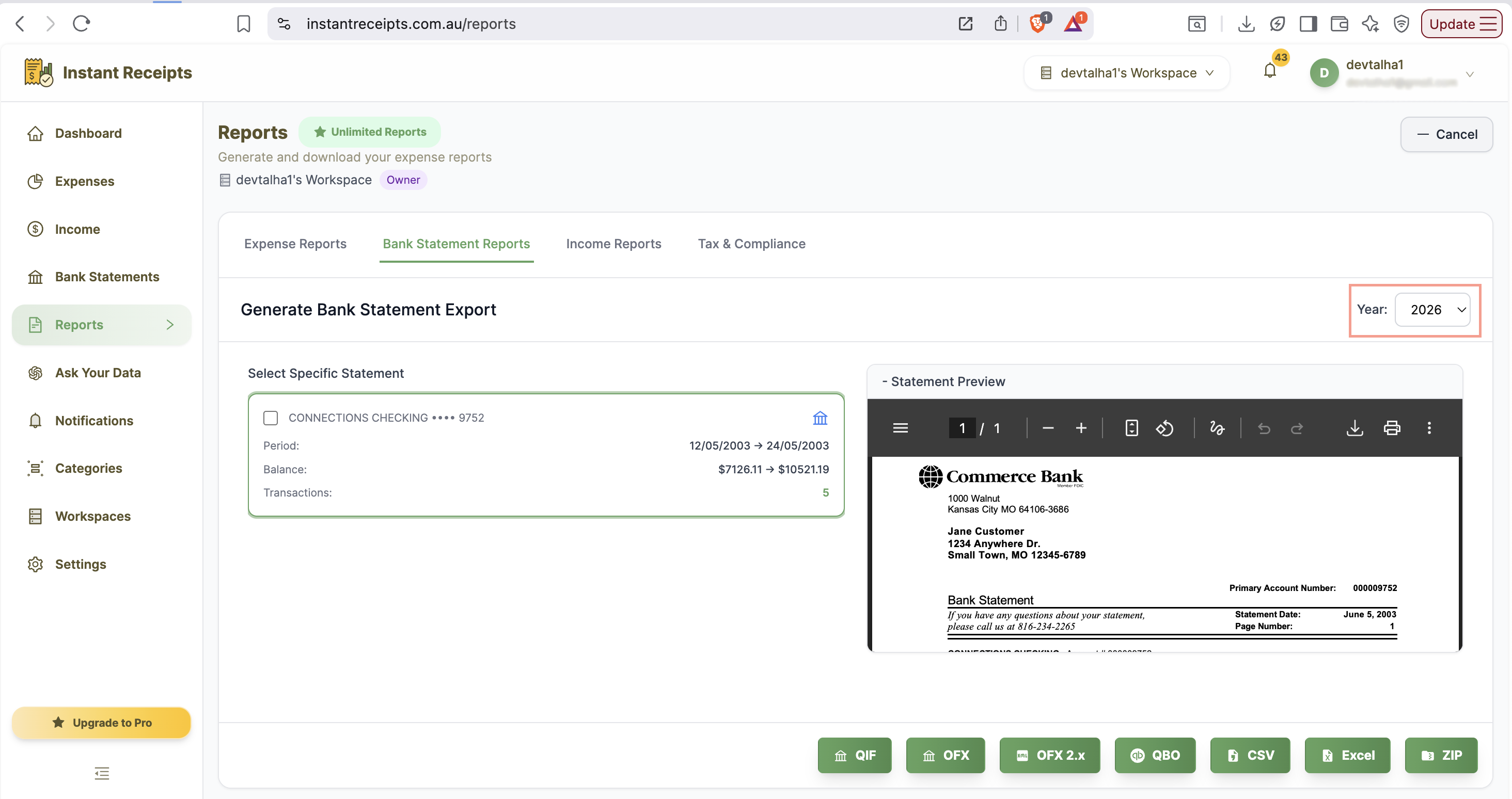
Select Your Date Range
Choose how to filter your bank statements by date using Quick Select quarters or custom date range.
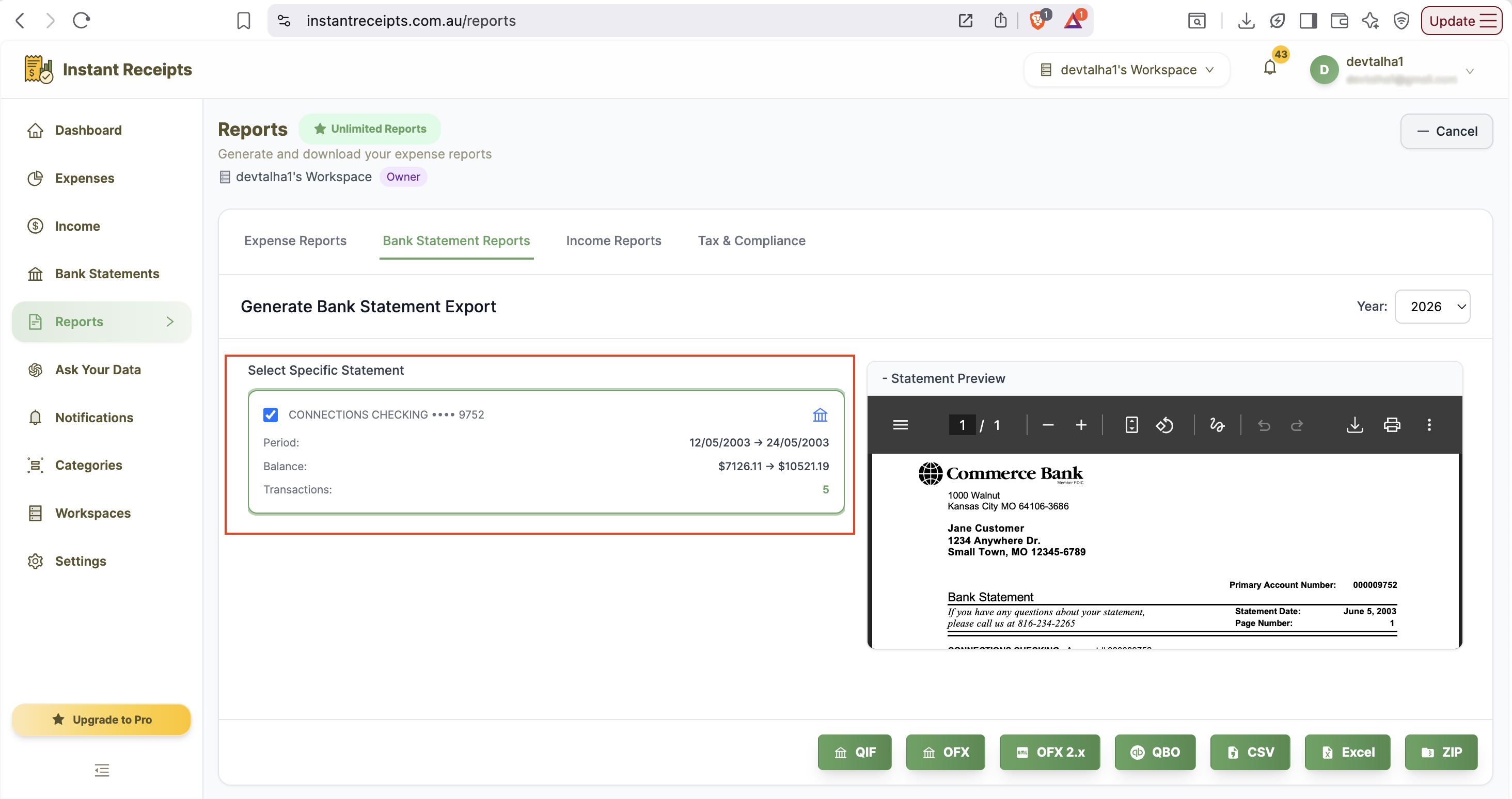
Select Bank Account (Optional)
Optionally filter statements by specific bank account.
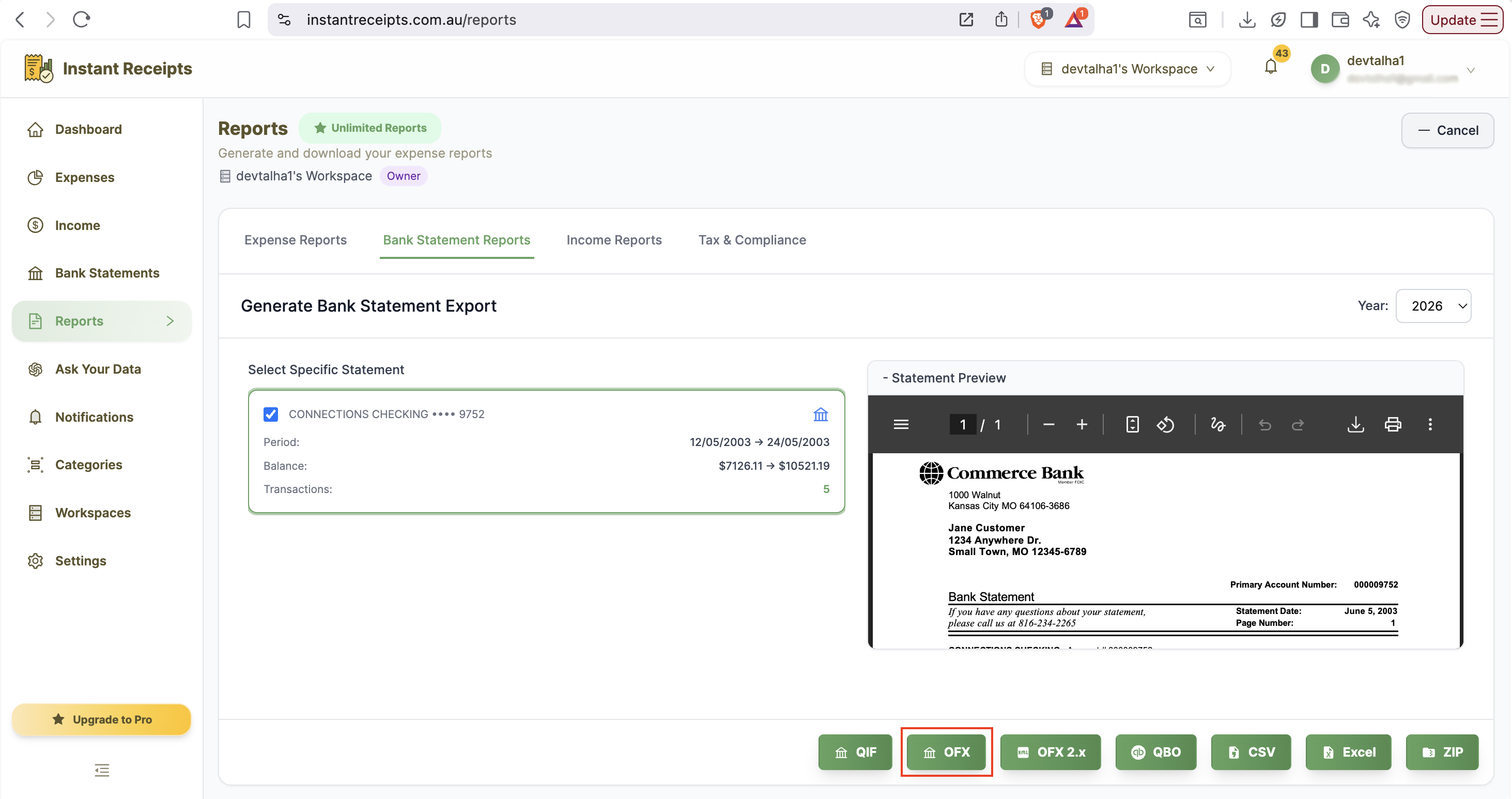
Click OFX Button
To complete your export as OFX. You can locate and click the OFX export button at the bottom of the report generation panel.
Import into Your Banking Software
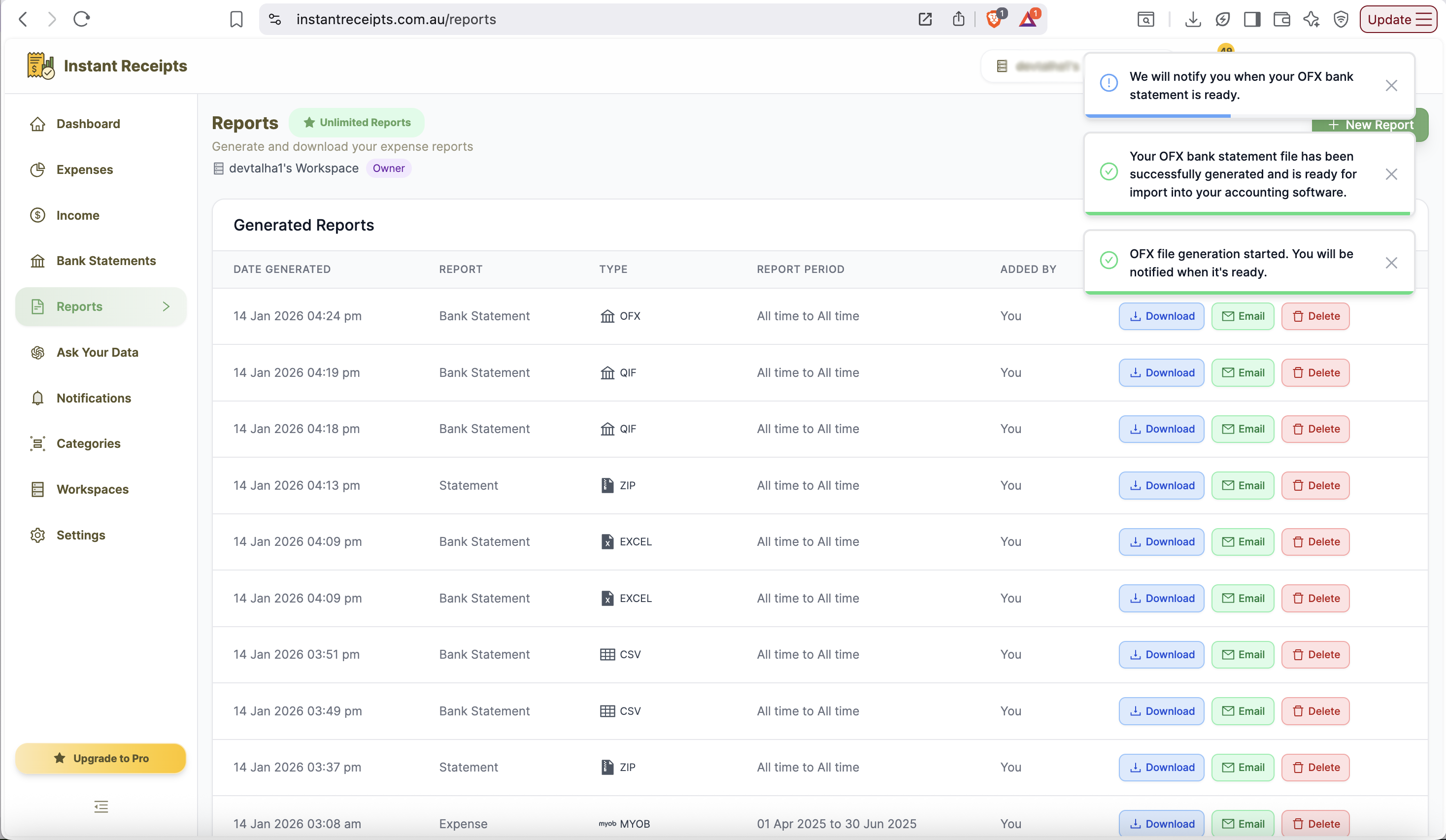
Once you click on the selected format the export of your bank statement will start. You will be notified once the download is completed.
Troubleshooting
OFX file won't open
If your OFX file is not opening, please check that your software supports the OFX format. You can also try opening your file with a text editor to verify the file format is correct.
Import fails
If the import of your bank statement fails, please check that your software version supports OFX format. Because some older versions of software may require OFX 1.x instead of OFX 2.x.
Duplicate transactions after import
If you find duplicate statements in your bank statement section, you should check if you've already imported this statement. You may have enabled the duplication detection in your software.
Need more details?
See How to Import Bank Statements for the complete workflow and all available options.