
Export Bank Statements as QIF
Prerequisites
- ✓You have uploaded your bank statement in the Bank Statements section
- ✓You have access to the Reports page
- ✓Quicken or compatible software
Outcome
- Compatible with Quicken, QuickBooks, and personal finance software
- Avoid manual formatting and import errors
Steps
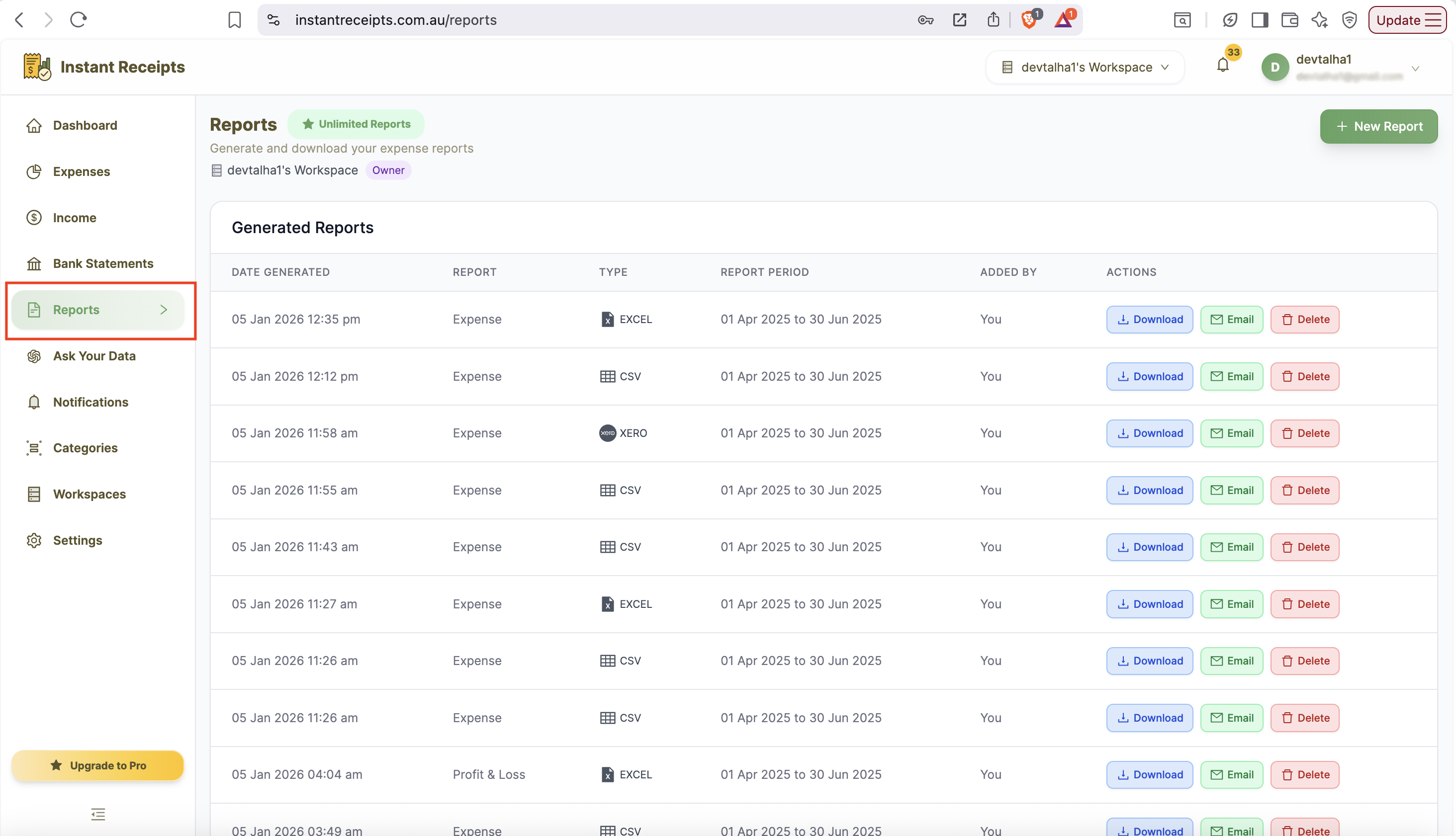
Navigate to Reports
From your dashboard, click on the Reports section in the main navigation.
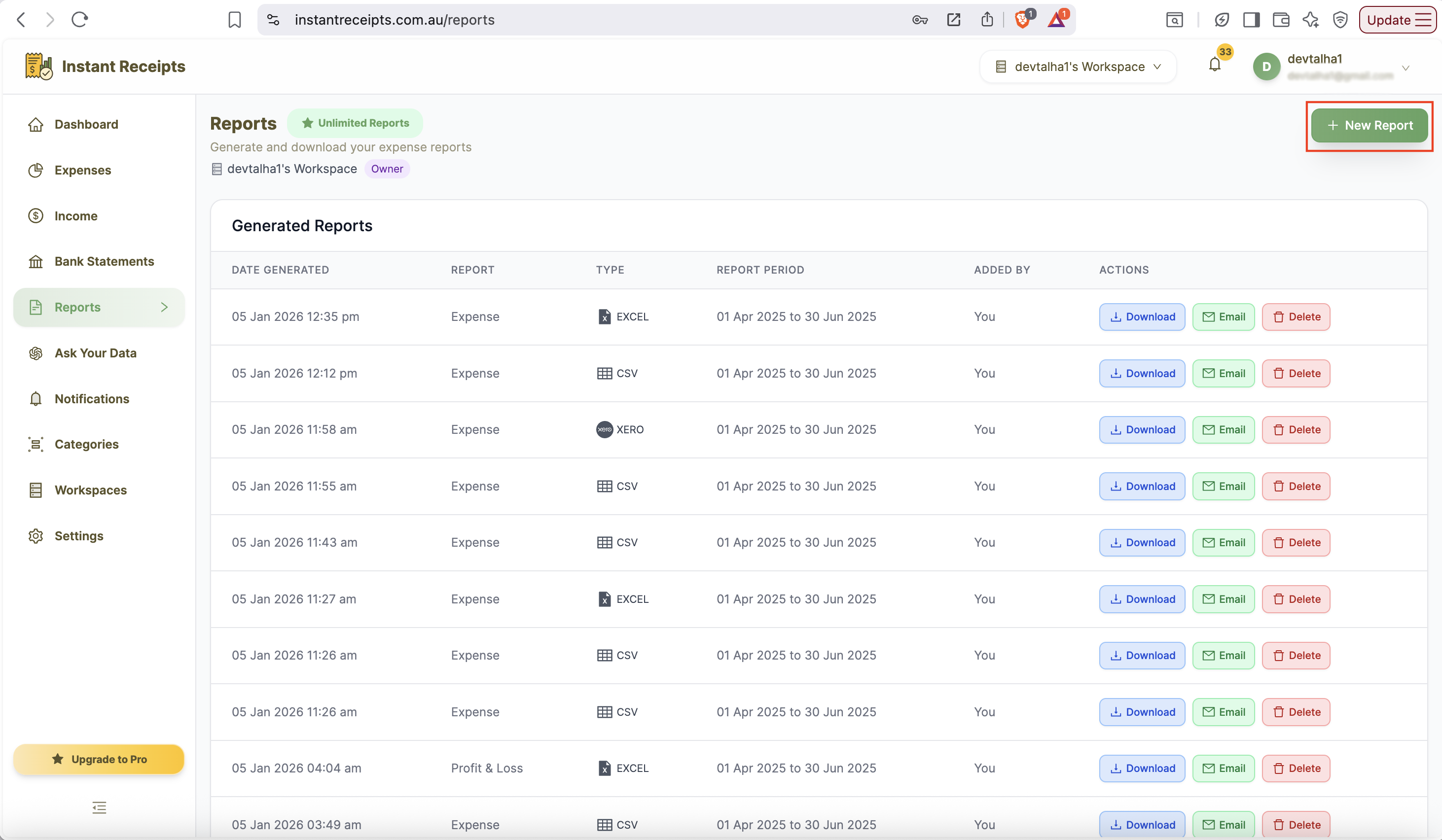
Click New Report
In the top-right corner, click the green New Report button to start creating a new bank statement report.
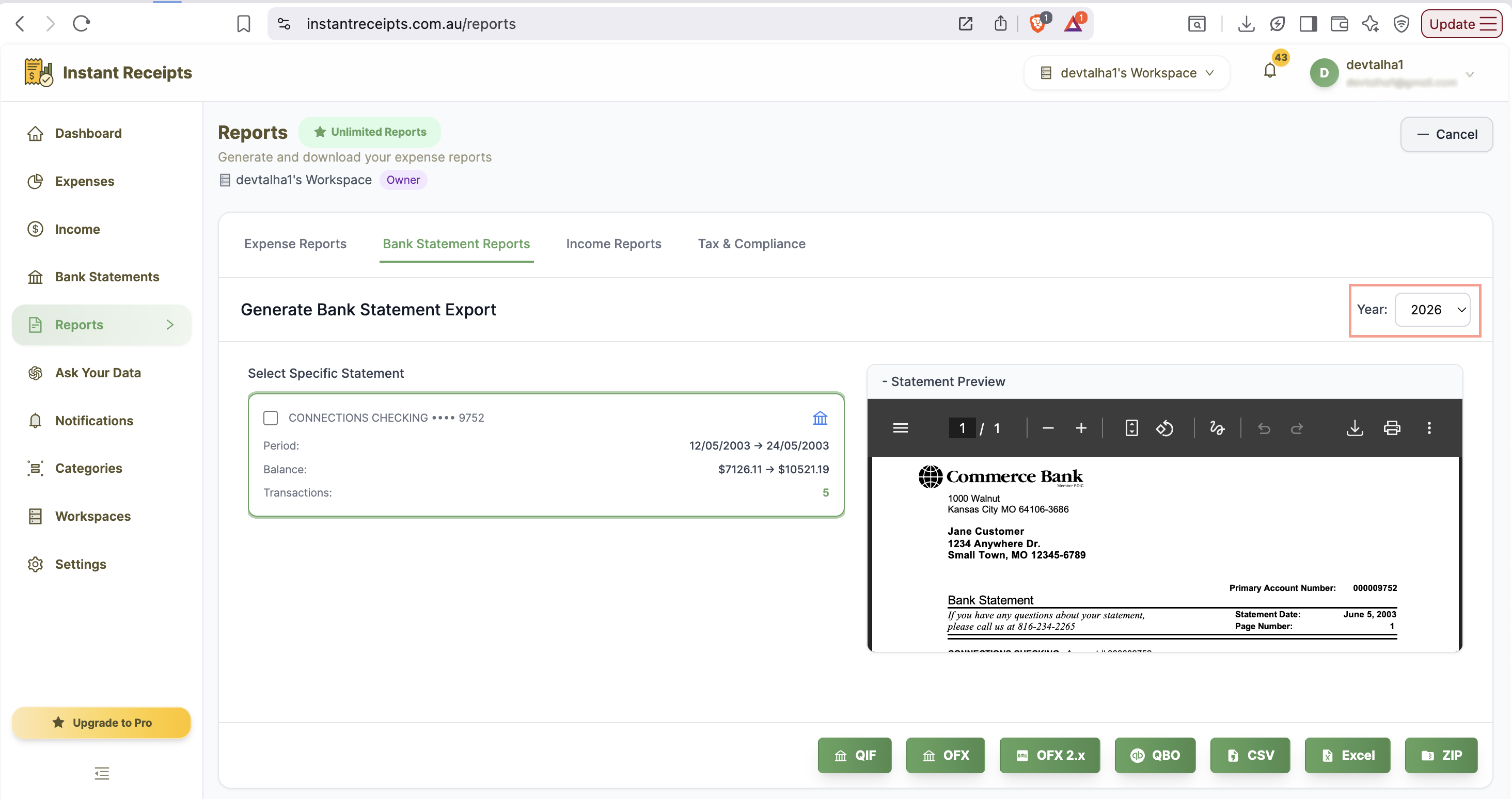
Select Your Date Range
Choose how to filter your bank statements by date using Quick Select quarters or custom date range.
Select Bank Account (Optional)
Optionally filter statements by specific bank account.
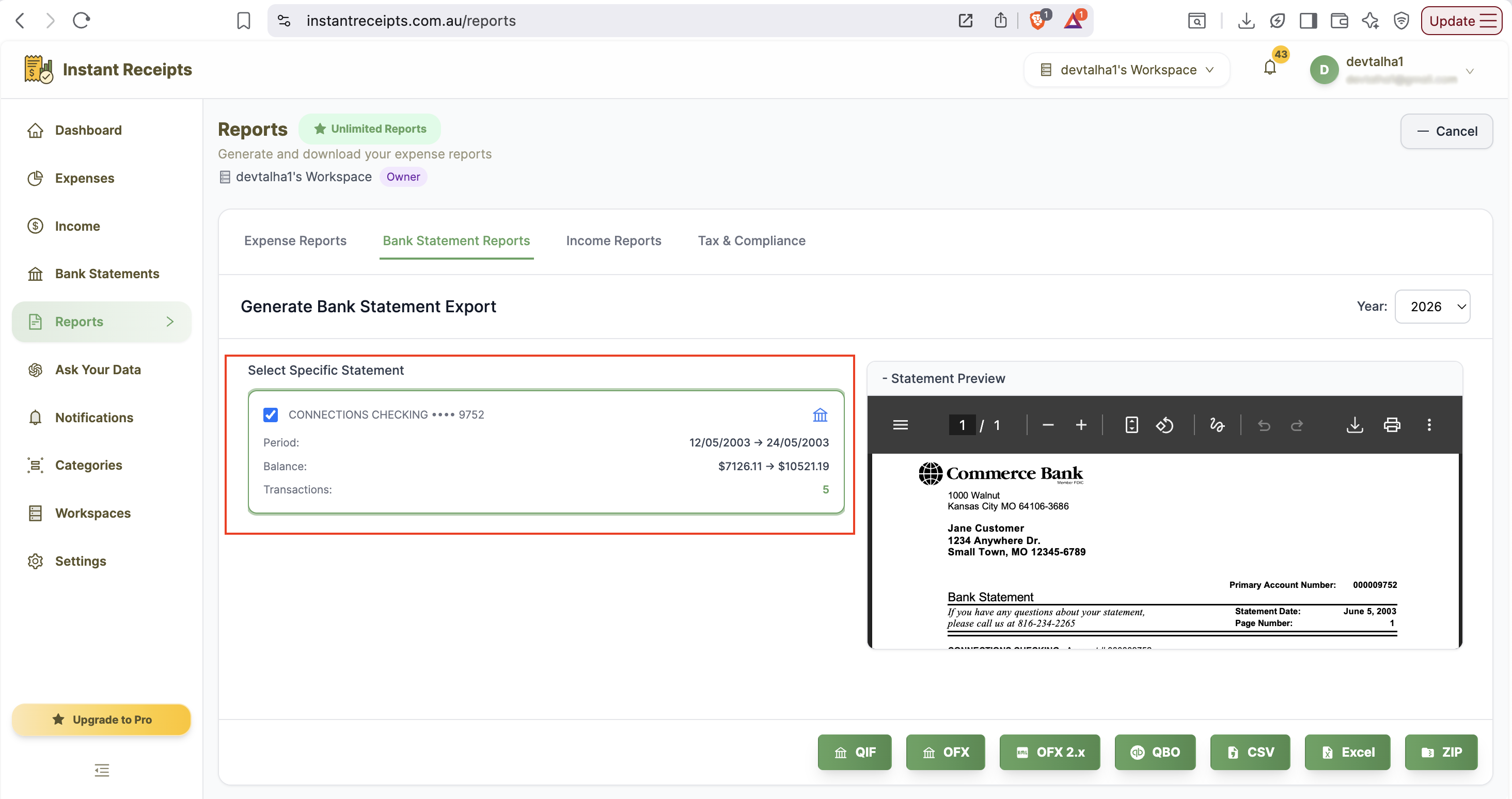
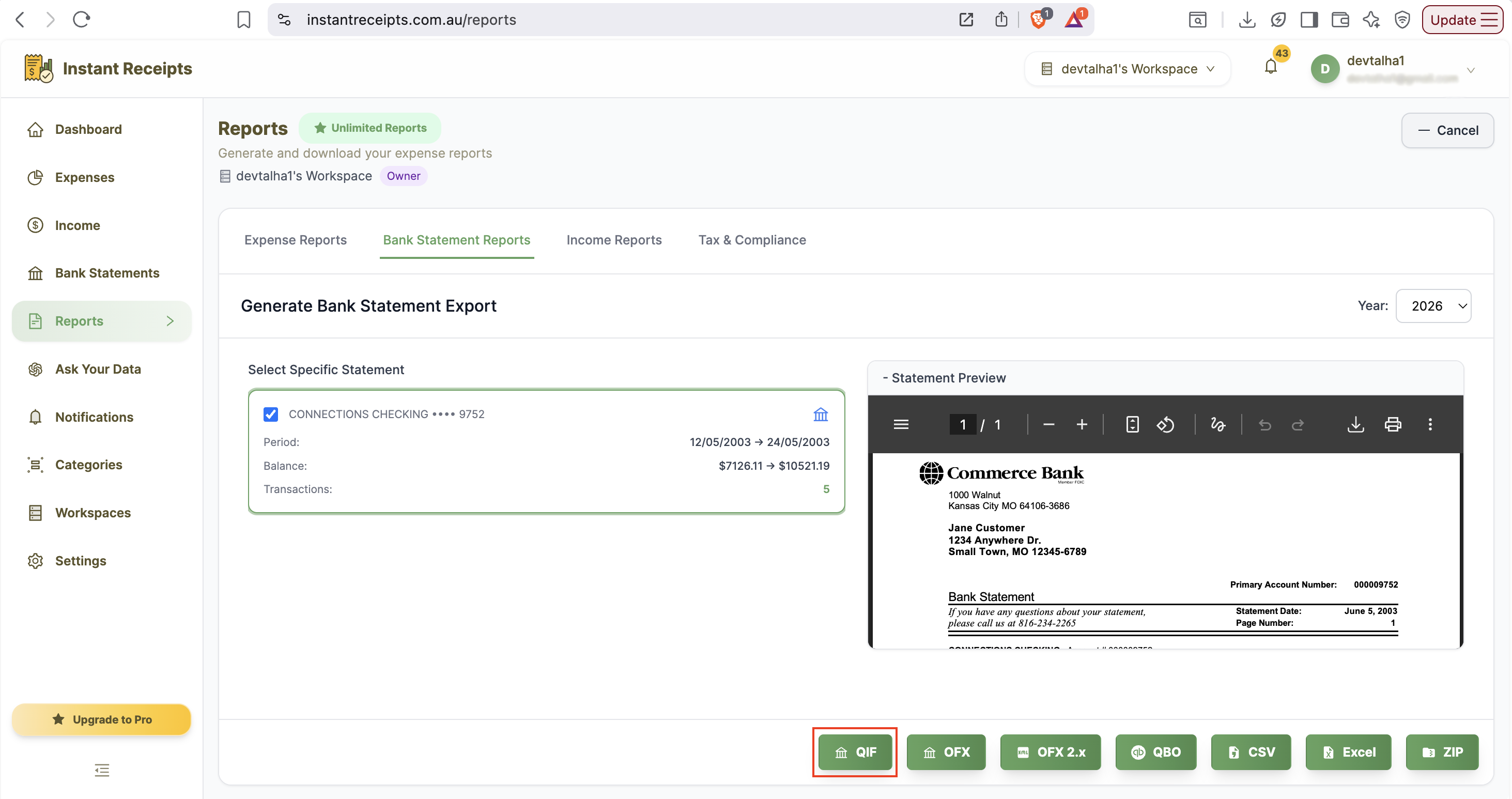
Click QIF Button
To import your bank statement in QIF format from the option below the bank statement reports, please locate and click the QIF export button.
Import into Quicken
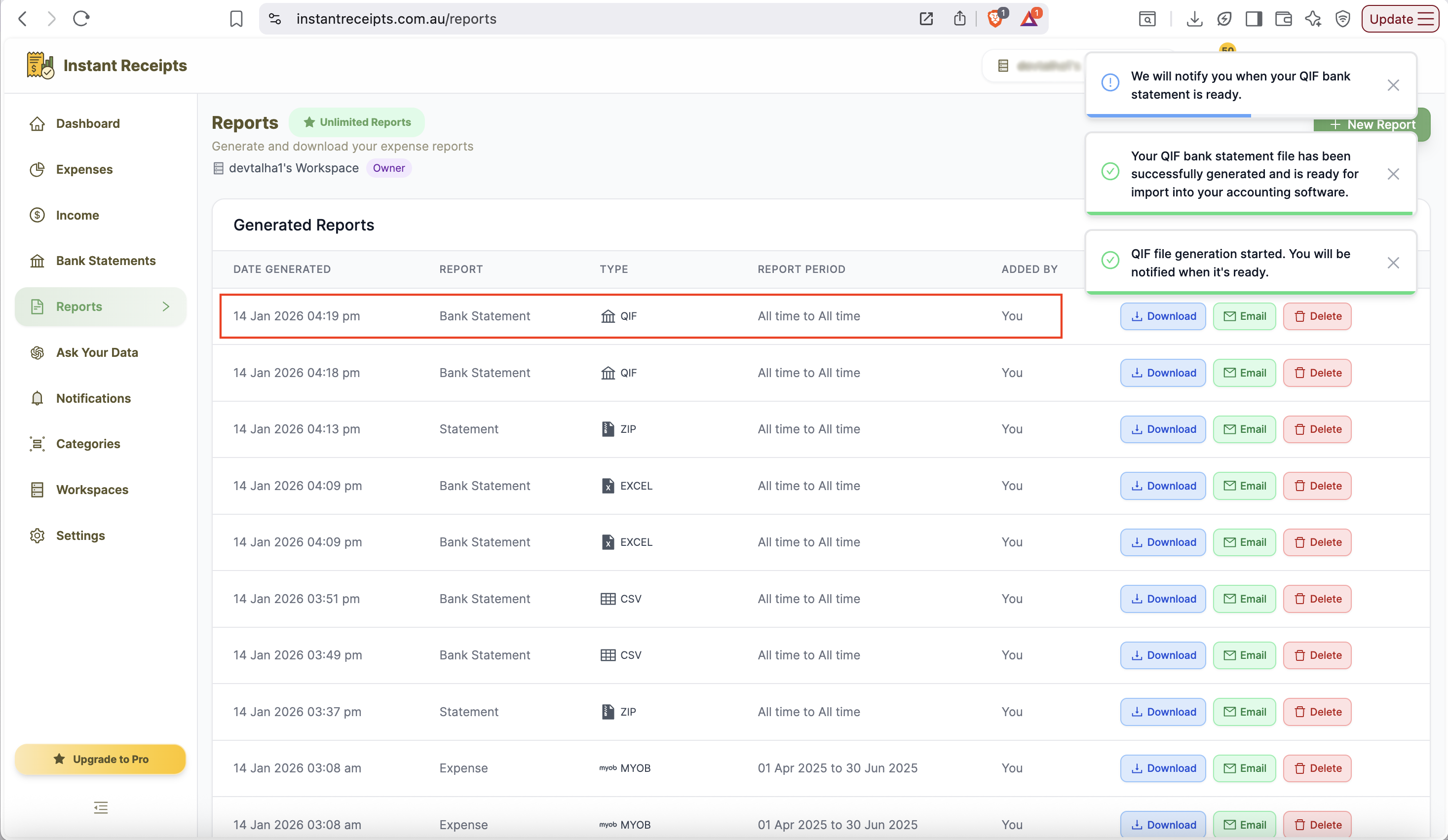
After clicking on QIF, you can now download the file and import it directly into your Quicken account. You will be notified once your bank statement has been downloaded successfully.
Troubleshooting
Import fails in Quicken
If you are unable to import your bank statement into Quicken. You need to make sure that your account type in Quicken matches the bank account type. Please also check that the QIF file format is recognised by your Quicken version.
Transactions appear with wrong dates.
If your transactions have the wrong date, it could be a possible error due to incorrect or unmatched date formatting of your Quicken. To resolve this issue, please check your date format settings in Quicken. Ensure the date format matches your system locale.
Some transactions didn't import
If all of your imported transactions have not appeared in Quicken. You need to check the import log in Quicken for errors. Because some transactions may have missing required fields
Need more details?
See How to Import Bank Statements for the complete workflow and all available options.