
Generate Profit & Loss Report as Excel
Prerequisites
- ✓Before proceeding, please make sure you have recorded expenses and income in the system
- ✓You should have access to the Reports page
- ✓You must have Microsoft Excel or a compatible application for opening the report properly
Outcome
- Ideal for detailed analysis and custom reporting
- Ready-to-use, professional Excel format.
Steps
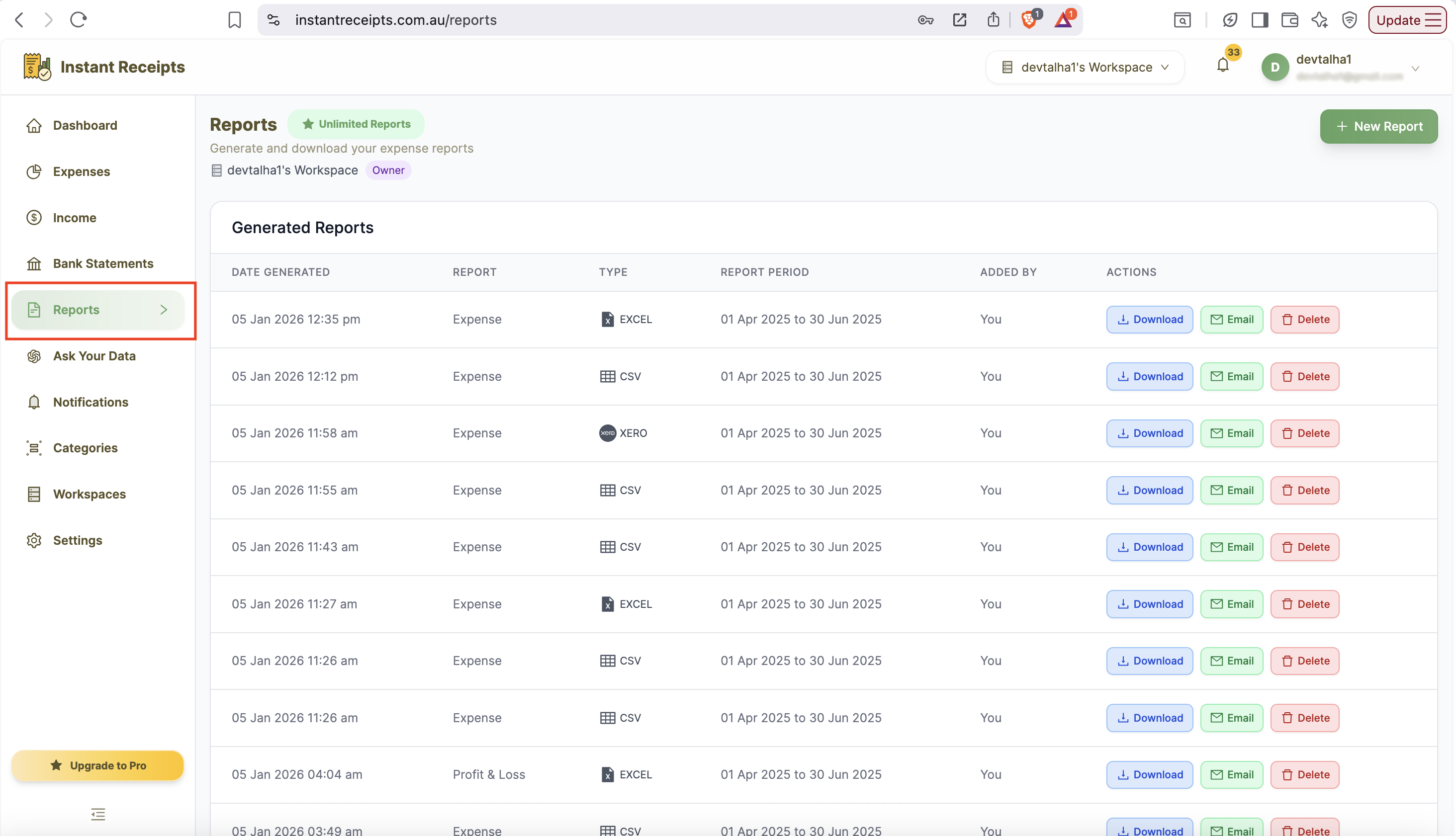
Navigate to Reports
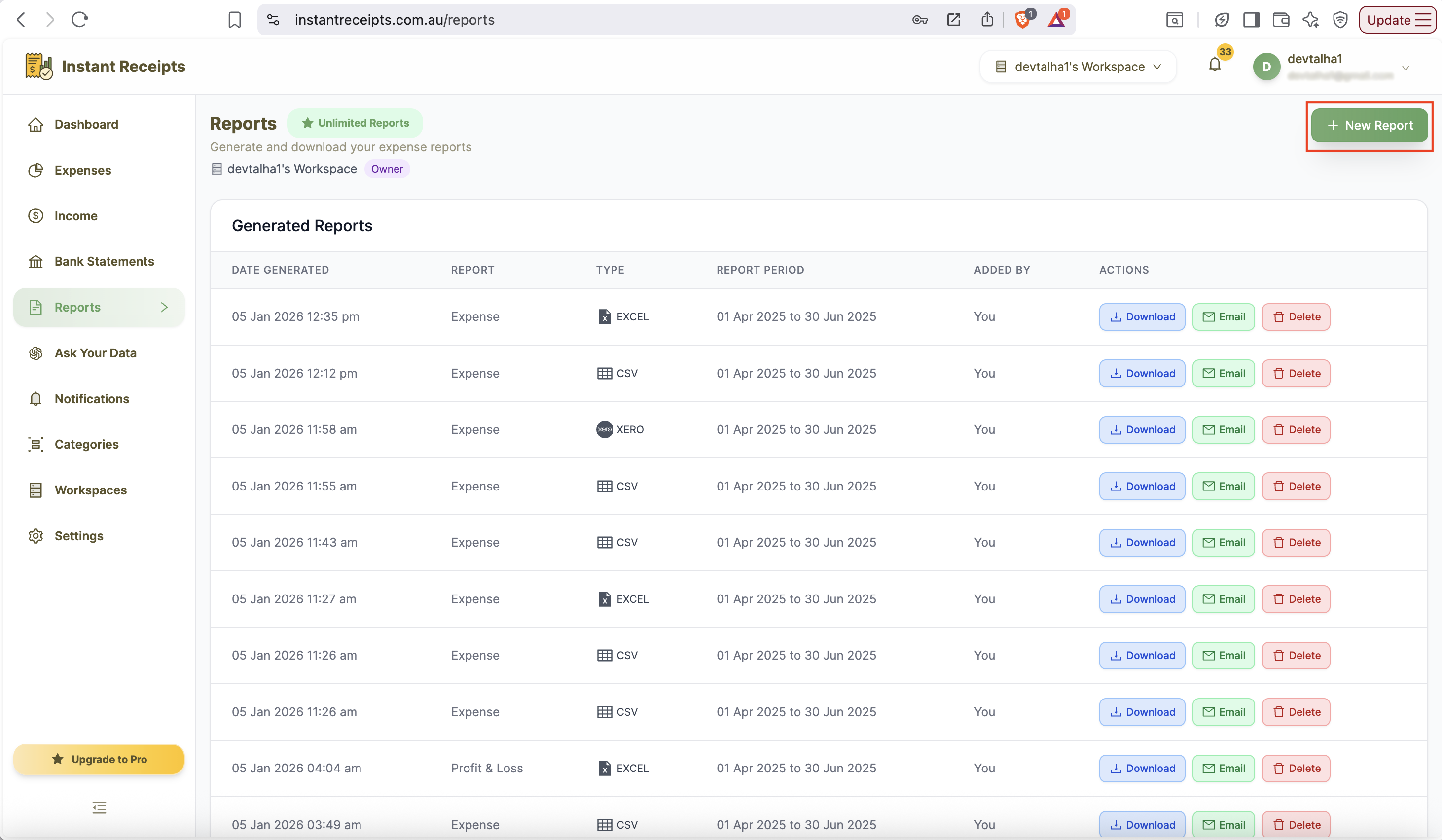
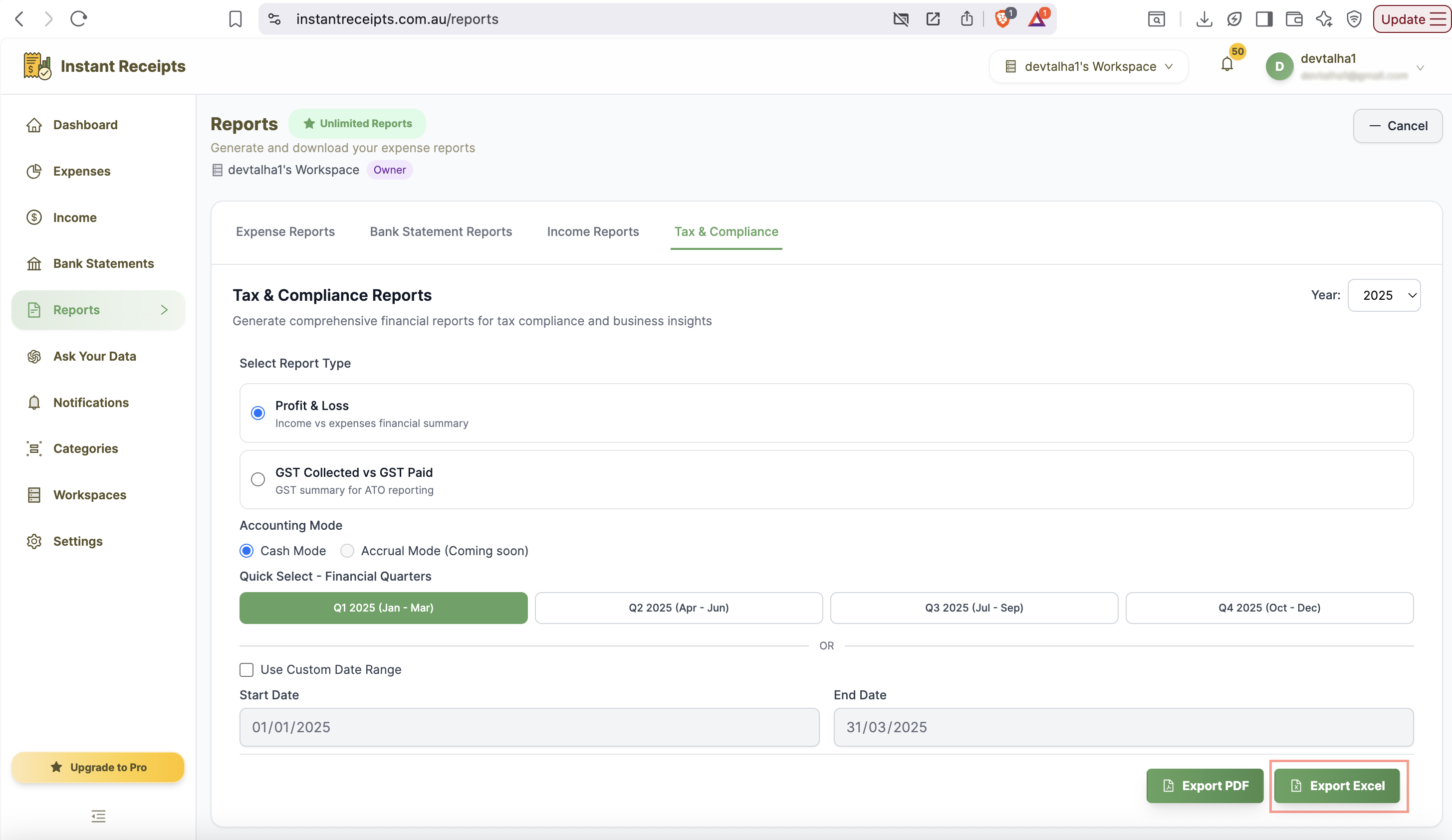
To generate your tax compliance reports, go to your instantReceipt dashboard. In the main navigation bar, find the "Report" button. Click on it, and you will be navigated to reports section. You will see the Reports page with four tabs. Click on the Tax & Compliance tab to access tax and compliance reporting features.
Select Report Type
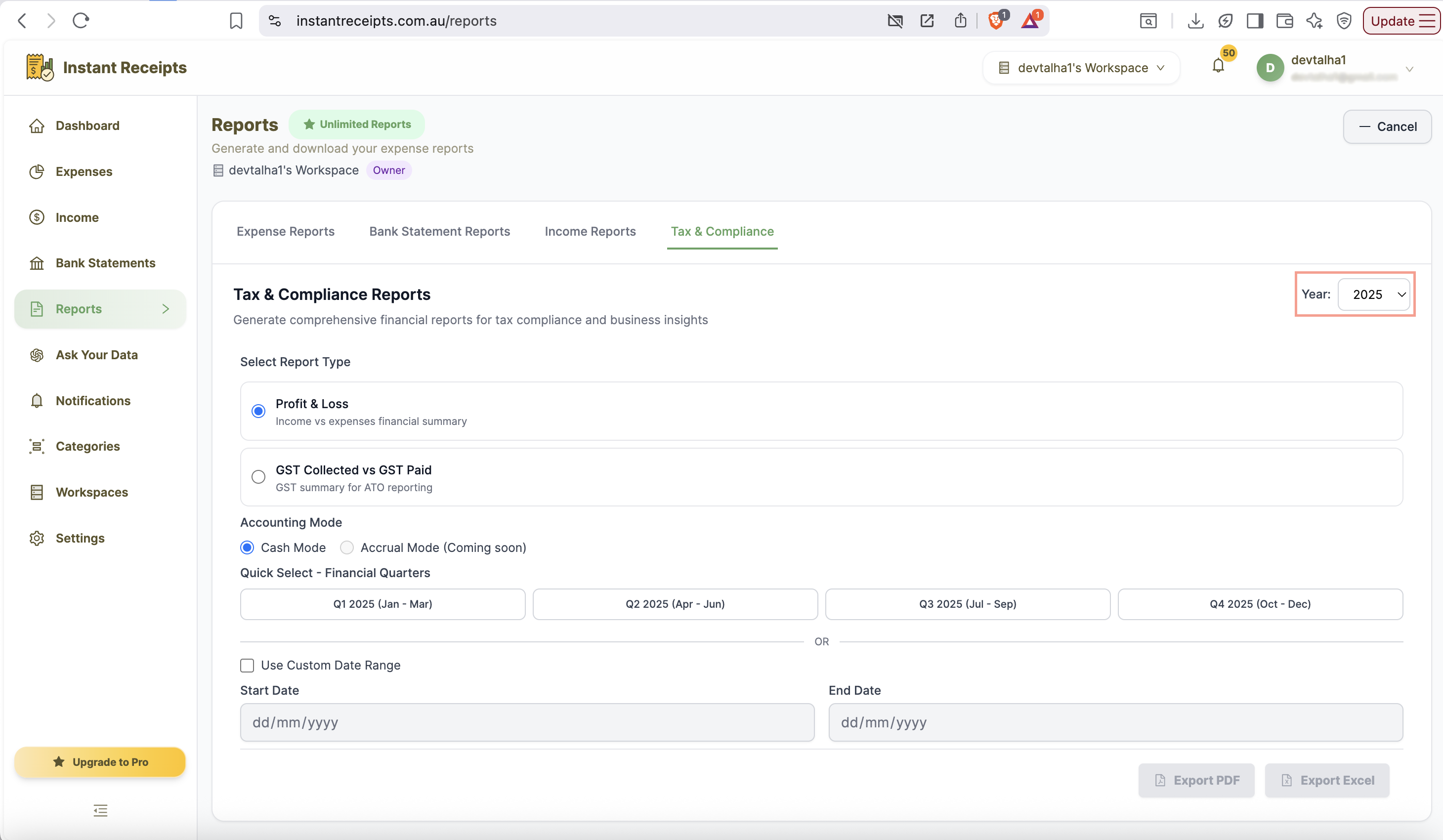
Select Profit & Loss as the report type to proceed with Excel export.
Select Your Date Range
Choose how to filter your report by date. You can use Quick Select financial quarters (Q1-Q4) or enter a custom date range. If you do not select either, all existing records will be included.
Select Accounting Method
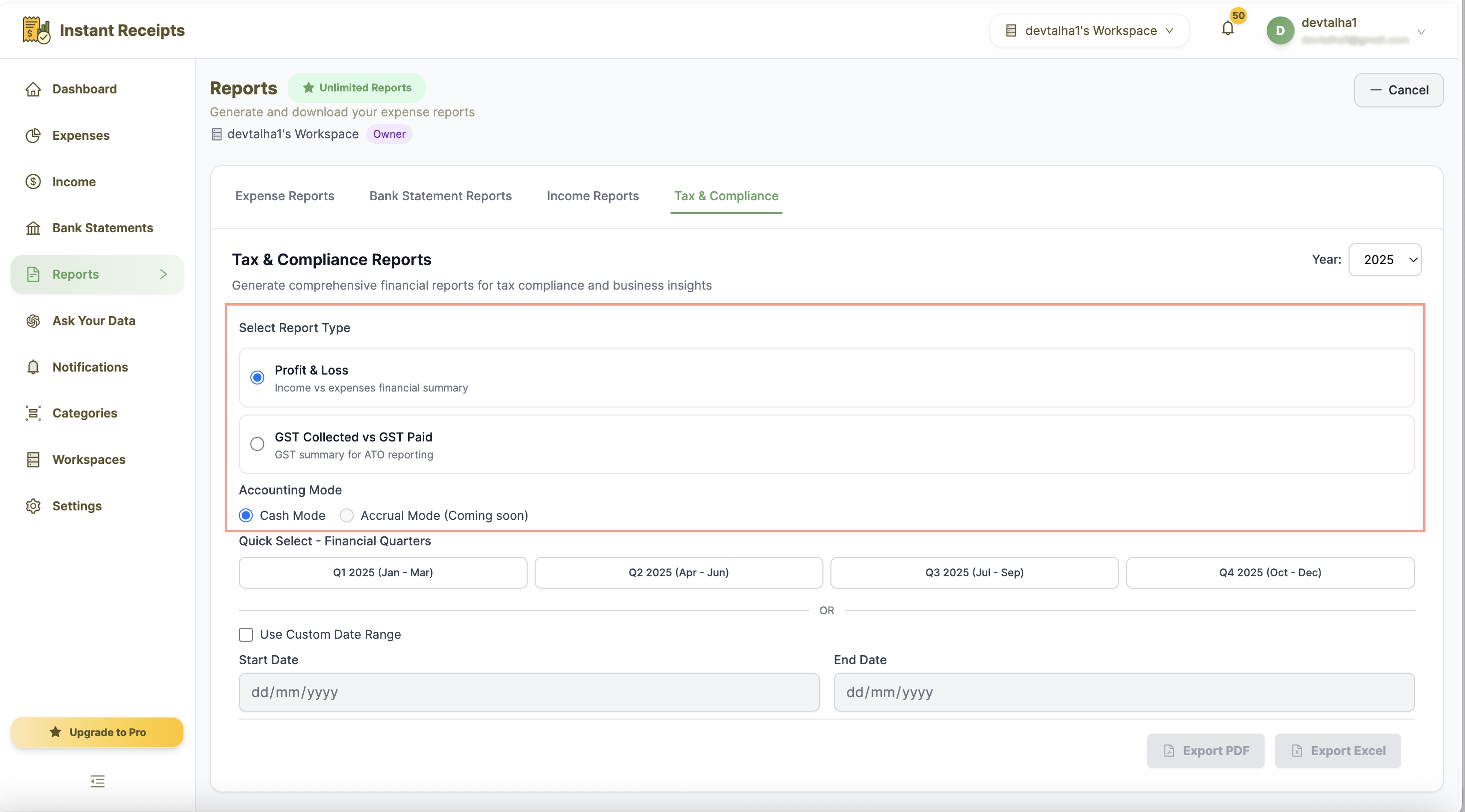
Select your accounting method carefully, as this determines how income and expenses appear in the Excel report.
Click the Excel Button
After finalising the accounting method please find the "Export Excel" button at the bottom of the report generating section. Click on this button, and you can download your file.
Download and Analyze
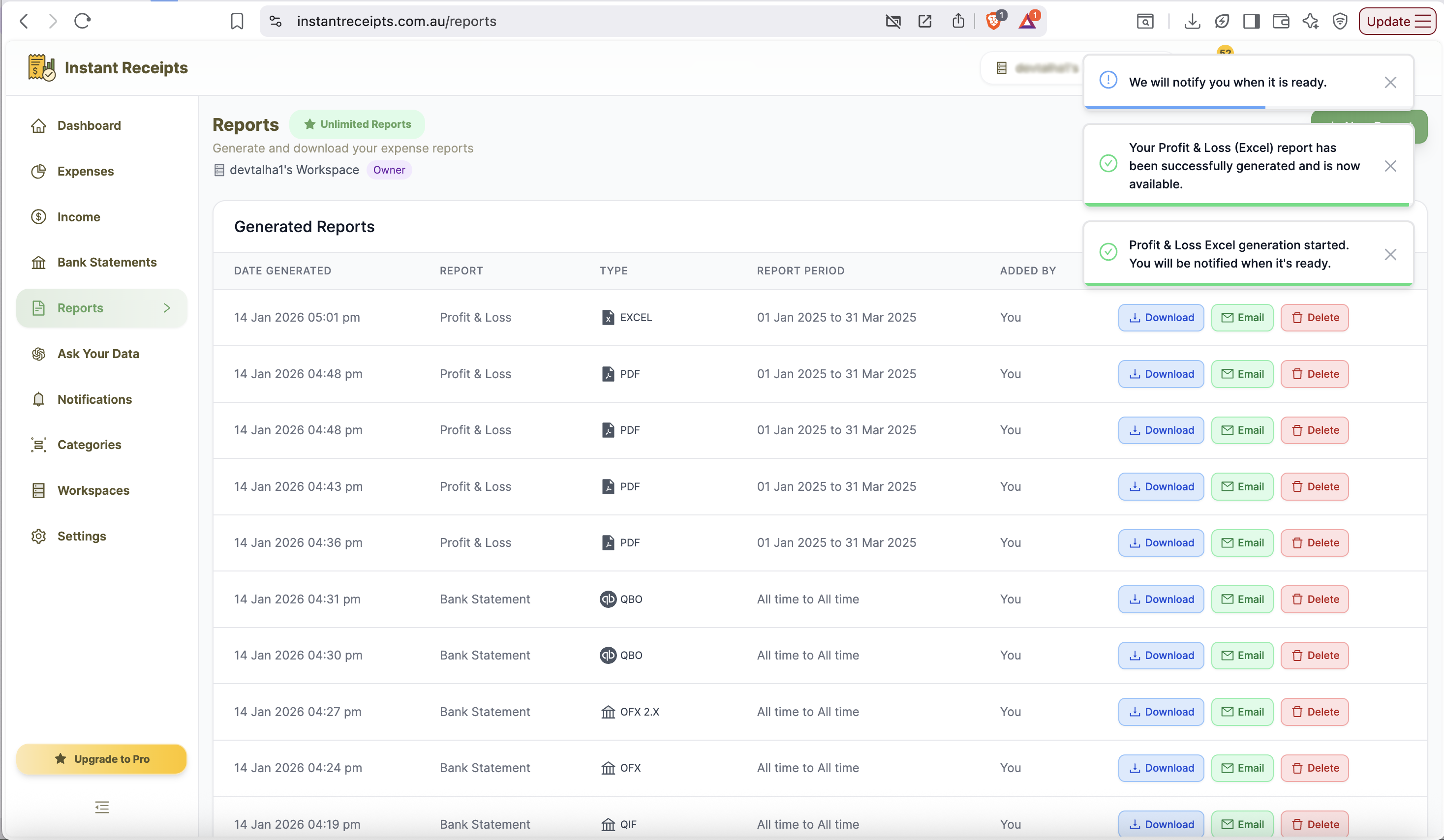
You will be notified once the file has been downloaded, then you can use advanced features for detailed financial analysis.
Preview Your Profit & Loss Excel Report
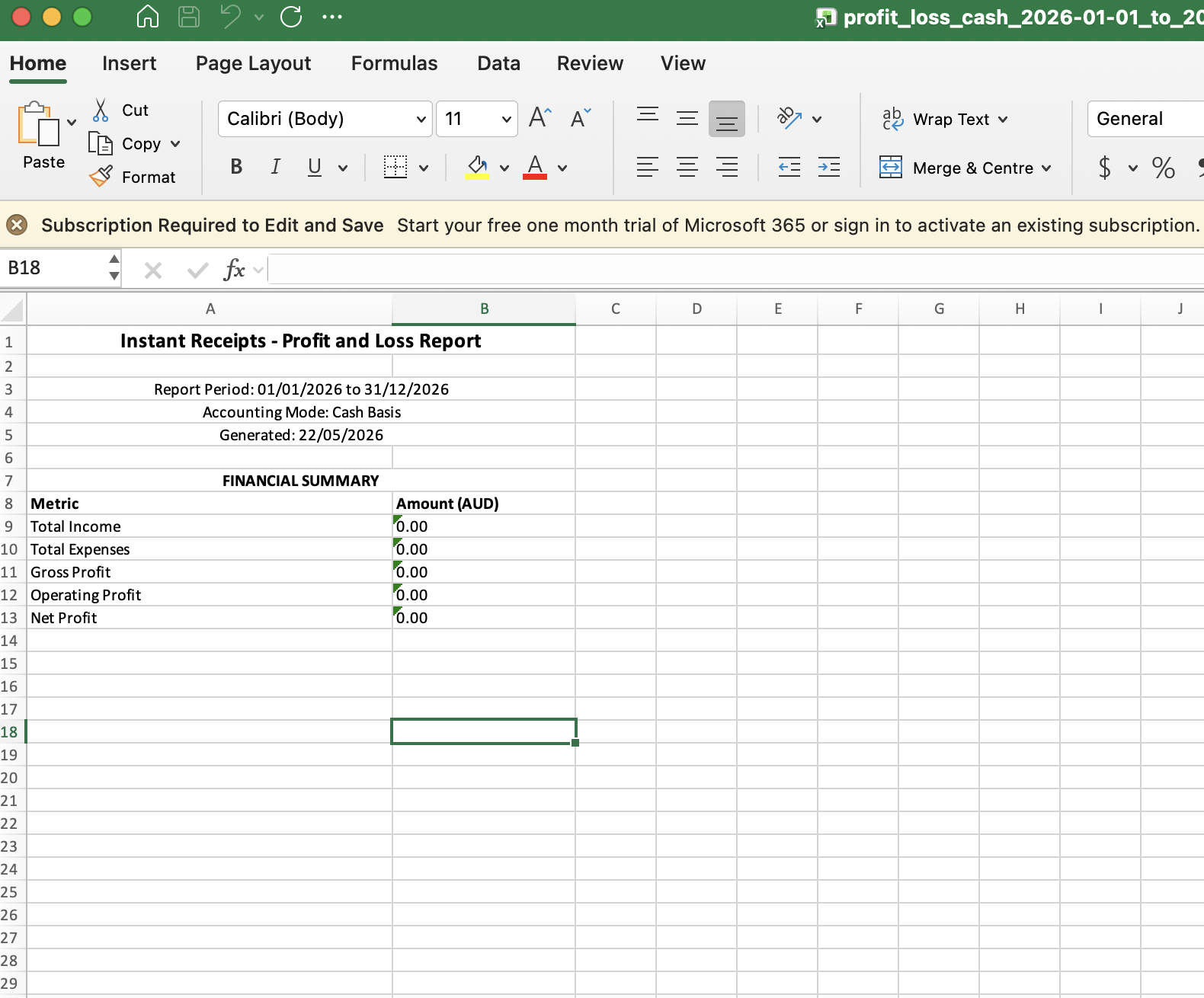
Once downloaded, open the Excel file to view your Profit & Loss report structured and ready for analysis. The report will display a clear breakdown of your income and expenses for the selected date range and accounting method. You can apply Excel formulas, create charts, or share it directly with your accountant for tax filing purposes.
Troubleshooting
The Excel file won't open.
If your file is not opening properly, it might be because you are using an older version of Excel. Please make sure you have Excel 2010 or later. You can also use Google Sheets to open the file online.
Formulas are showing as text.
Suppose you see formulas in the text format when you open your report. You can resolve this issue by pressing Ctrl+` (grave accent) to toggle formula view. Please check your Excel settings as well.
Data appears misaligned
If your data appeared misaligned, you can use the 'Format as Table' feature or adjust column widths. Sometimes Excel may need to auto-fit columns.
Accounting method not applied correctly
If your accounting method is not applied correctly, it means you must verify that you selected the correct accounting method before generating the report. Because both the cash and Accrual methods produce different results.