
Generate Profit & Loss Report as PDF
Prerequisites
- ✓Please make sure you have recorded expenses and income in the system
- ✓You must have open access to the Reports page
- ✓You should have an understanding of your accounting method (cash or accrual)
Outcome
- Includes business income, expenses, and net profit/loss.
- Instant, formatted report without manual work.
Steps
Navigate to Reports
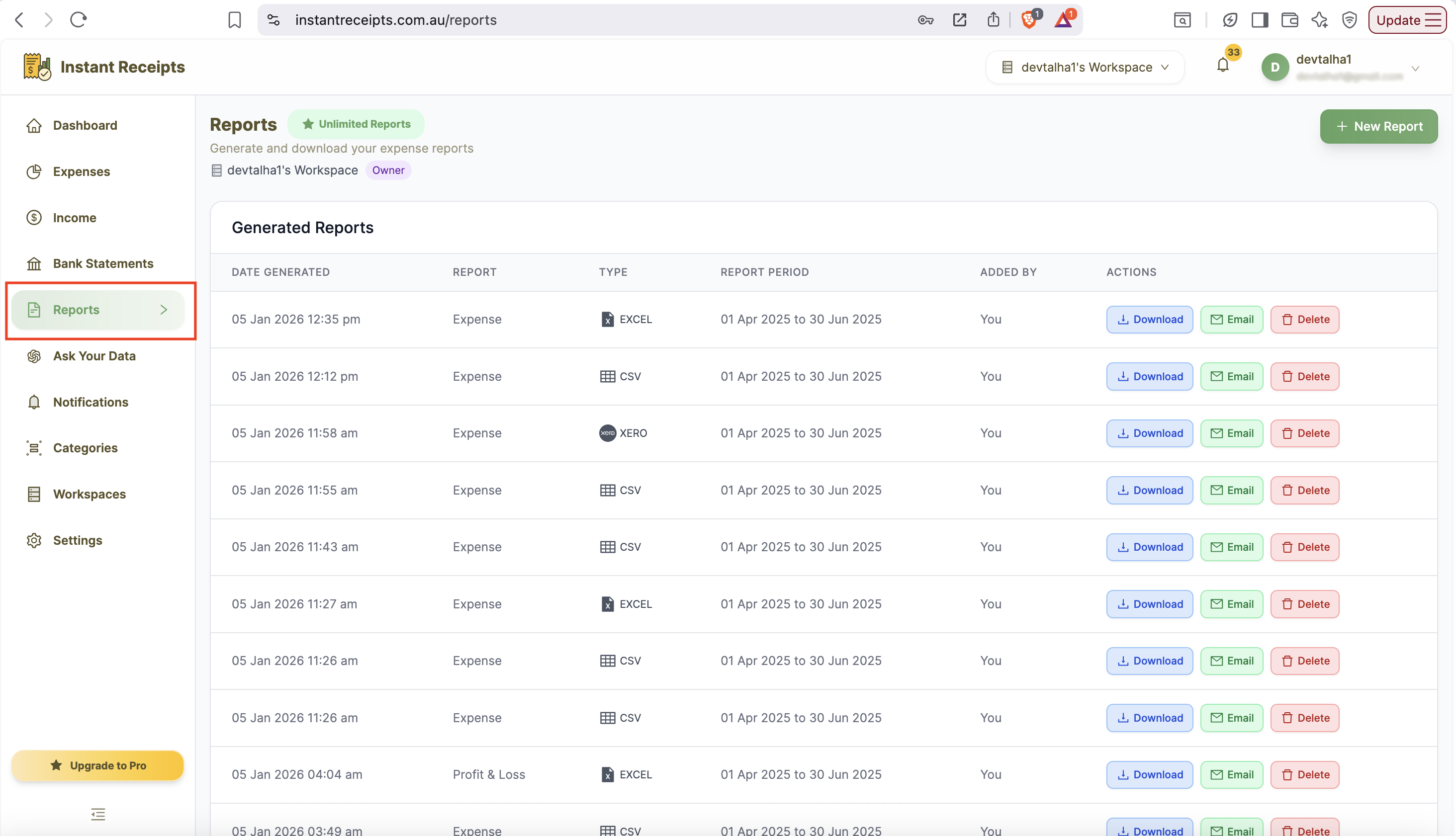
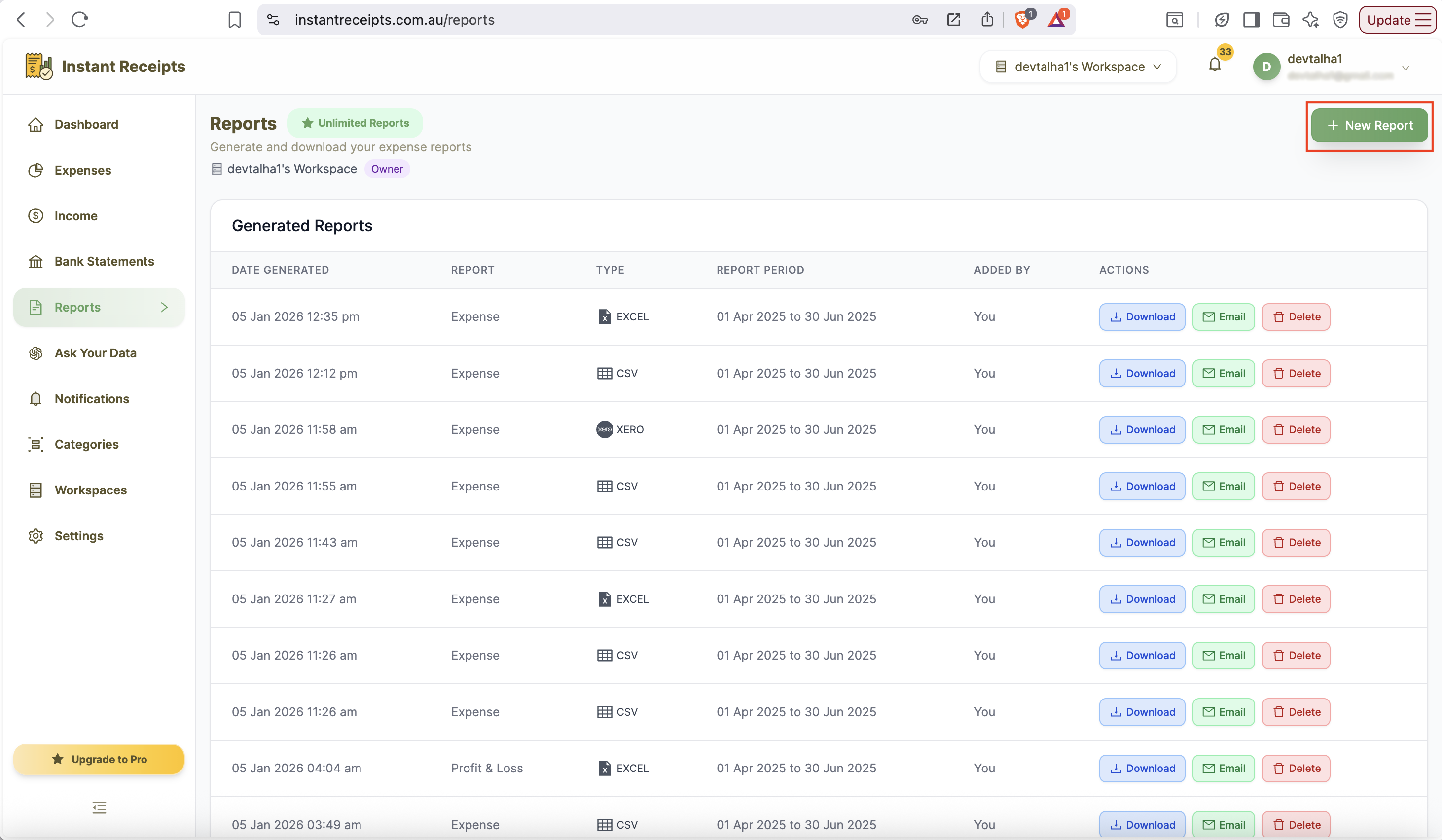
To generate your tax compliance reports, go to your instantReceipt dashboard. In the main navigation bar, find the "Report" button. Click on it, and you will be navigated to reports section. You will see the Reports page with four tabs. Click on the Tax & Compliance tab to access tax and compliance reporting features.
Select Report Type
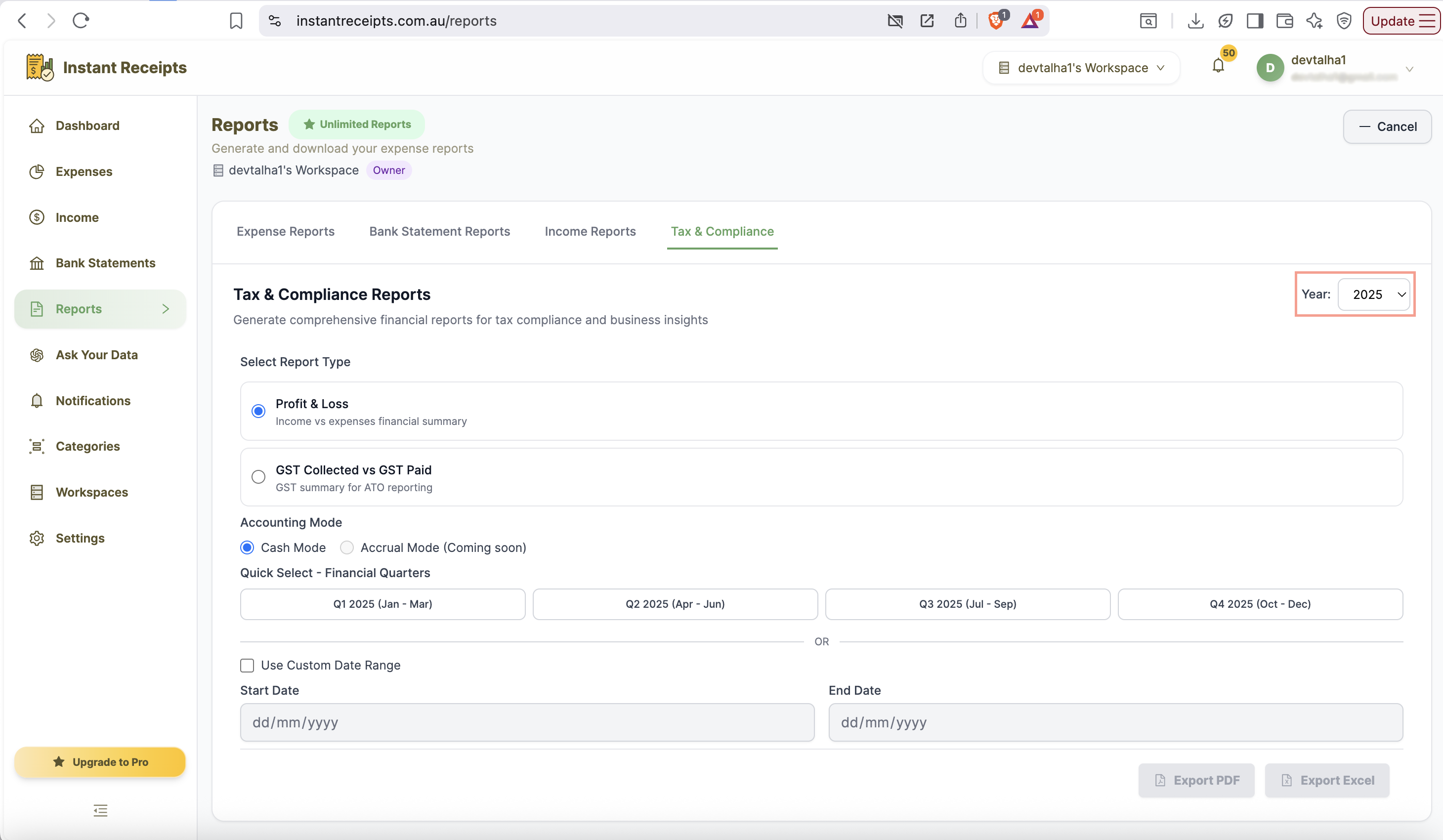
Now Select the type of tax compliance report you need to generate. Remember that each report type provides different financial insights for tax and compliance purposes, so choose accordingly.
Select Your Date Range
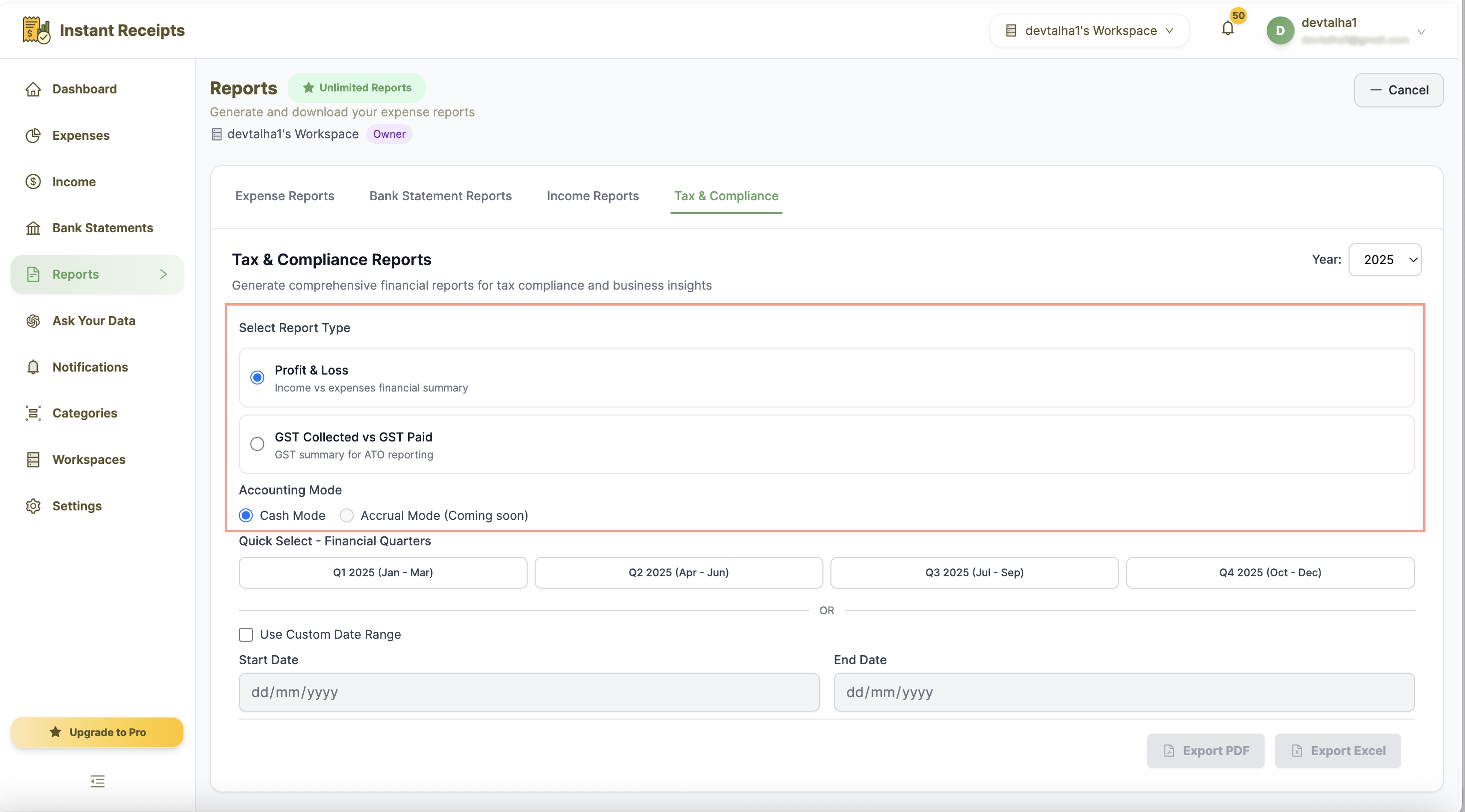
Choose how to filter your report by date. You can use Quick Select financial quarters (Q1-Q4) or enter a custom date range. If you do not select either, all existing records will be included.
Select Accounting Method (Profit & Loss Only)
Now select your accounting method. This will generate profit and loss reports. This determines how income and expenses are recorded in your report. If you are not sure which method to go with, kindly consult your accountant.
Choose Export Format
After selecting the report type, you can now choose the format in which you want your report to be exported.
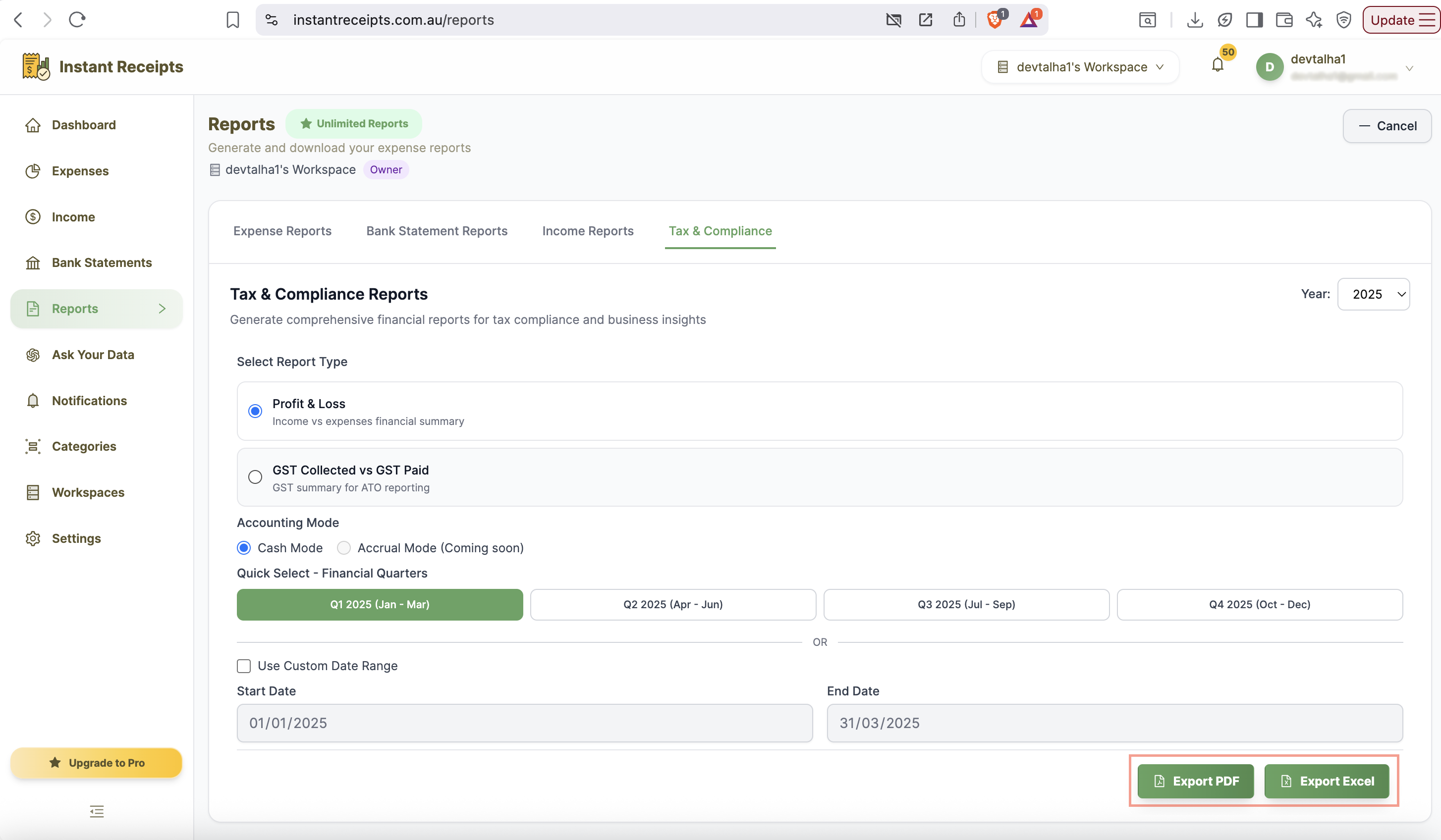
Download Your PDF Report
As soon as you click on "Export PDF," your download will start, and you will get a notification once your report is ready to view.
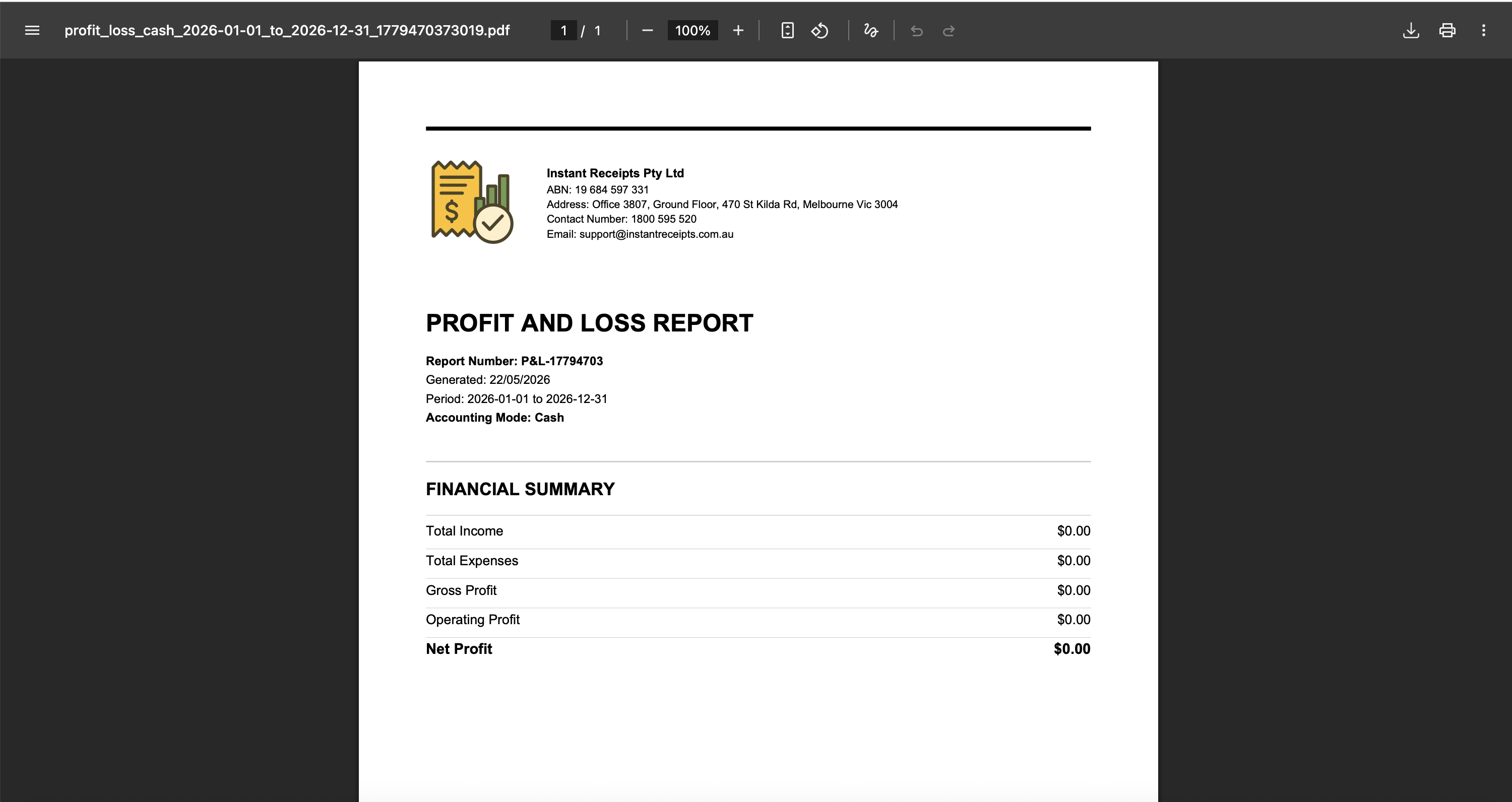
Preview Your Profit & Loss PDF Report
Once downloaded, open the PDF to view your Profit & Loss report formatted and ready to use. The report will display a clear breakdown of your income and expenses for the selected date range and accounting method. You can share it directly with your accountant, attach it to your tax return, or keep it for your financial records.
Troubleshooting
PDF won't open
If your profit loss report PDF file is not opening properly, you can try to download it again. To open the file properly, please ensure you are using a standard PDF file reader. You can use Adobe Reader, Preview on Mac, or any modern browser.
Numbers don't match my records.
Suppose you find that some of the numbers do not match your transactions. Please verify that all transactions have been properly categorised and recorded. You may have some transactions pending or in the draft section; such transactions won’t appear in your record.
PDF looks different when printed
If your PDF isn't the same after printing, it might be due to your printer settings. Check your printer settings and preview the file before printing. Another method you can pick is to adjust page scaling or margins before printing.
Accounting method not applied correctly.
If your accounting method is not applied correctly, you should verify that you have selected the correct accounting method before generating the report. Since both methods, either the Cash or Accrual methods, produce different results.