
How to Generate Tax & Compliance Reports
Prerequisites
- ✓You have recorded expenses and income in the system
- ✓You have access to the Reports page
- ✓You understand your accounting method (cash or accrual)
Outcome
- Ready for accountants and tax filing
- Track income and expenses accurately.
Steps
Navigate to Reports
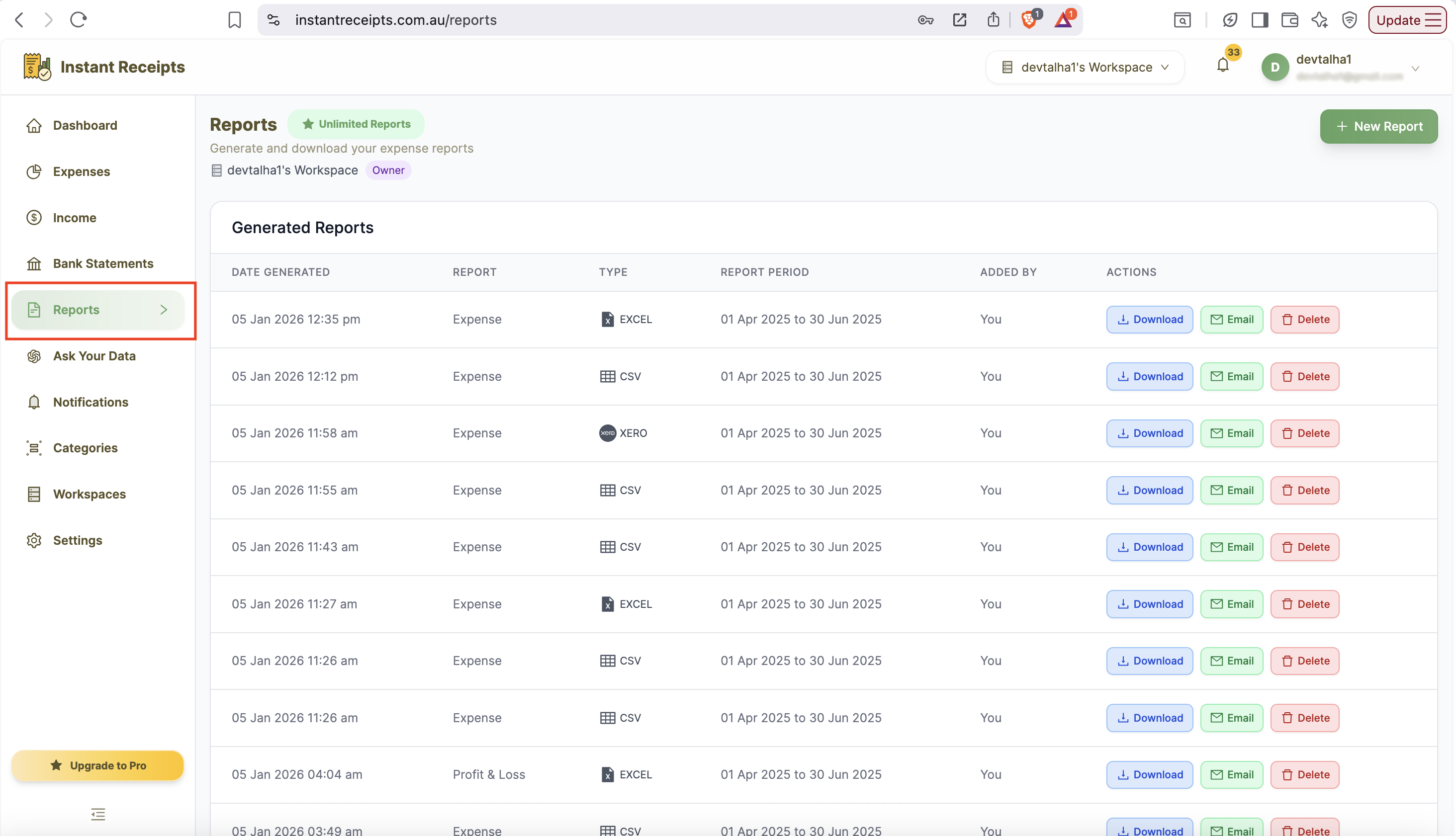
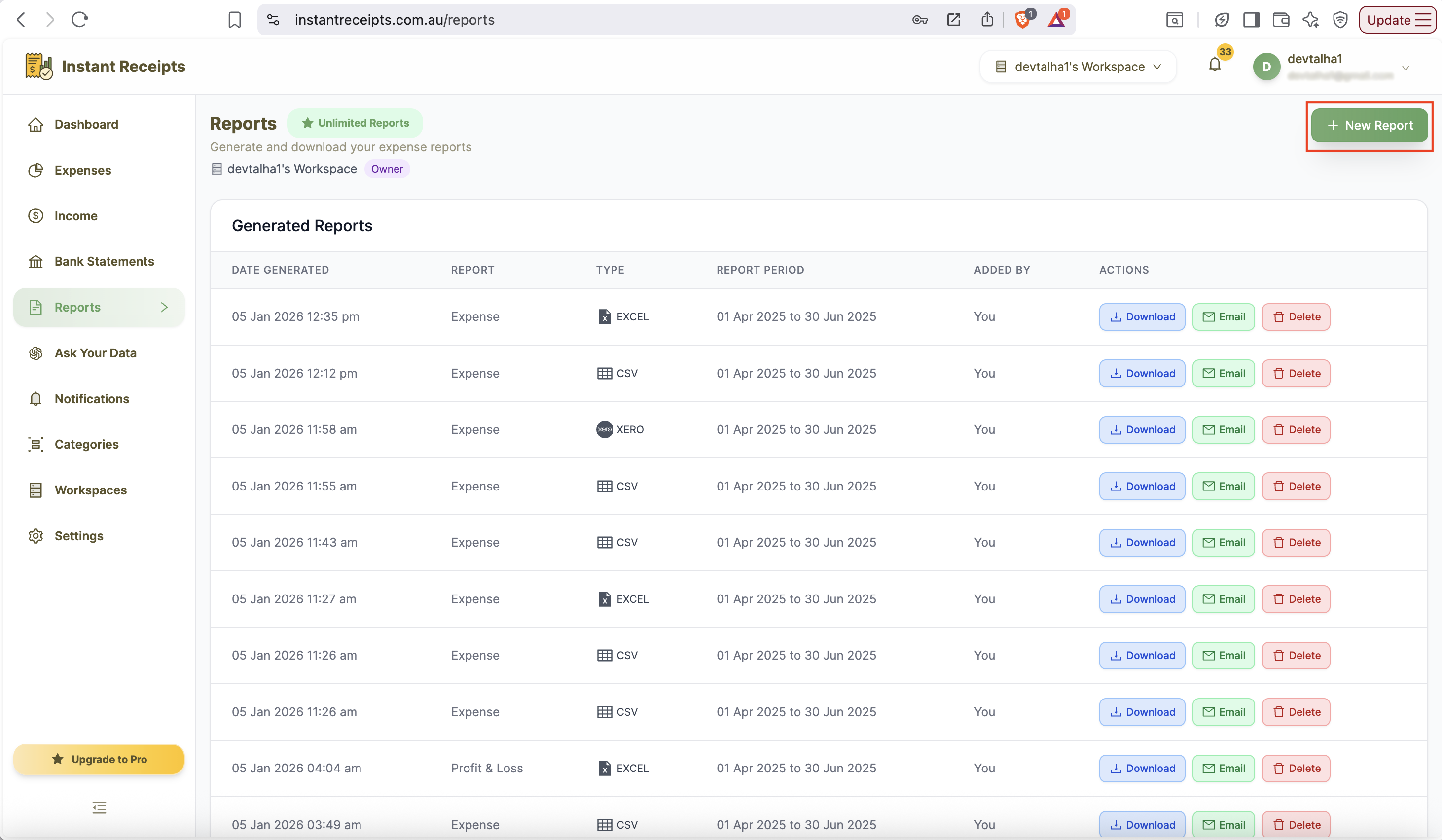
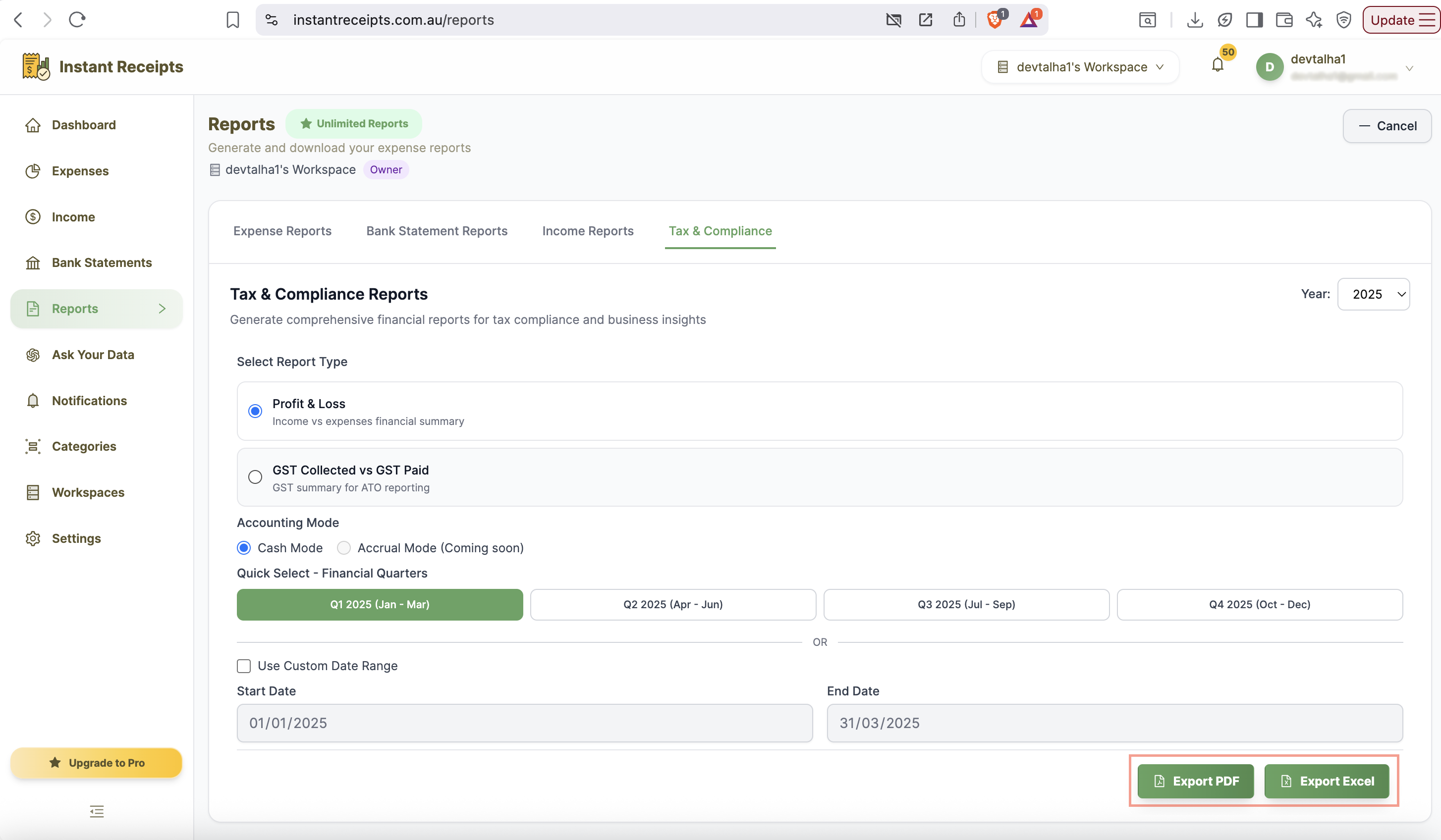
To generate your tax compliance reports, go to your instantReceipt dashboard. In the main navigation bar, find the "Report" button. Click on it, and you will be navigated to reports section. You will see the Reports page with four tabs. Click on the Tax & Compliance tab to access tax and compliance reporting features.
Select Report Type
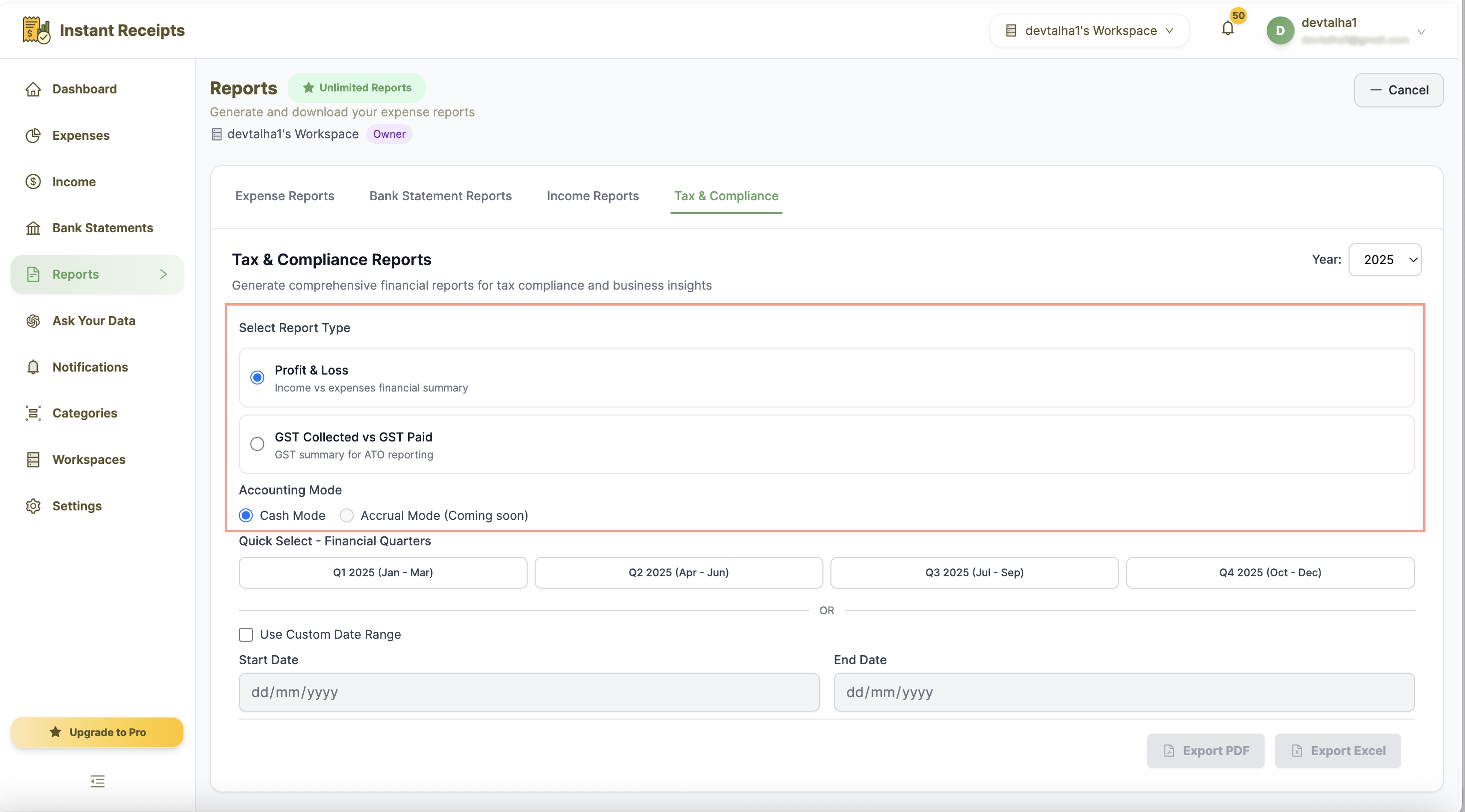
Now Select the type of tax compliance report you need to generate. Remember that each report type provides different financial insights for tax and compliance purposes, so choose accordingly.
Select Your Date Range
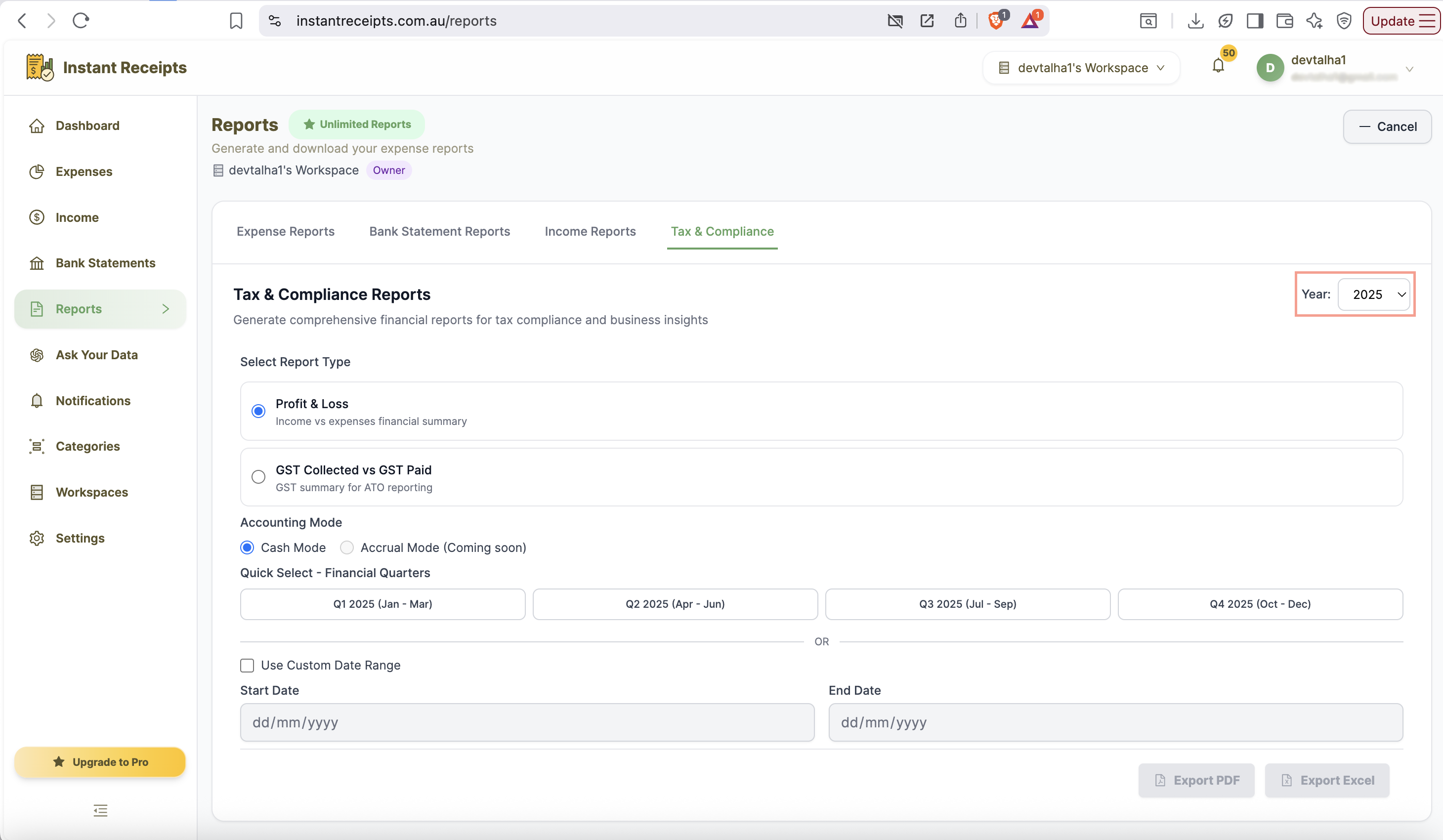
Choose how to filter your report by date. You can use Quick Select financial quarters (Q1-Q4) or enter a custom date range. If you don't select either, all existing records will be included.
Select Accounting Method (Profit & Loss Only)
Now select your accounting method. This will generate profit and loss reports. This determines how income and expenses are recorded in your report. If you are not sure which method to go with, kindly consult your accountant.
Choose Export Format
After selecting the report type, you can now choose the format in which you want your report to be exported. If you need the report for documentation, you can pick pdf. If you need to do a detailed review or analysis you can pick an Excel format.
Generate and Download
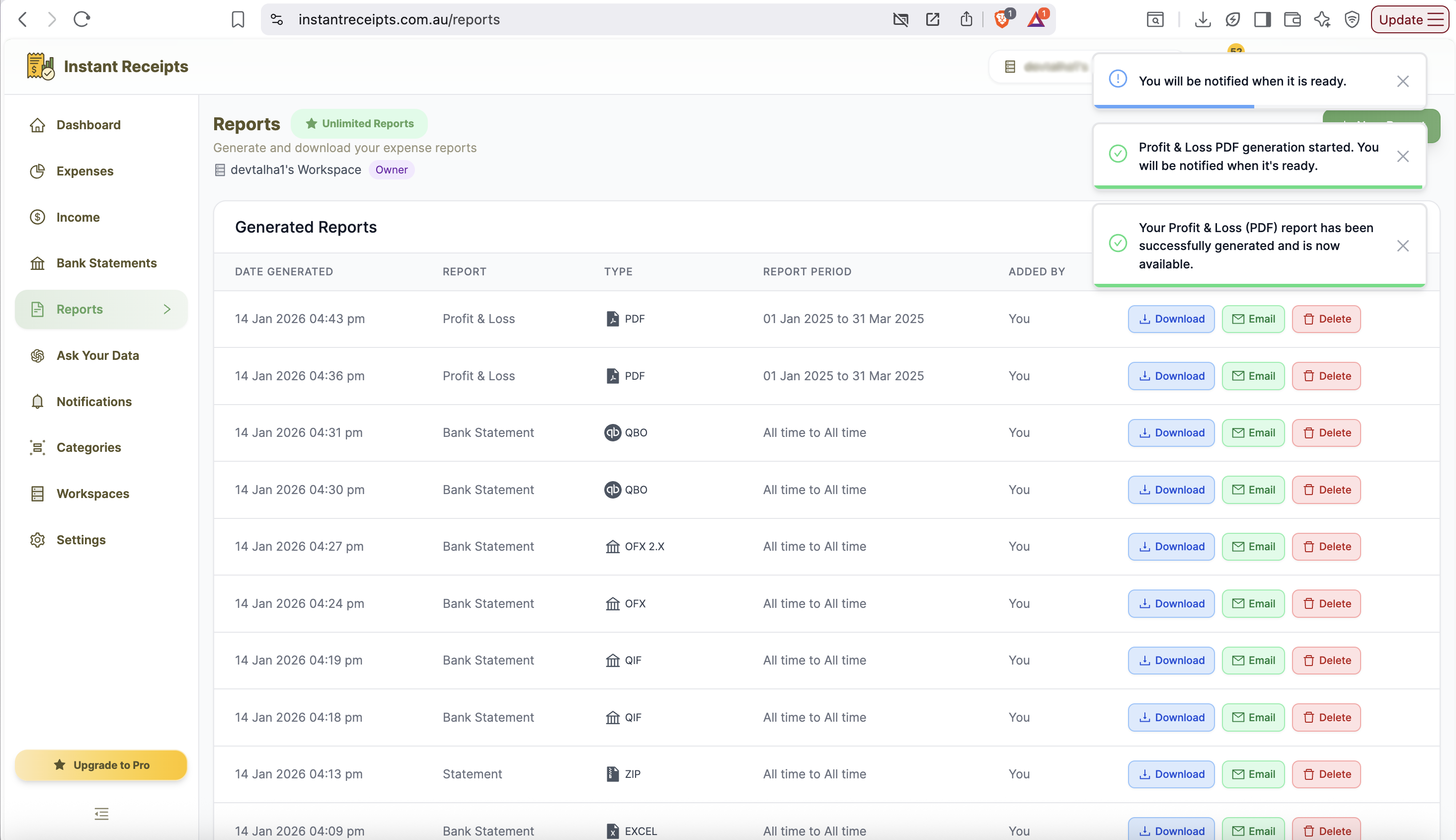
After selecting all requirements from the bottom of the panel, you can click on the required format and click the export button for your chosen format. The system will generate your report. You will be notified once your report is ready. Finally, you can download it, share it, or delete it from the Generated Reports section.
Troubleshooting
Please select the date range error
If you see an error for the date range, it means you need to check your date entry, either a financial quarter (Q1-Q4) OR a custom date range. Make sure both fields have valid dates, and the start date must be before the end date.
No data available for the report
If you see a notification saying "no data available for report", make sure you have recorded expenses and income in the system for the selected date range. The report can only include data that has been entered.
Report generation takes too long
If your reports are taking too long, it means you have selected large date ranges with many expenses. That's why it takes longer to process. To resolve this issue, try narrowing your date range or filtering by category to reduce data volume. If the problem still persist please make sure you have a reliable internet connection.
File won't download
Check your browser's download settings. Try a different browser. Ensure pop-ups aren't blocked. Try the Share option instead to send the report to yourself.
Numbers don't match my records.
To resolve this issue, please verify that all transactions have been properly categorised and recorded. You should also look for any pending or draft transactions that may not be included. If discrepancies still persist, consult with your accountant for a detailed review.
GST calculation appears incorrect
If the calculated GST appears incorrect, it means there could be potential for inaccurate tax codes or marking in taxable items. So to avoid any issue persists be sure all transactions are properly tagged with the correct tax codes. Also, verify that GST-applicable items are correctly marked. Lastly, check that your tax settings are configured correctly in the system.