


Generate Balance Sheet Report as Excel
Prerequisites
- ✓You have recorded expenses and income in the system
- ✓You have access to the Reports page
Outcome
- A snapshot of assets, liabilities, and equity as of a chosen date, in an editable spreadsheet
Steps
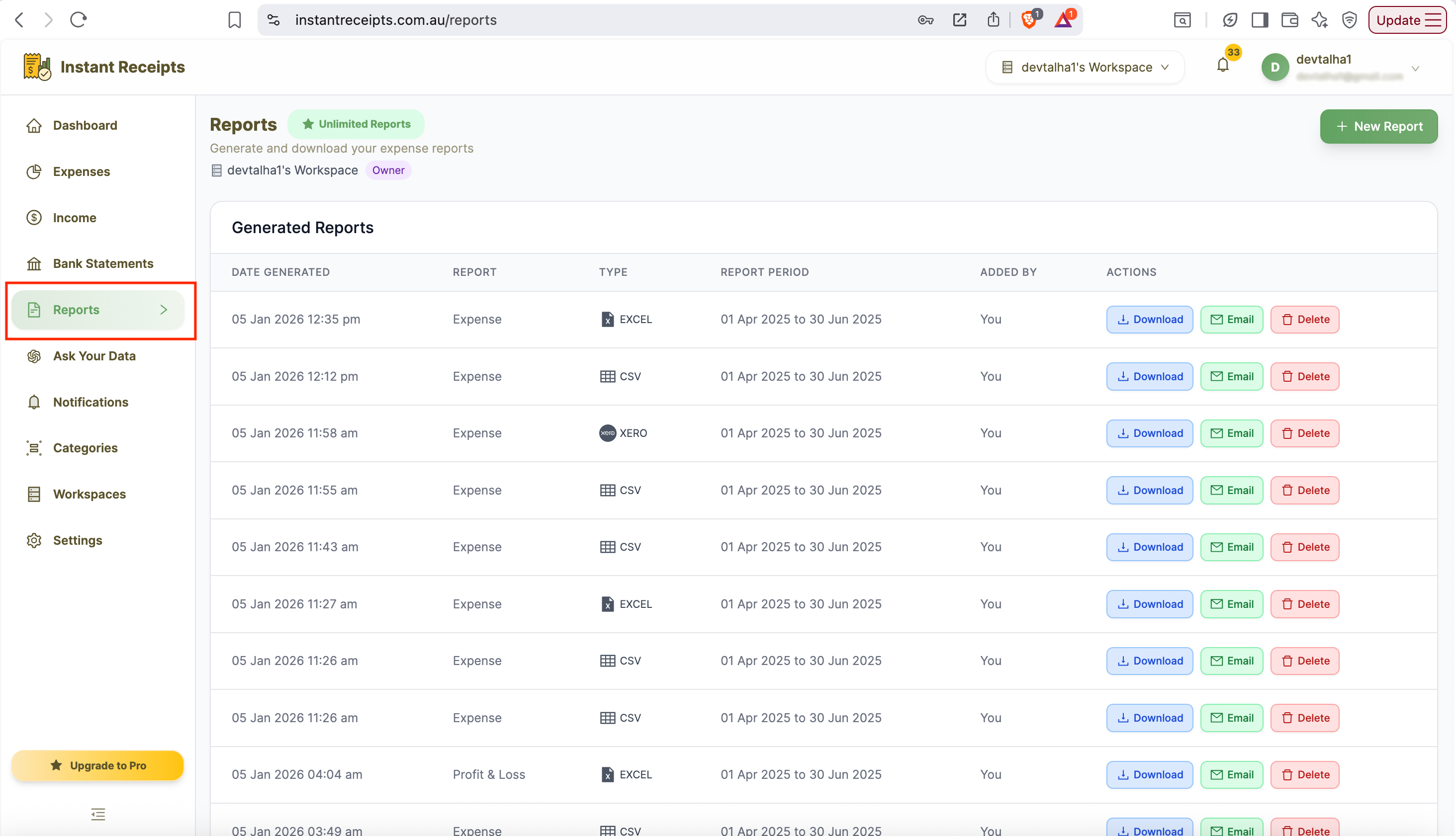
Navigate to Reports
Go to your dashboard, click Reports in the main navigation, then click the Tax & Compliance tab.
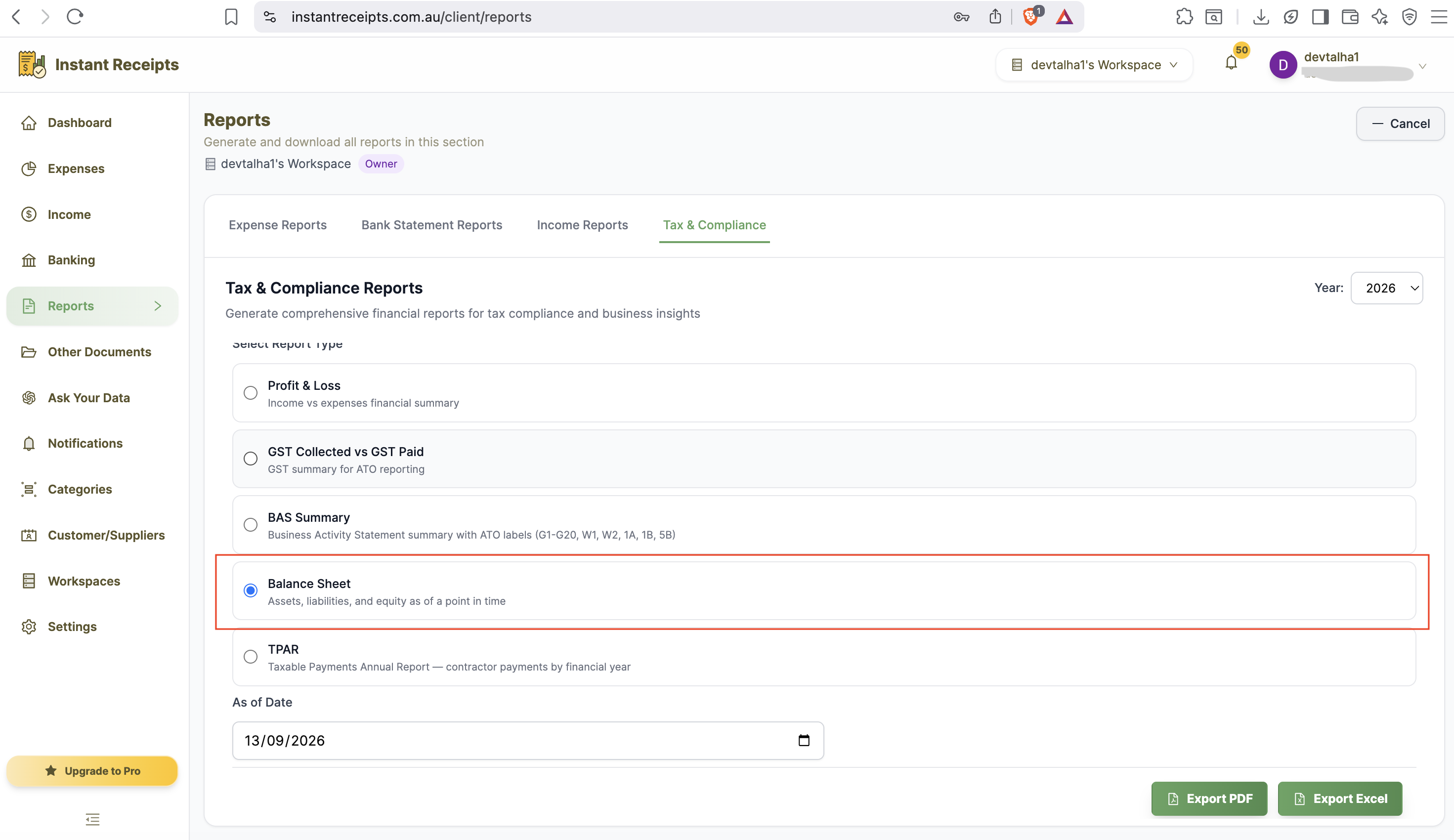
Select Balance Sheet
Select "Balance Sheet" as your report type.
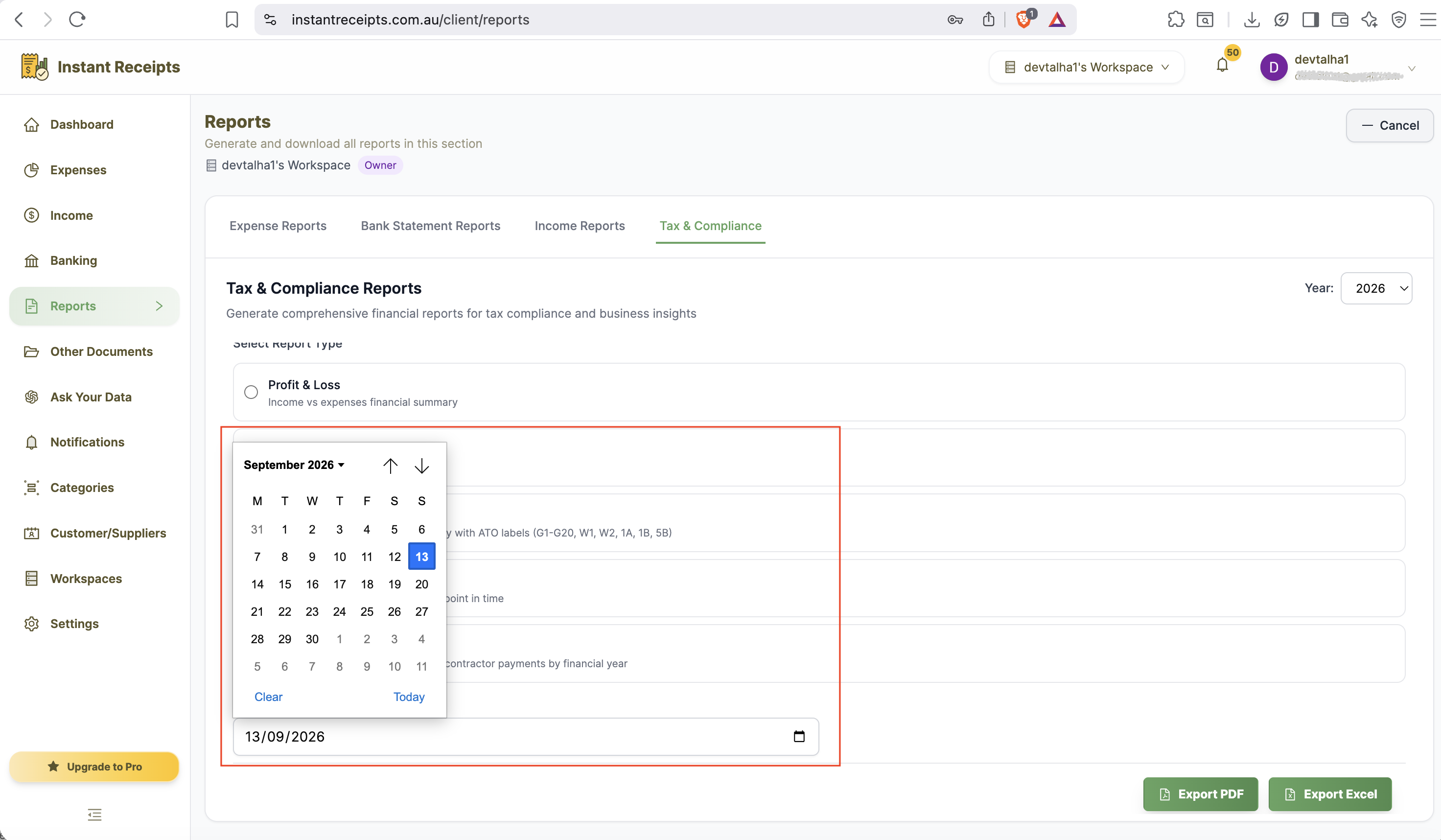
Select an "As of Date"
Enter the date you want your Balance Sheet calculated as of - a single point-in-time date, not a range.
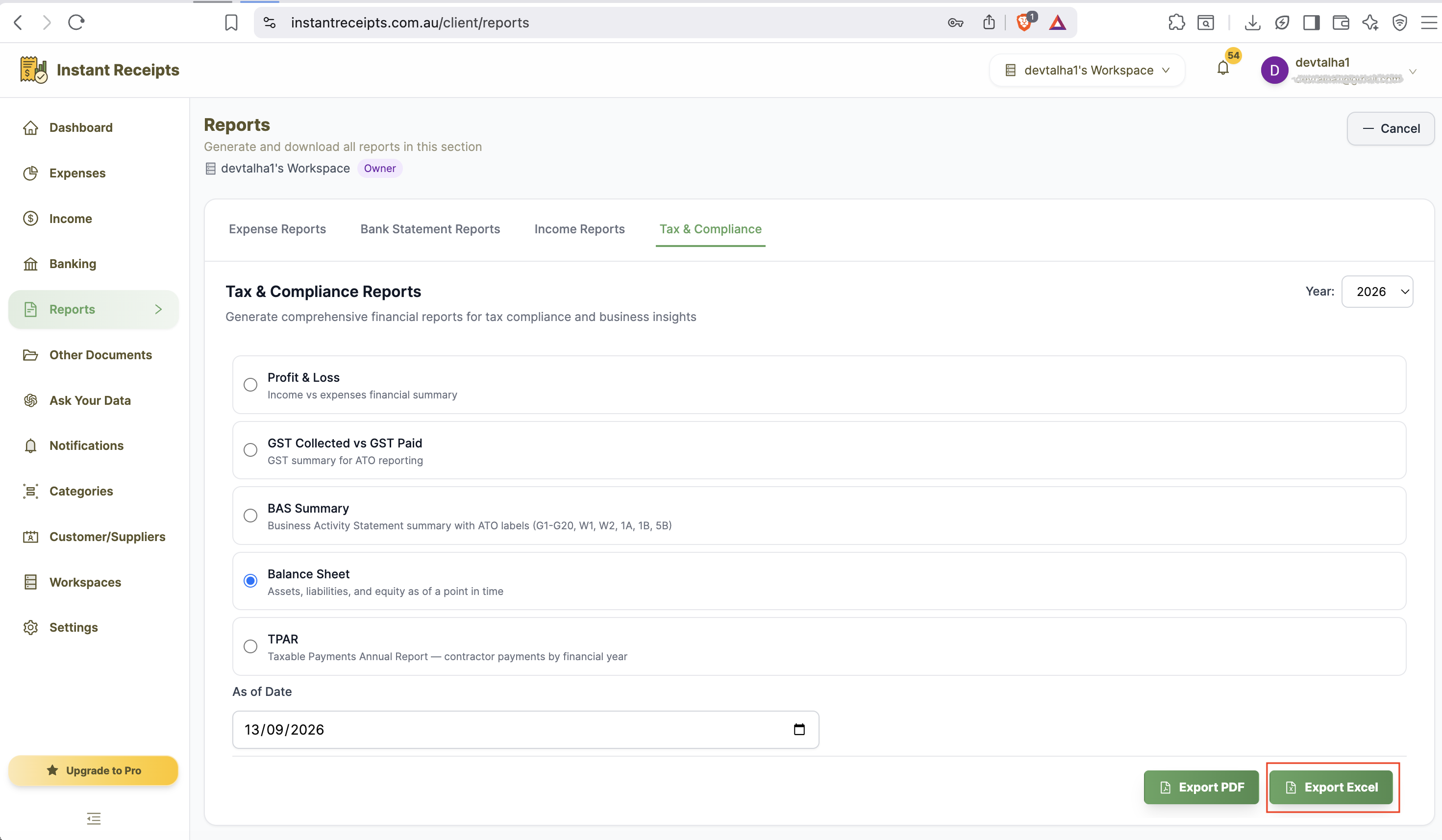
Click Excel
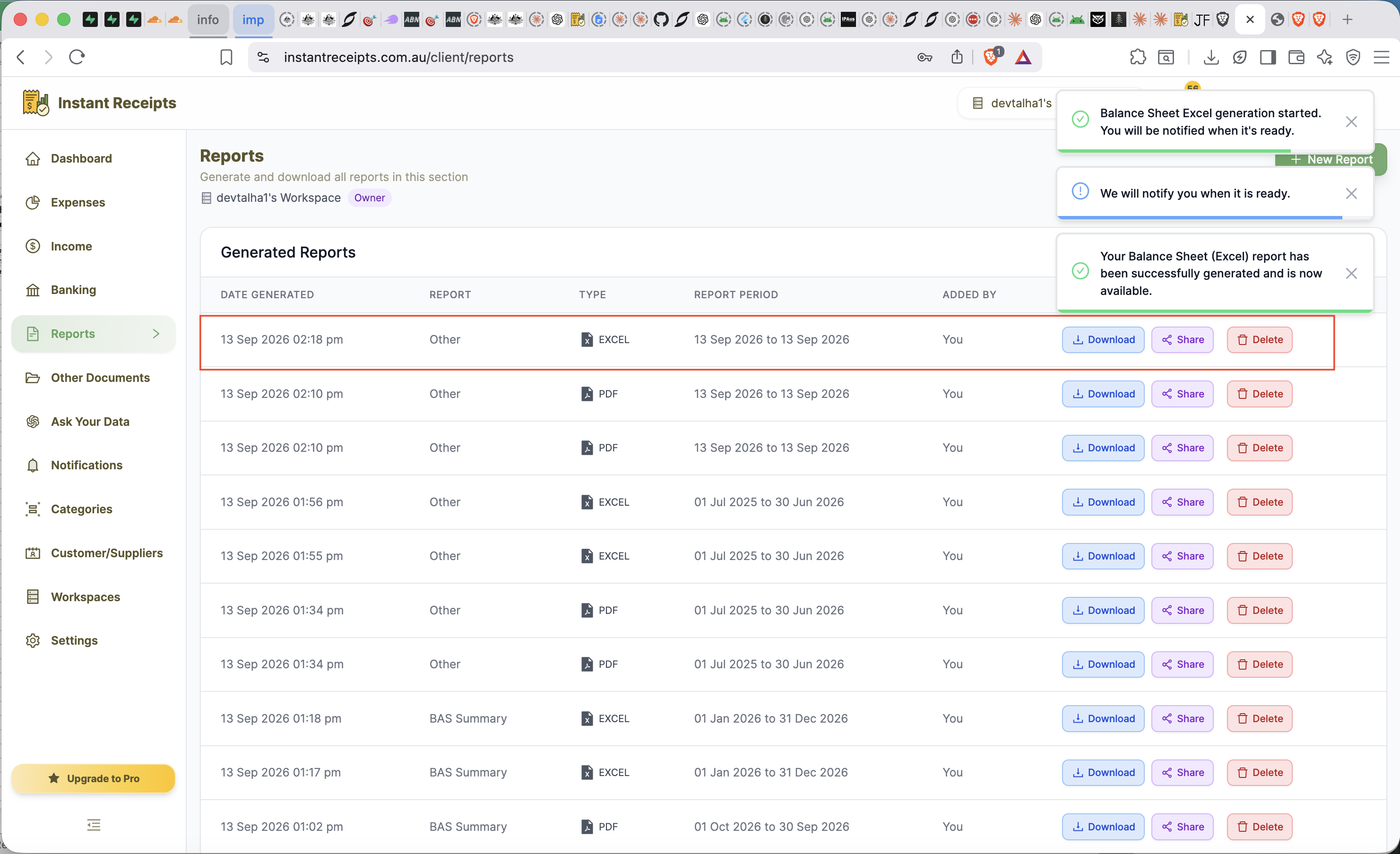
Click the Excel button. Generation starts immediately and you will be notified when your report is ready.
Download Your Balance Sheet
Once ready, download the Excel file from the Generated Reports section.
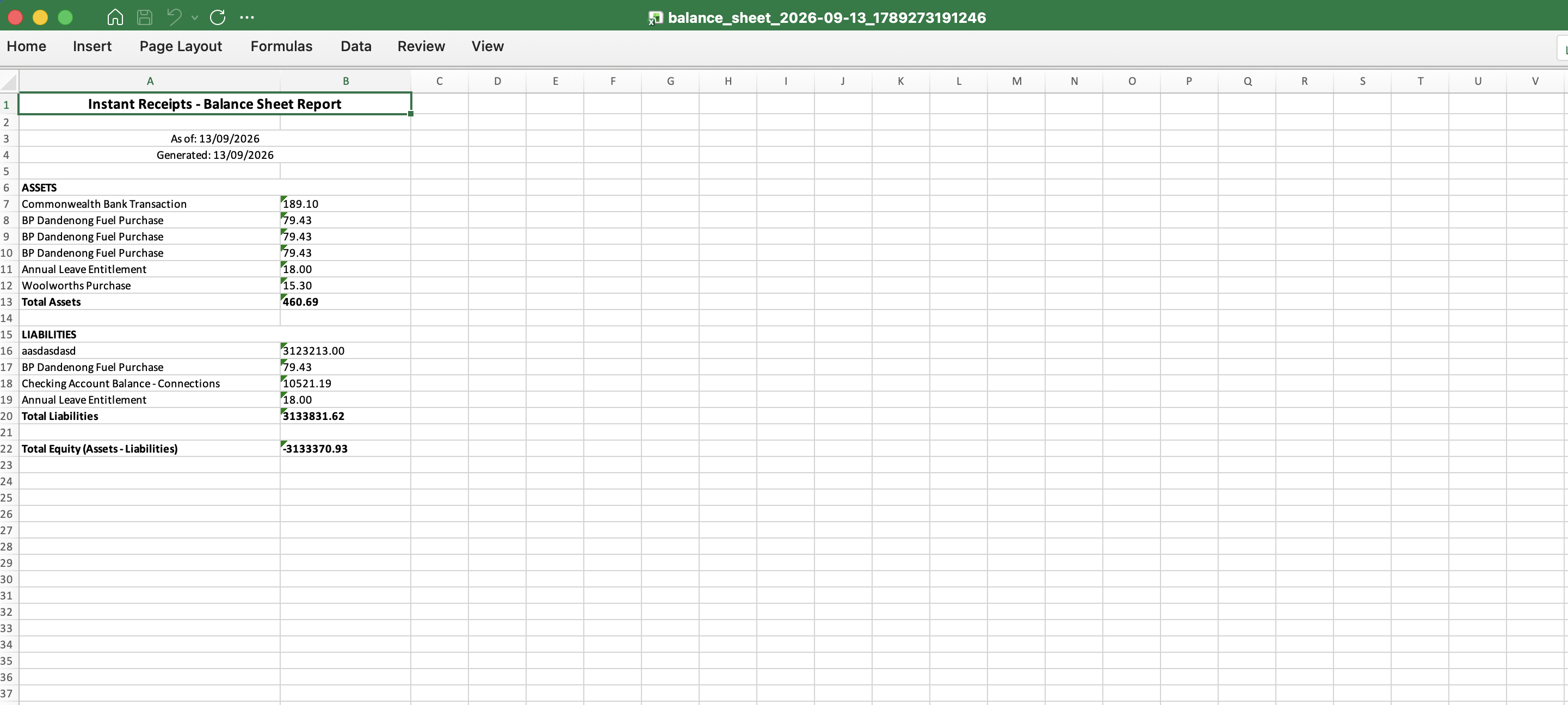
Preview Your Balance Sheet Excel Report
Once downloaded, open the spreadsheet to view your Balance Sheet as of the selected date. Review the breakdown of assets, liabilities, and equity, and adjust any figures directly if needed before sharing with your accountant or keeping it for your records.
Troubleshooting
Please select an as-of date error
Balance Sheet needs a single "As of Date" rather than a start/end range - make sure that field is filled in before generating.
Figures don't match my records
Verify all transactions up to your chosen date are recorded and properly categorised.