
How to Export Expense Reports
Prerequisites
- ✓You should have uploaded expenses in the Expenses section
- ✓You should have access to the Reports page
- ✓You must understand your workspace role and permissions
Outcome
- Generate reports for a selected date range and category
- Download, email, or share reports with your accountant
Steps
Navigate to Reports
Start by navigating to the report page. For this, go to your dashboard and click on reports. You will find this in the main navigation section. When the report page opens, you will see four tabs. These will include: Expense Reports Bank Statement Reports Income Reports Tax & Compliance.
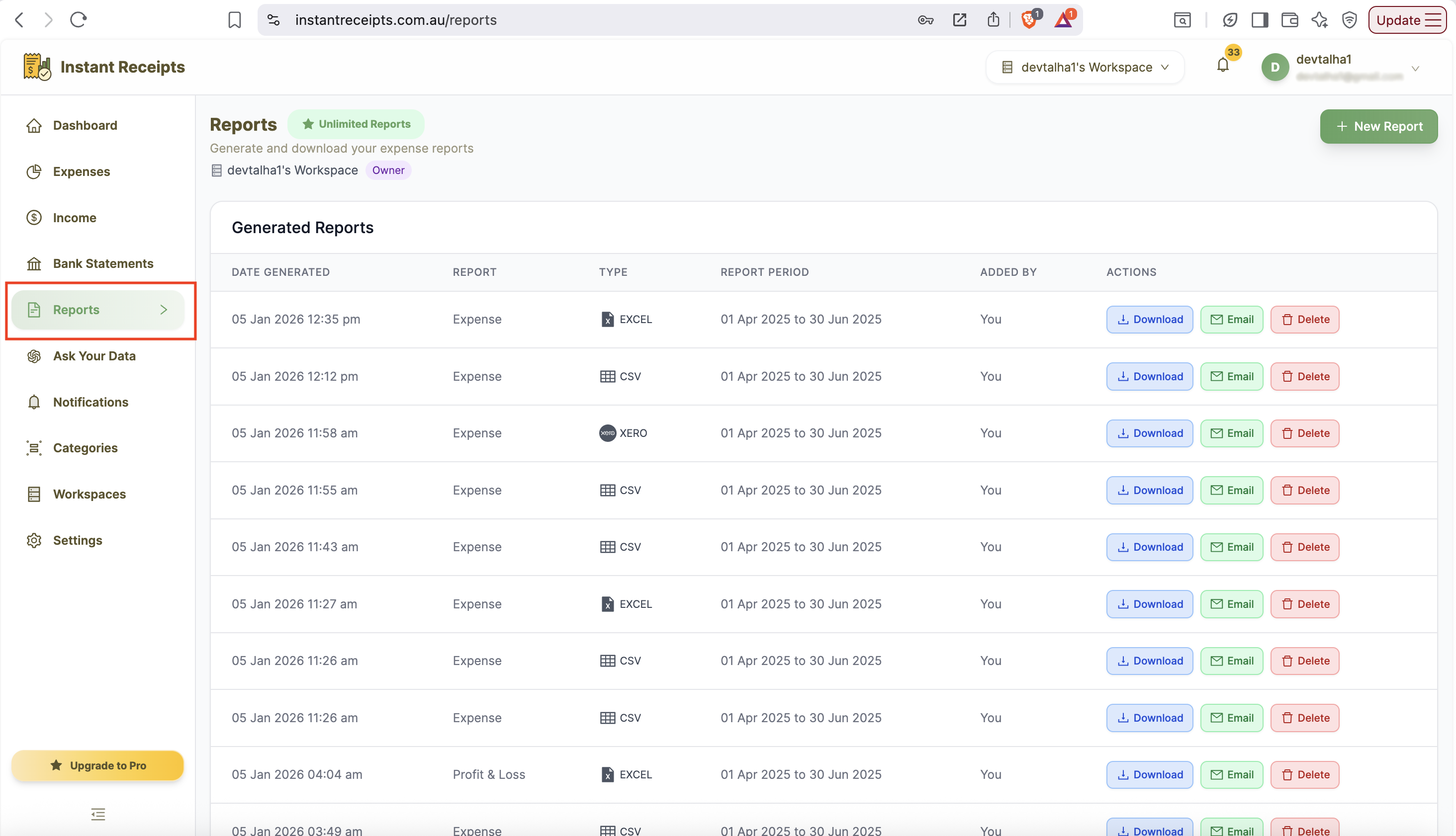
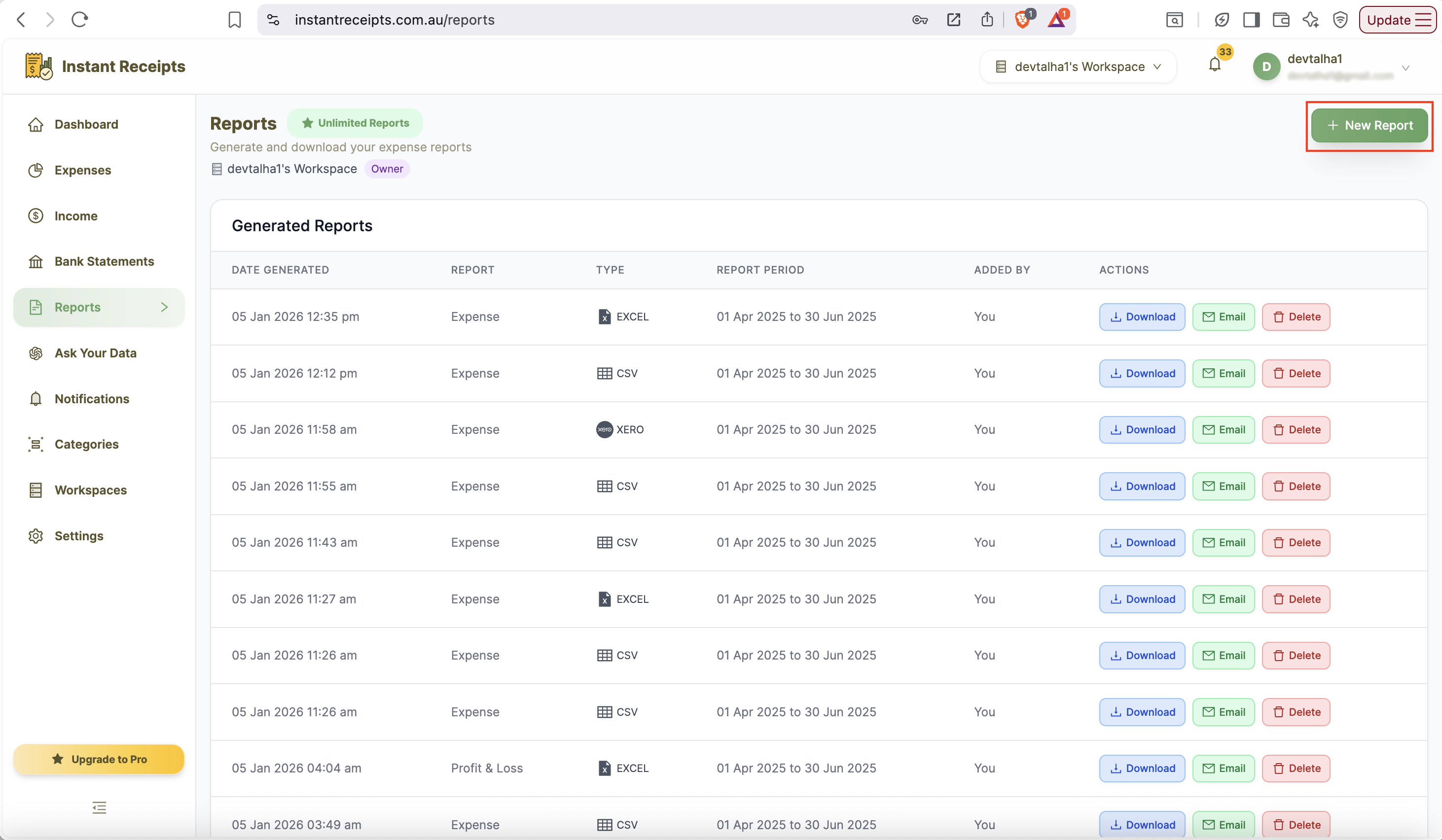
Click New Report
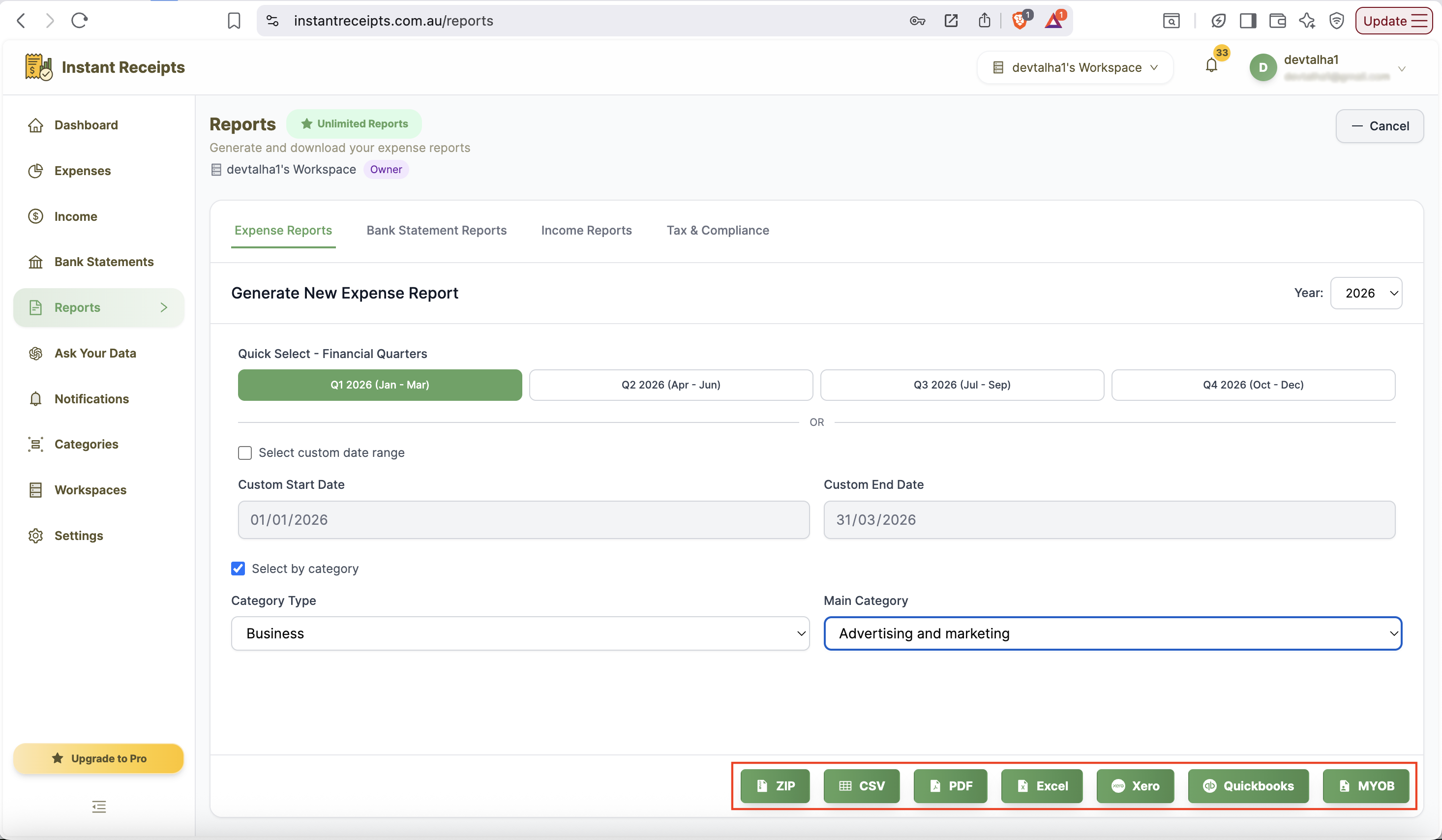
Now you will find a green button for new reports on the top right corner of this page. You can click on this to start creating a new report. After clicking on this button, a new report generation panel will appear. It will show all available options for customisation of your export.
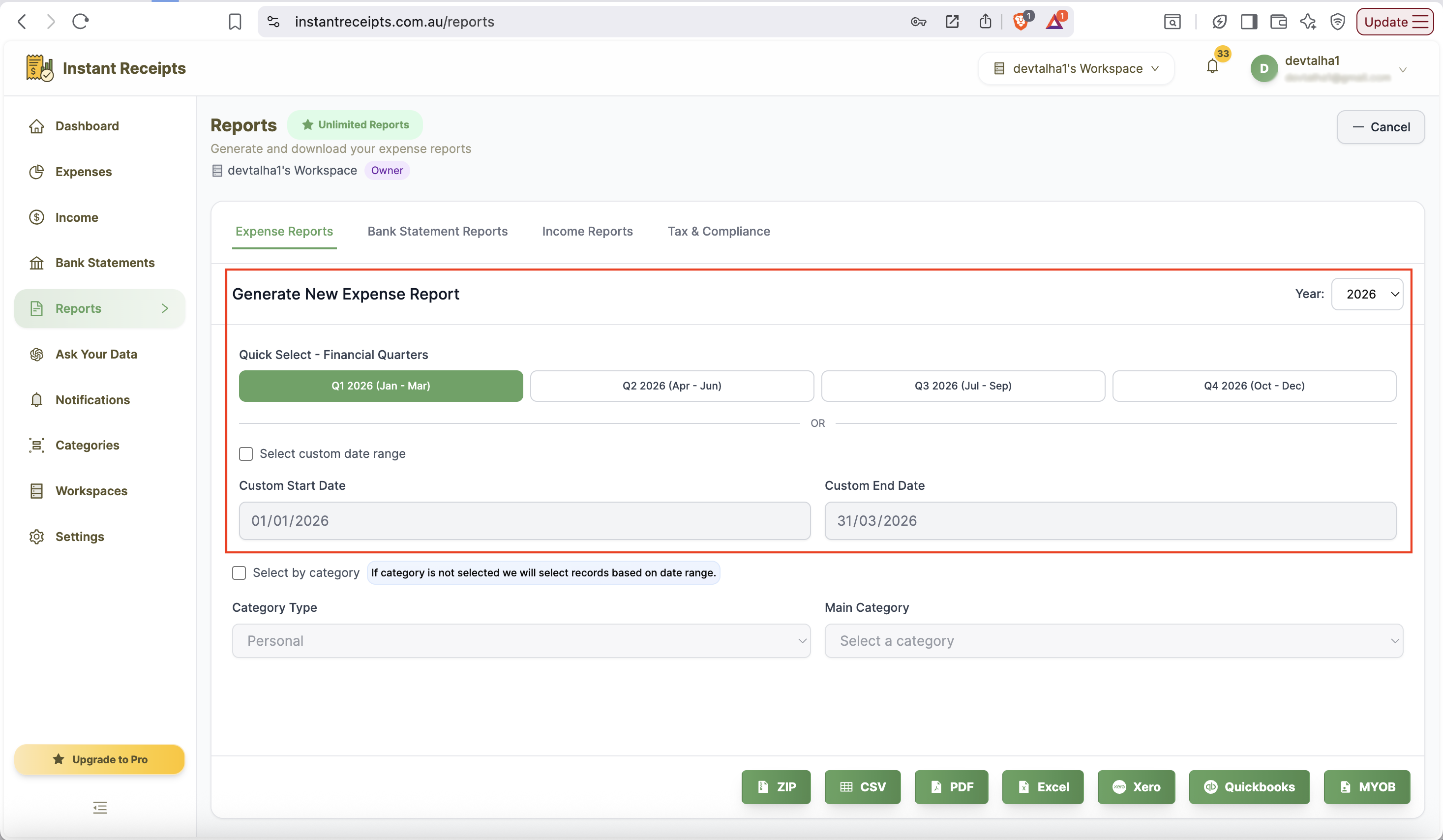
Select Your Date Range
From this new panel, you can select the date range for which you need to export your expenses. There are two ways for this: the first one is Quick Select financial quarters (Q1-Q4). Secondly, you can enter a custom date range manually. If you don't select either, all existing expense records will be included.
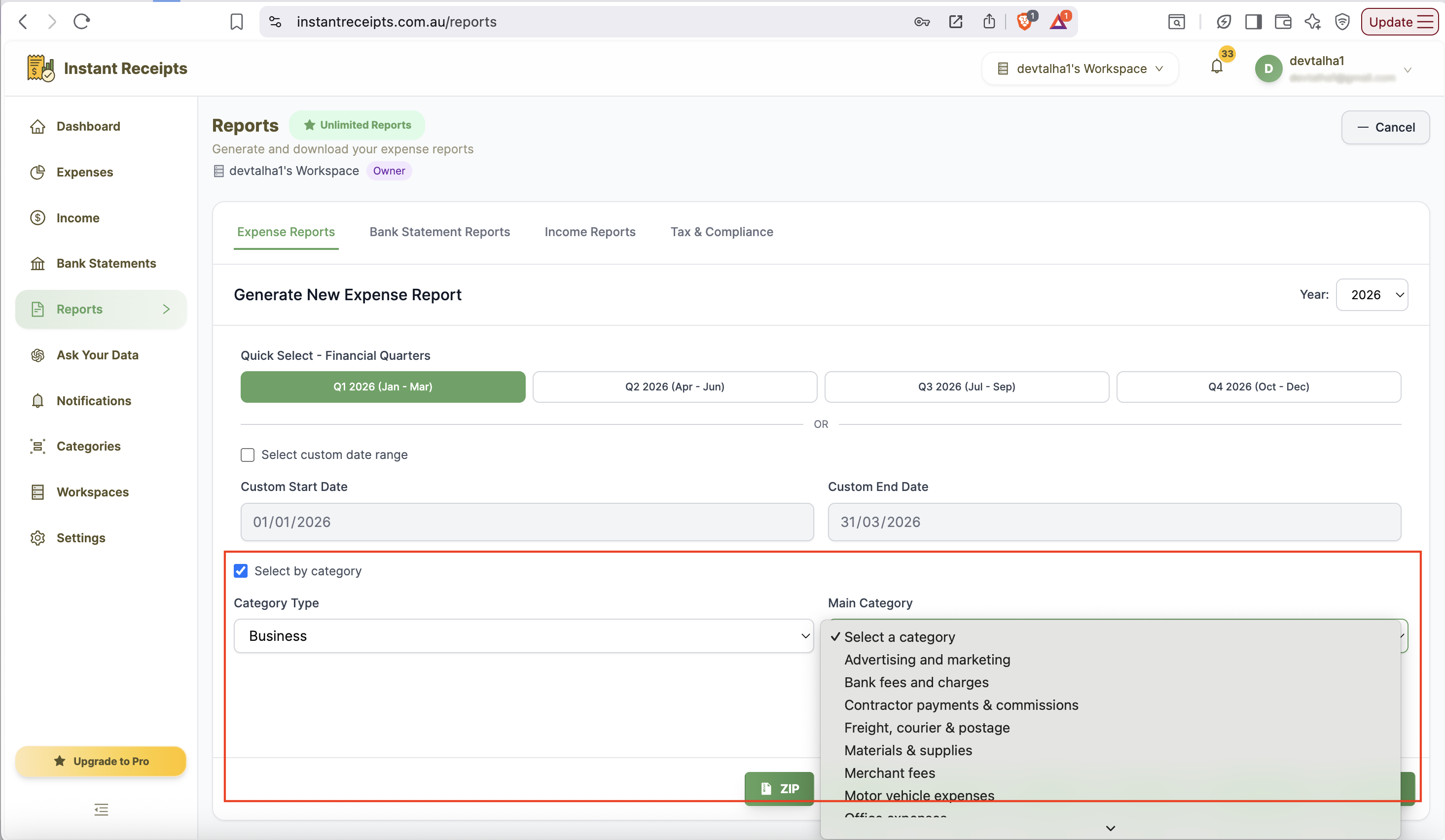
Filter by Category (Optional)
Another incredible feature that you can find here is that you can apply a filter. You can select your expense type from the category section, either personal or business. When you select the specific date range and category on those expenses in that duration and category will export.
Choose Export Format
After selecting the date and category, you can also select your desired export format. There are a number of formats available, each for a different purpose. Here are the available formats: ZIP for backup CSV for analysis PDF for printing Excel for advanced analysis Accounting software formats (Xero, QuickBooks, MYOB) for direct import.
Generate and Download
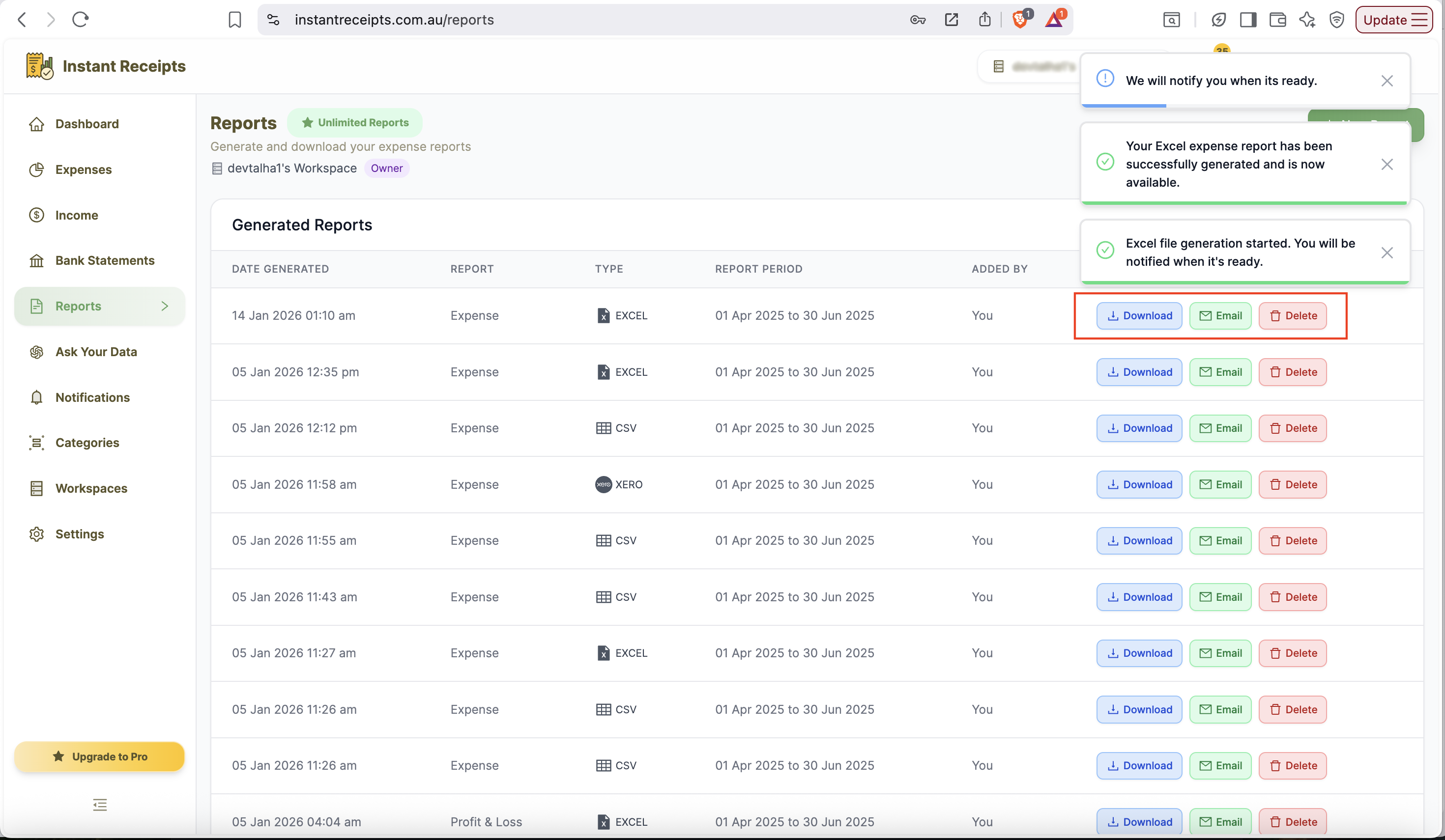
Finally, click the export button for your chosen format. The system will automatically generate your report. Once the report is ready the system will notify you. You can then download it, email it, or delete it from the Generated Reports section.
Troubleshooting
Please select the date range error
If you see an error for the date range, it means you need to check your date entry, either a financial quarter (Q1-Q4) OR a custom date range. Make sure both fields have valid dates, and the start date must be before the end date.
Please select category error.
To resolve the category error, make sure you select the category type in the filter. For this, you must select both a category type (Personal or Business) and a main category. Remember to uncheck the category box in the filter in case you don't want to choose between categories and export both personal and business expenses.
Please select the type of error
You need to select either 'Personal' or 'Business' from the Category Type dropdown. The Main Category dropdown will then populate with available options.
No expenses available
If you see "no expense available", it means you haven't uploaded any expenses yet. In order to see expenses you must upload receipts. So, go to the Expenses section to upload receipts. Once expenses are uploaded, you can return to Reports to generate exports.
Report generation takes too long
If your reports are taking too long, it means you have selected large date ranges with many expenses. That's why it takes longer to process. To resolve this issue, try narrowing your date range or filtering by category to reduce data volume. If the problem still persists please make sure you have a reliable internet connection.
File won't download
Check your browser's download settings. Try a different browser. Ensure pop-ups aren't blocked. Try the Email option instead of sending the report to yourself.
Can't delete the report
If you are not able to delete the report, you may not have permission to delete reports. Only workspace owners and admins can delete reports. You have to contact your workspace owner if you need a report deleted.
Report not appearing in the list.
If you don't see your report in the list, be patient; the report may be generating. Otherwise please: Refresh the page so you can find the required report. Make sure that you're viewing the correct workspace. Verify you have permission to view reports.
Need more details?
See How to Import Expenses for the complete workflow and all available options.