


Generate BAS Summary Report as PDF
Prerequisites
- ✓You have recorded expenses and income in the system
- ✓You have access to the Reports page
- ✓Your transactions are tagged with the correct tax codes
Outcome
- BAS figures mapped to ATO labels
- Ready to help complete your Business Activity Statement
Steps
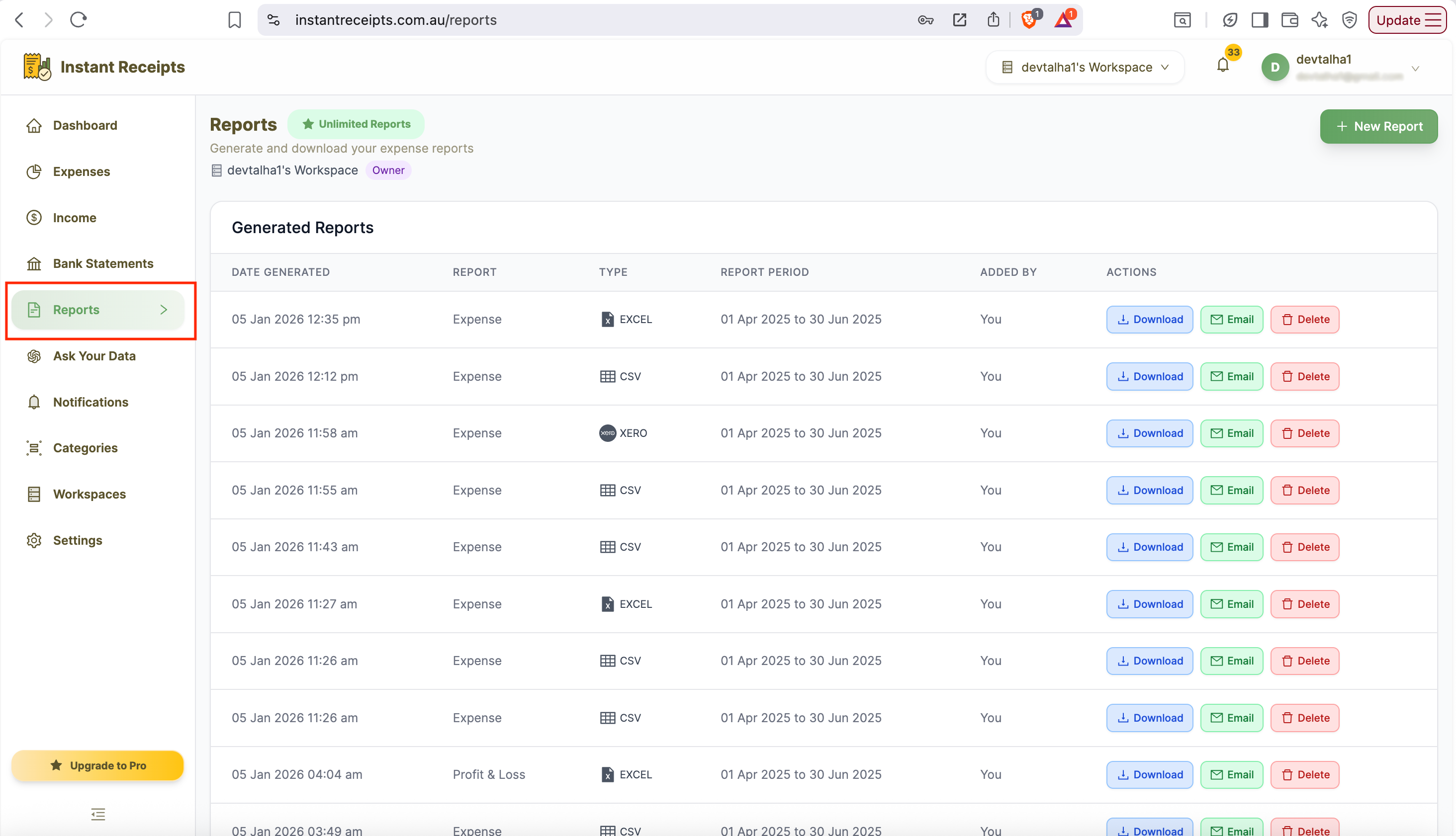
Navigate to Reports
Go to your dashboard, click Reports in the main navigation, then click the Tax & Compliance tab.
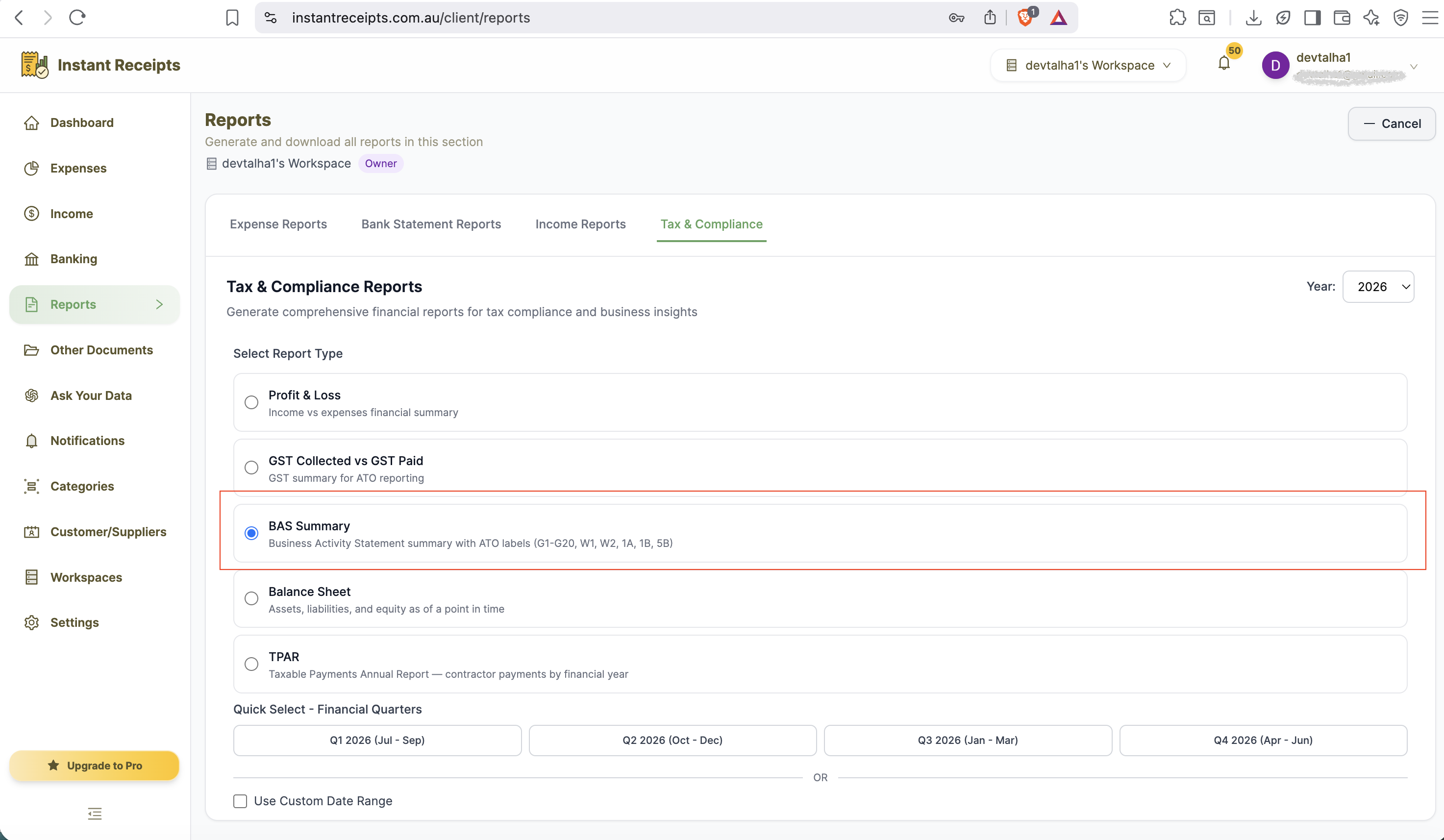
Select BAS Summary
Select "BAS Summary" as your report type. This maps your GST and PAYG data to the ATO's G1-G20, W1, W2, 1A, 1B, and 5B labels.
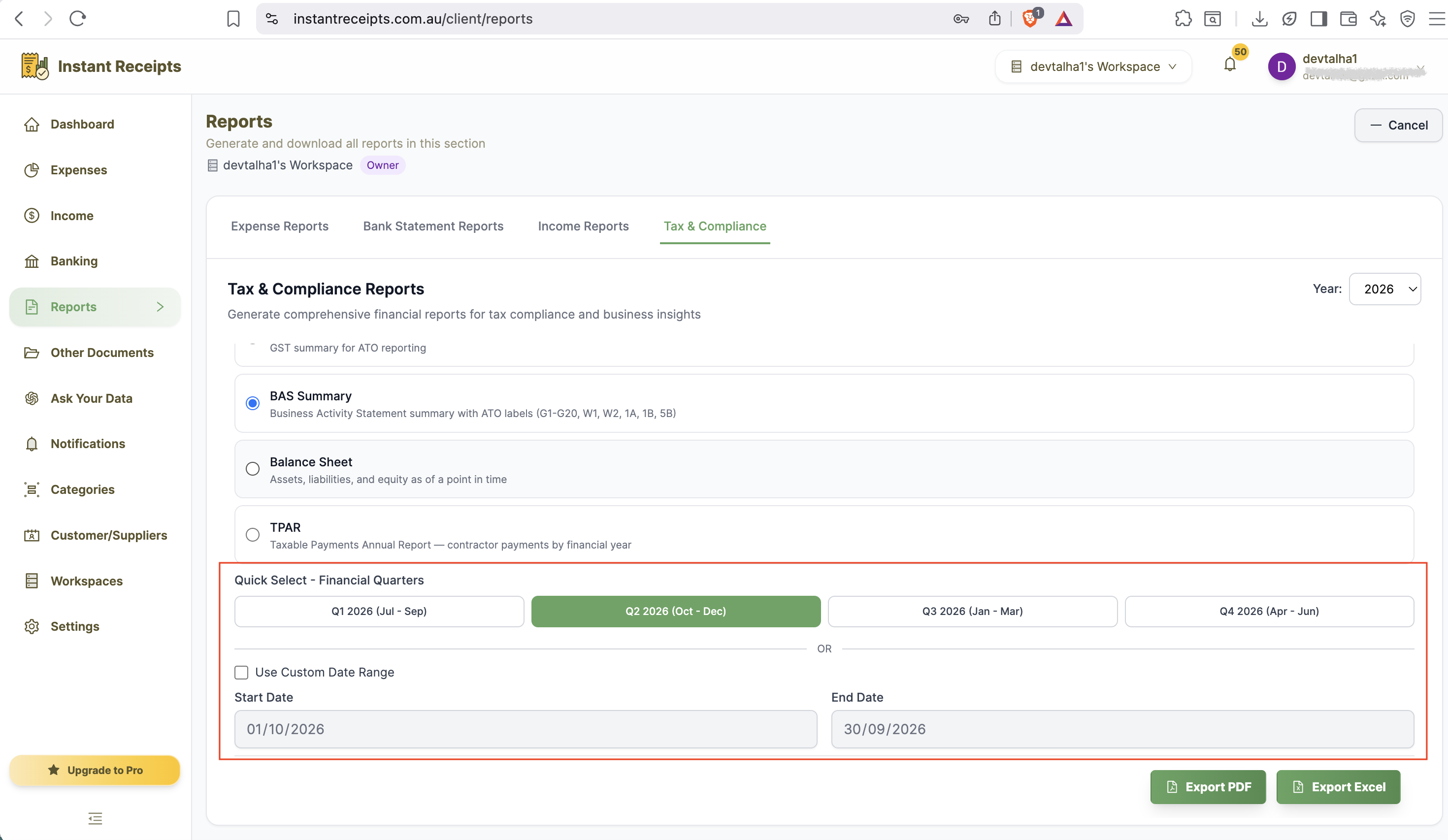
Select Your Date Range
Choose the reporting period. Most businesses lodge BAS quarterly, so pick the financial quarter that matches your lodgment period, or use a custom date range.
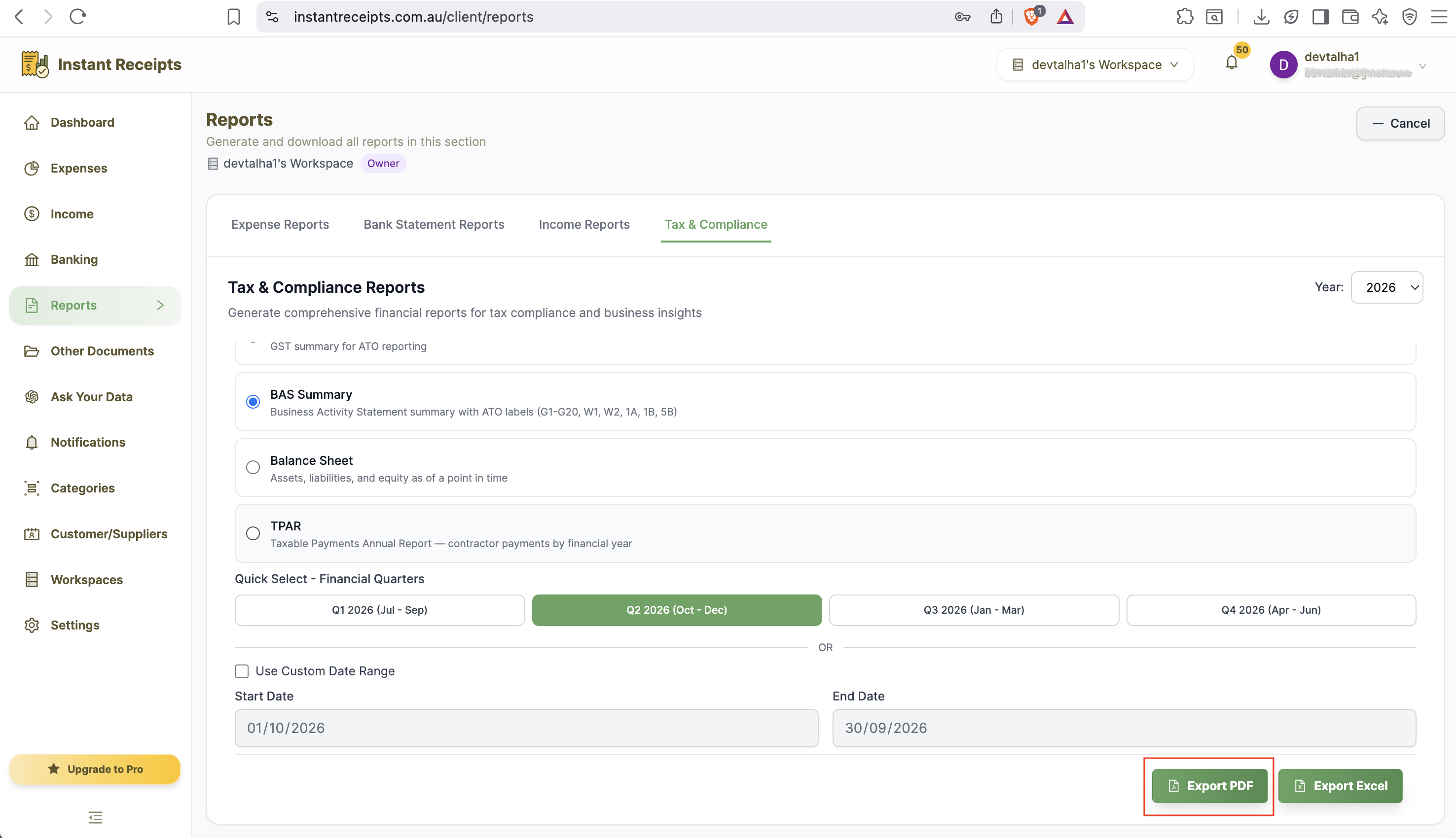
Click PDF
Click the PDF button. Generation starts immediately and you will be notified when your report is ready.
Download Your BAS Summary
Once ready, download the PDF from the Generated Reports section.
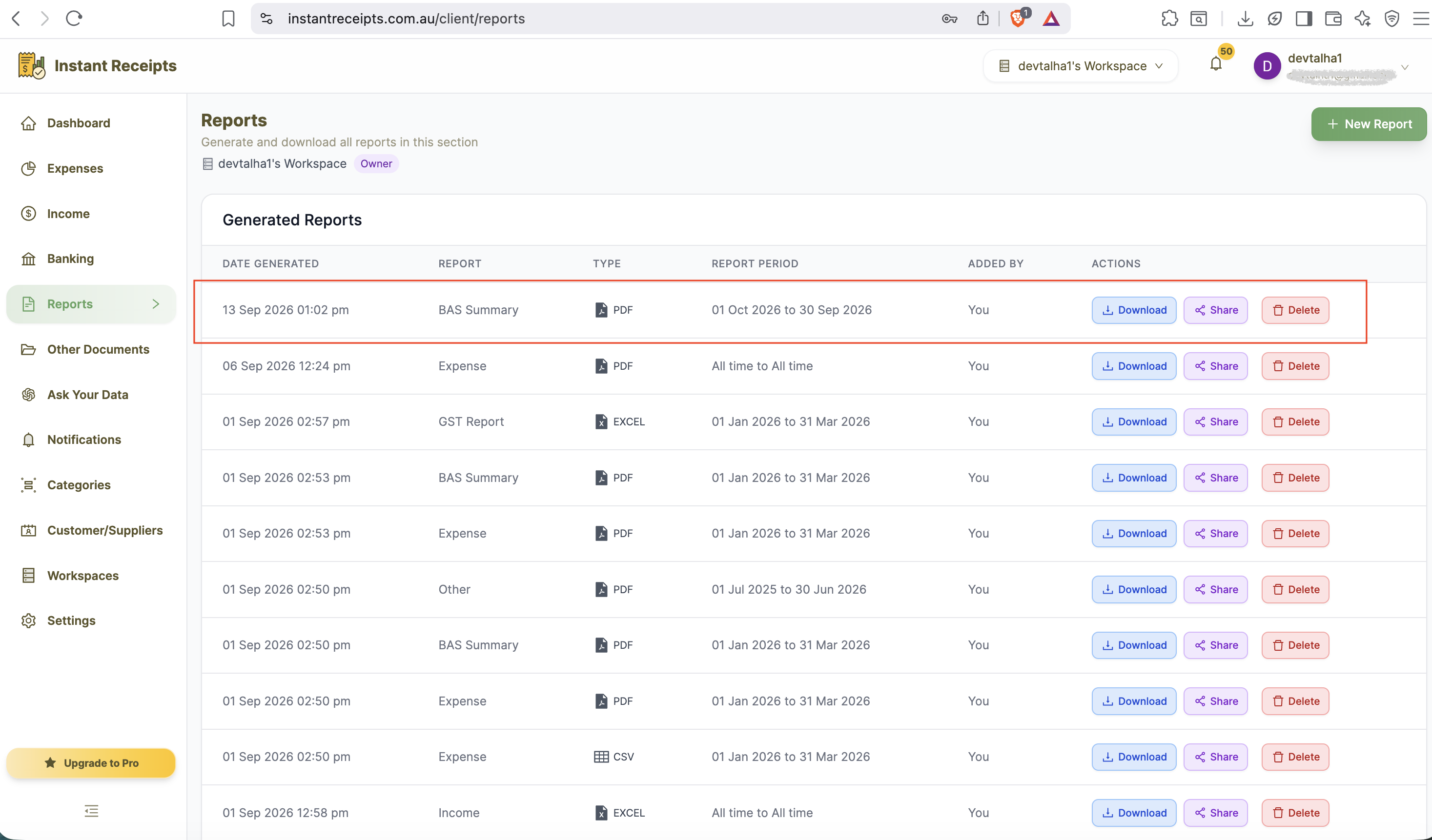
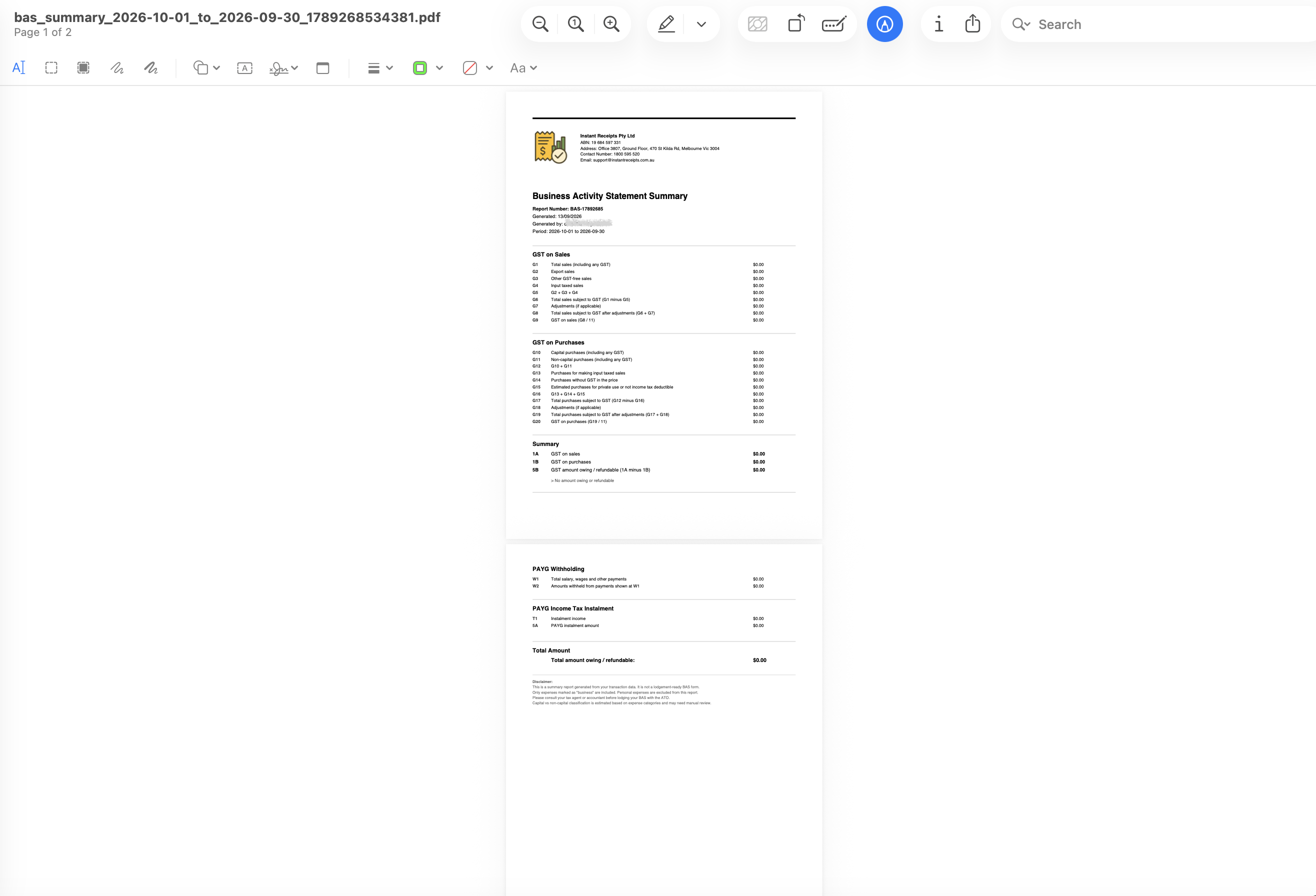
Preview Your BAS Summary PDF Report
Once downloaded, open the PDF to view your BAS Summary formatted and ready to use. The report will display your GST and PAYG figures mapped to each ATO label for the selected period. Cross-check every figure carefully, then use it to complete your BAS lodgment, share it with your accountant, or keep it for your records.
Troubleshooting
Please select the date range error
Choose a financial quarter (Q1-Q4) or enter both a start and end date for a custom range before generating.
Labels don't match my figures
Verify all transactions for the period are tagged with the correct tax codes and are not left in a pending or draft state.
PDF won't open
Try downloading again and opening with a standard PDF reader such as Adobe Reader, Preview, or a modern browser.