


Generate TPAR Report as Excel
Prerequisites
- ✓You have recorded contractor payments in the system
- ✓You have access to the Reports page
Outcome
- A readable summary of contractor payments for the financial year, in an editable spreadsheet
Steps
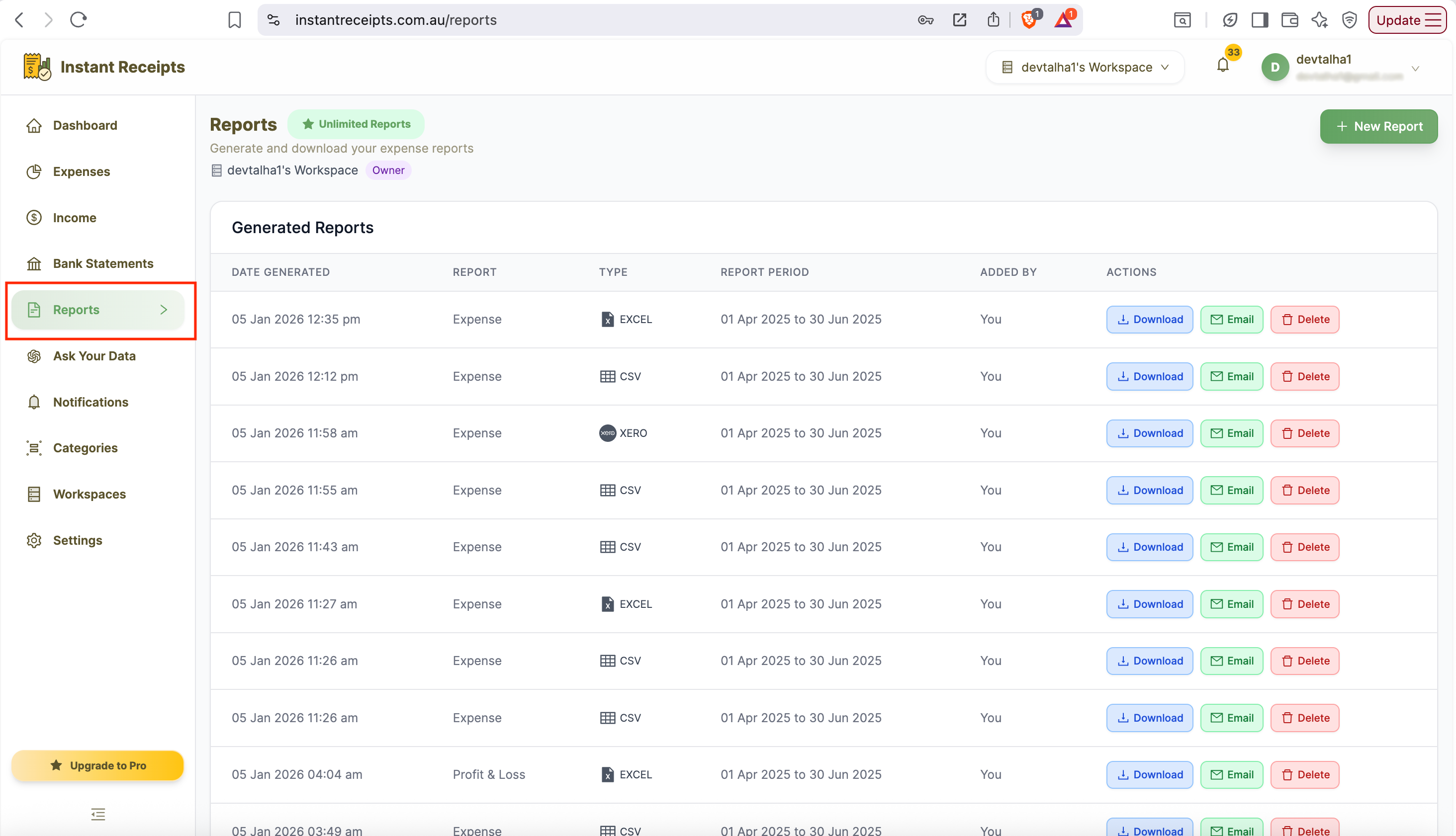
Navigate to Reports
Go to your dashboard, click Reports in the main navigation, then click the Tax & Compliance tab.
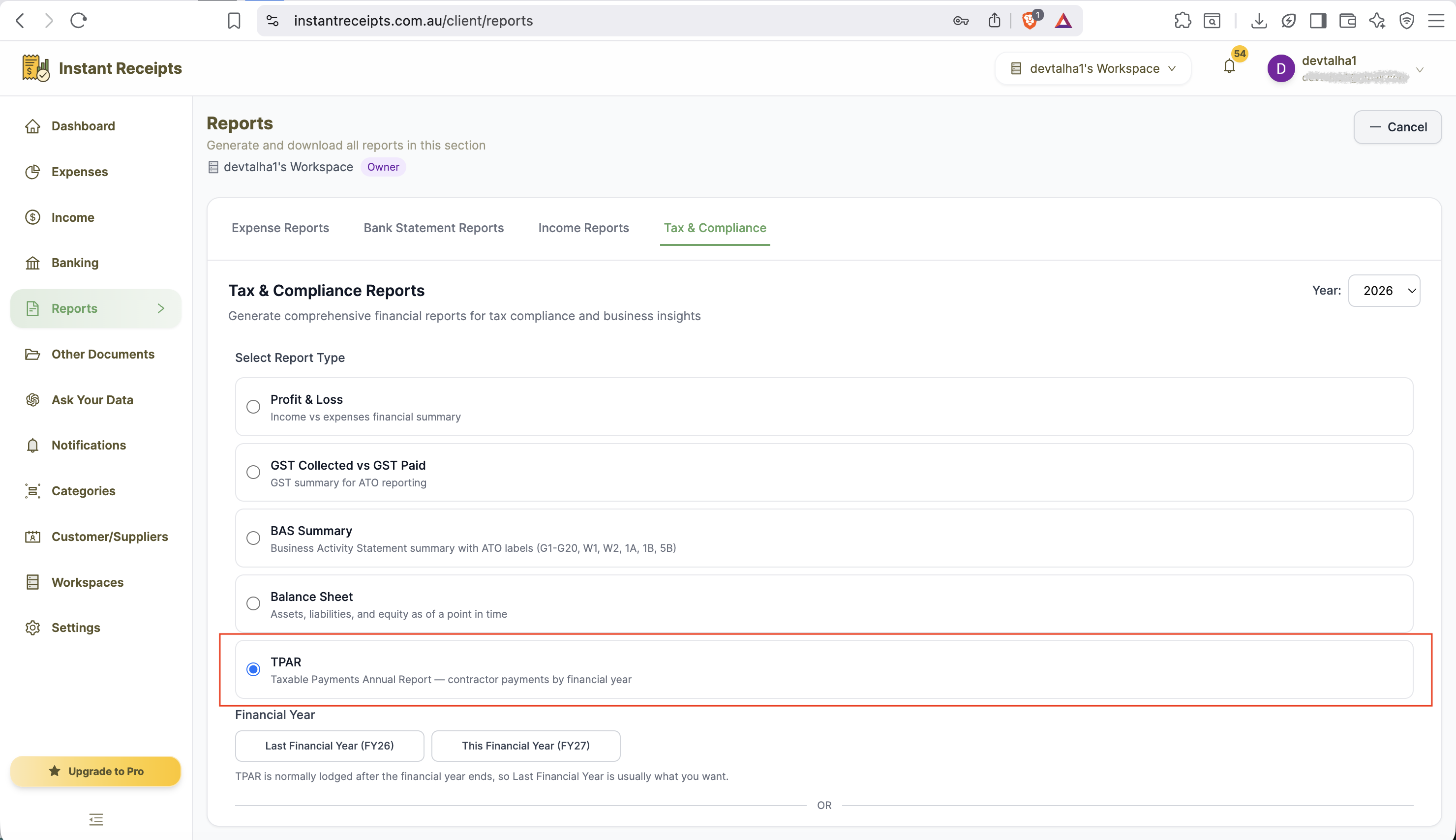
Select TPAR
Select "TPAR" as your report type.
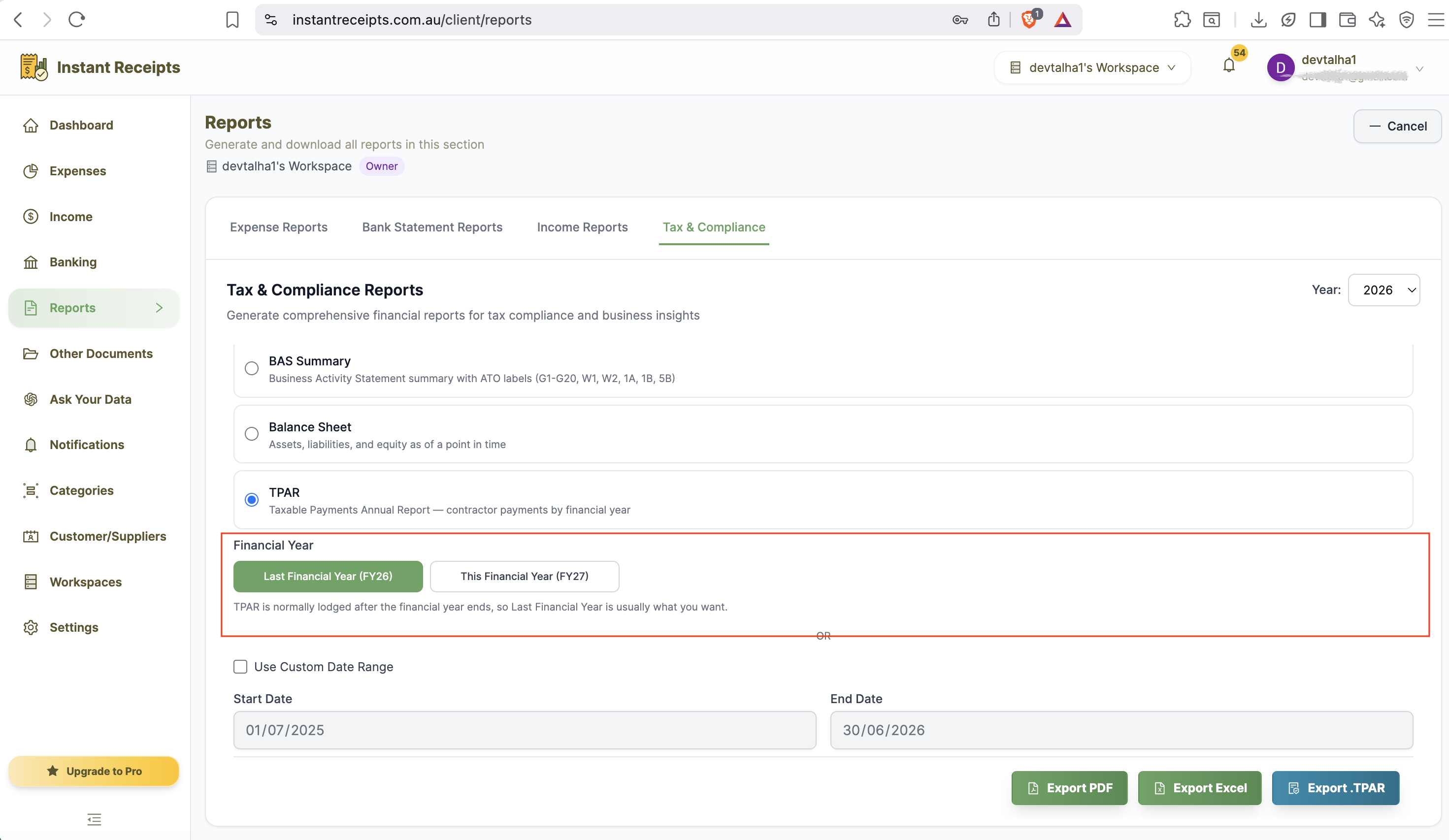
Select the Financial Year
Choose the financial year to report on - typically Last Financial Year, since TPAR is lodged after year end.
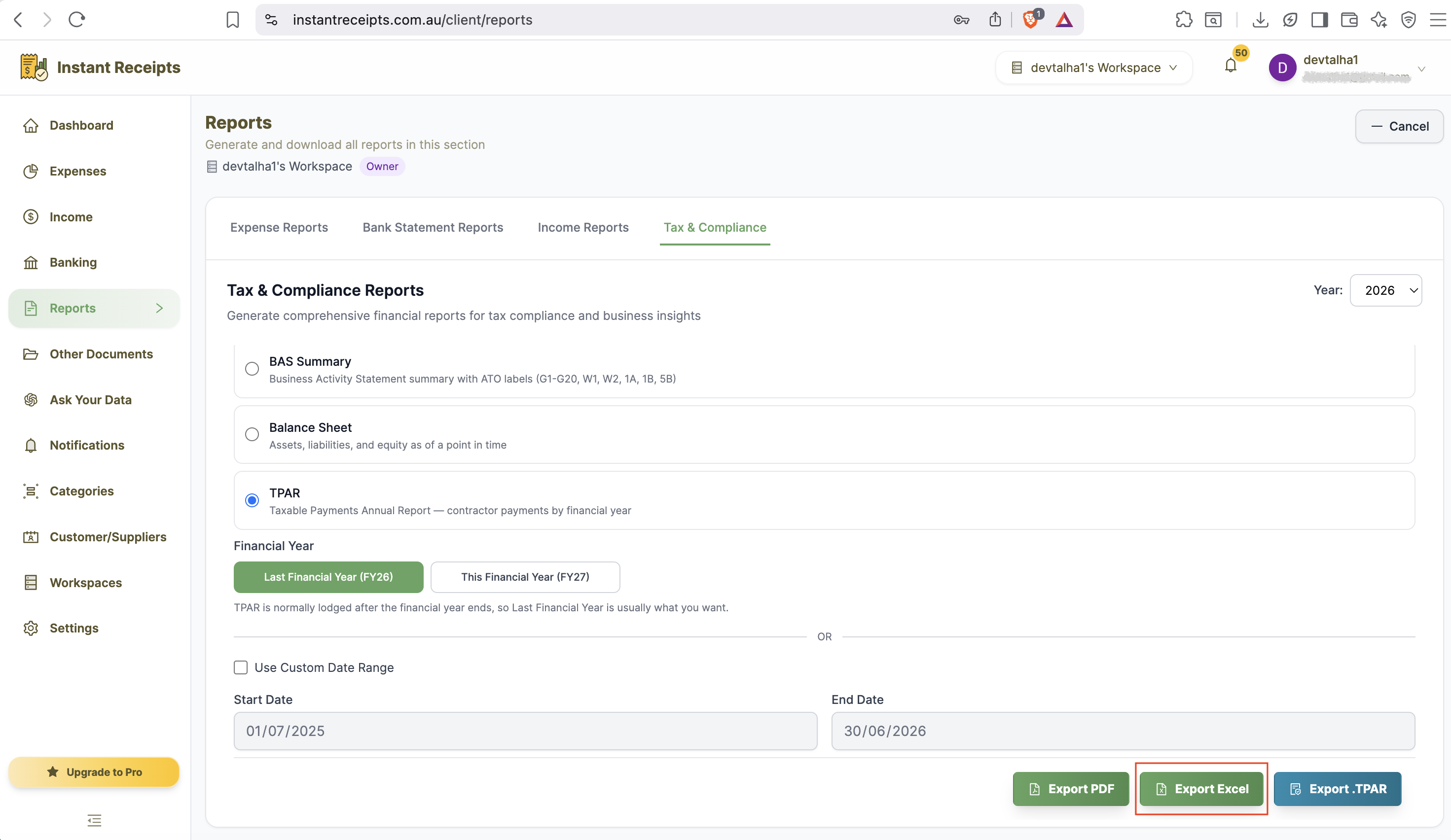
Click Excel
Click the Excel button to generate a readable summary of contractor payments for the selected period.
Download Your TPAR Summary
Once ready, download the Excel file from the Generated Reports section.
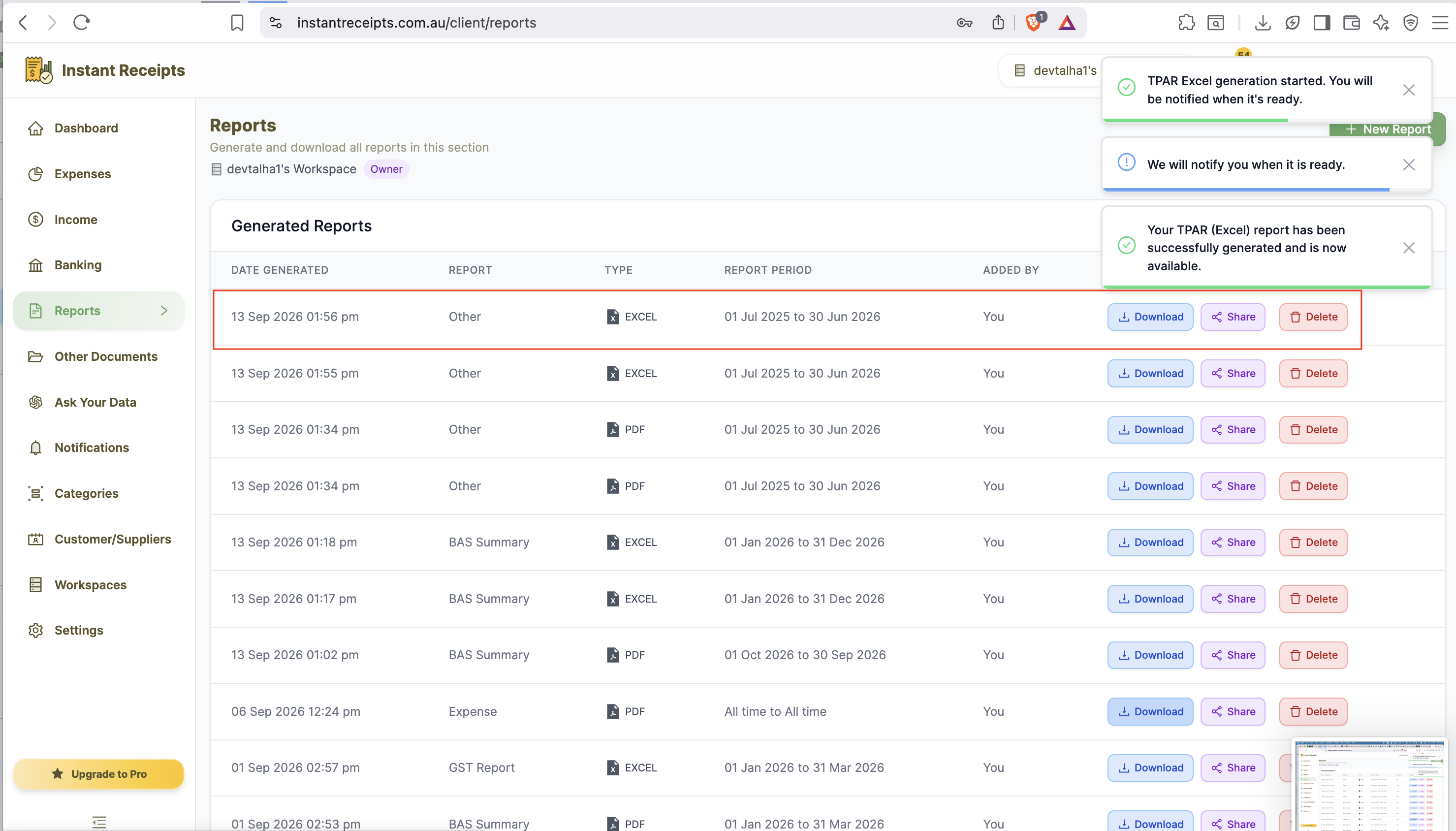
Preview Your TPAR Excel Report
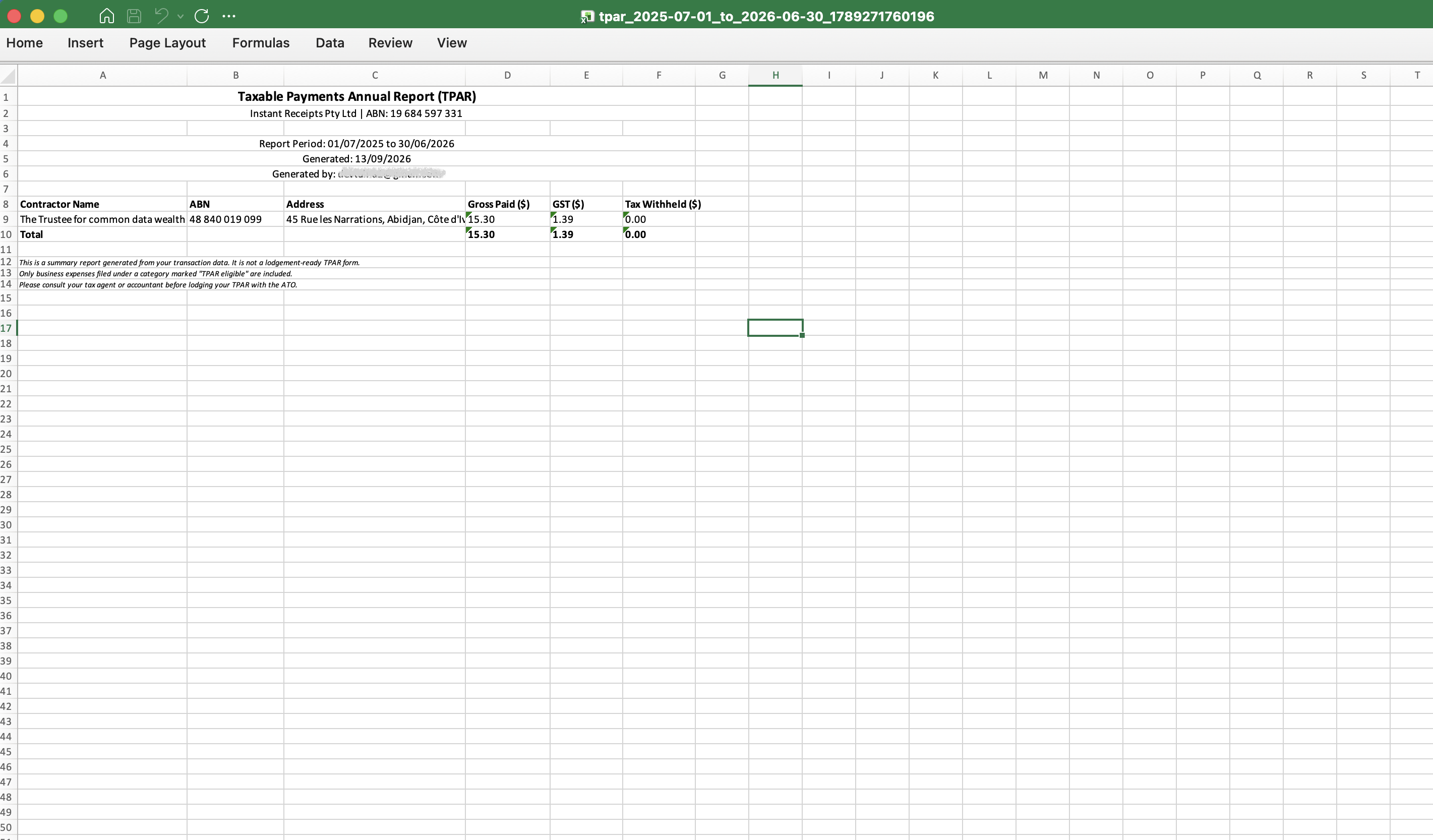
Once downloaded, open the spreadsheet to review the summarised contractor payments for the selected financial year. Remember this Excel file is a human-readable summary for your own records only - when you're ready to actually lodge with the ATO, use the separate "Export .TPAR" button to generate the fixed-width lodgment file instead.
Troubleshooting
Please select a date range error
Pick Last Financial Year, This Financial Year, or a custom date range before generating.
I need to actually lodge with the ATO, not just a summary
This Excel file is a human-readable summary only. Use the separate "Export .TPAR" button on the same tab to get the fixed-width lodgment file the ATO accepts.