
Export Bank Statements as CSV
Prerequisites
- ✓You have uploaded your bank statement in the Banking section
- ✓You have access to the Reports page
Outcome
- Analyse Your Data in Detail
- Flexible format for tailored reporting
Steps
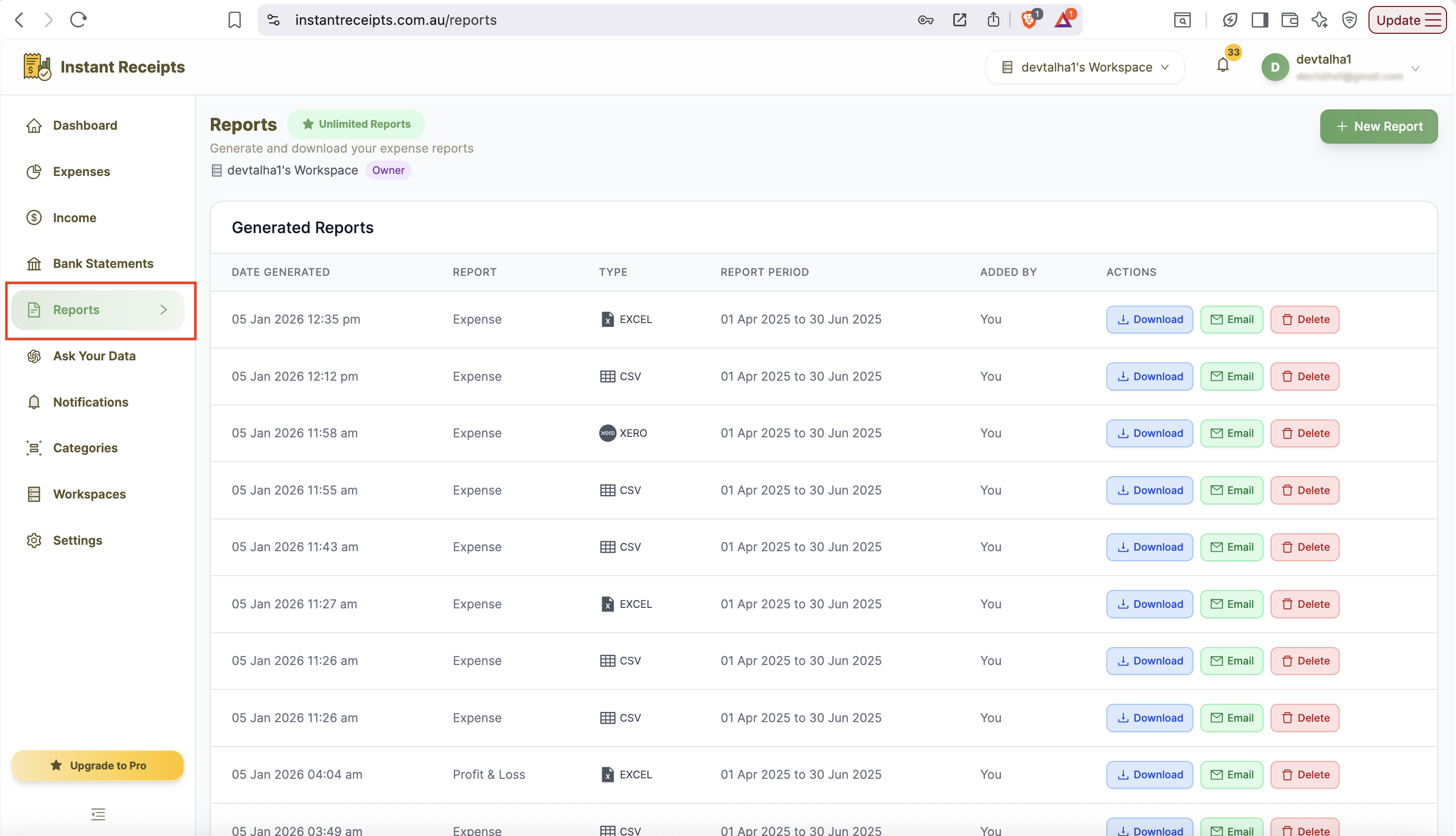
Click on Reports in the side menu
After login in your dashboard, click on the Reports section in the side menu.
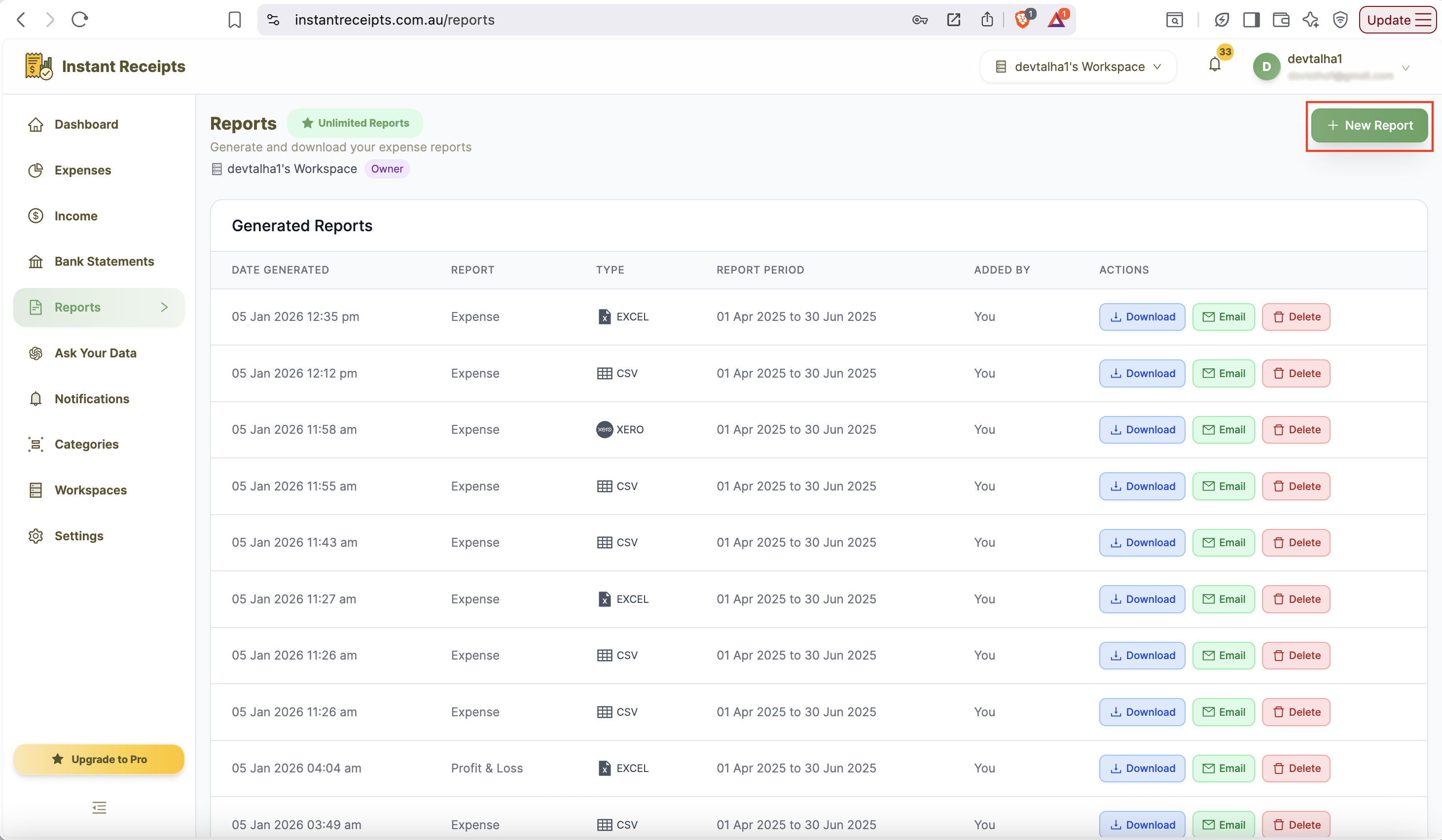
Click New Report
In the top-right corner, click the green New Report button to start creating a new bank statement report before you can export.
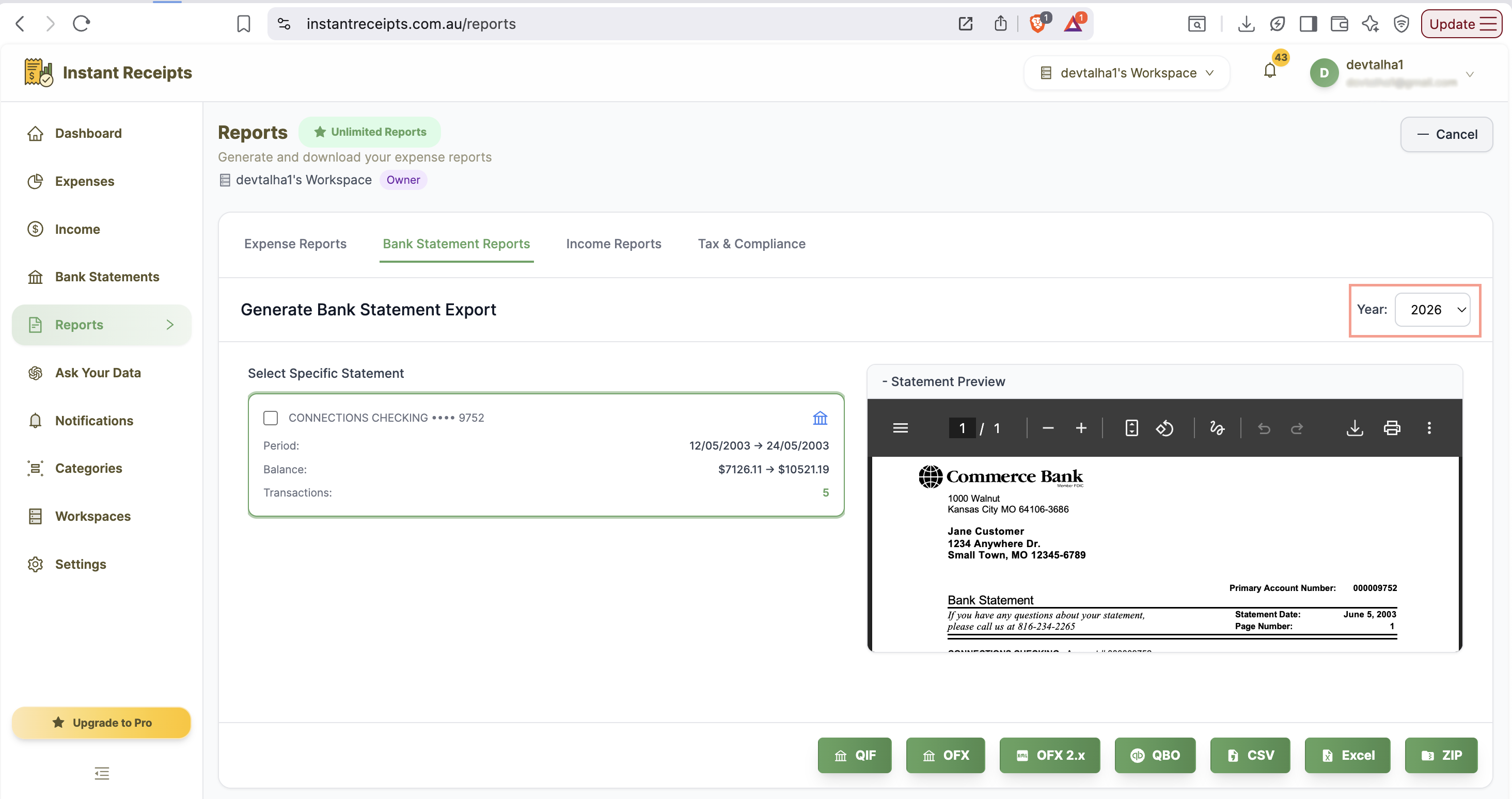
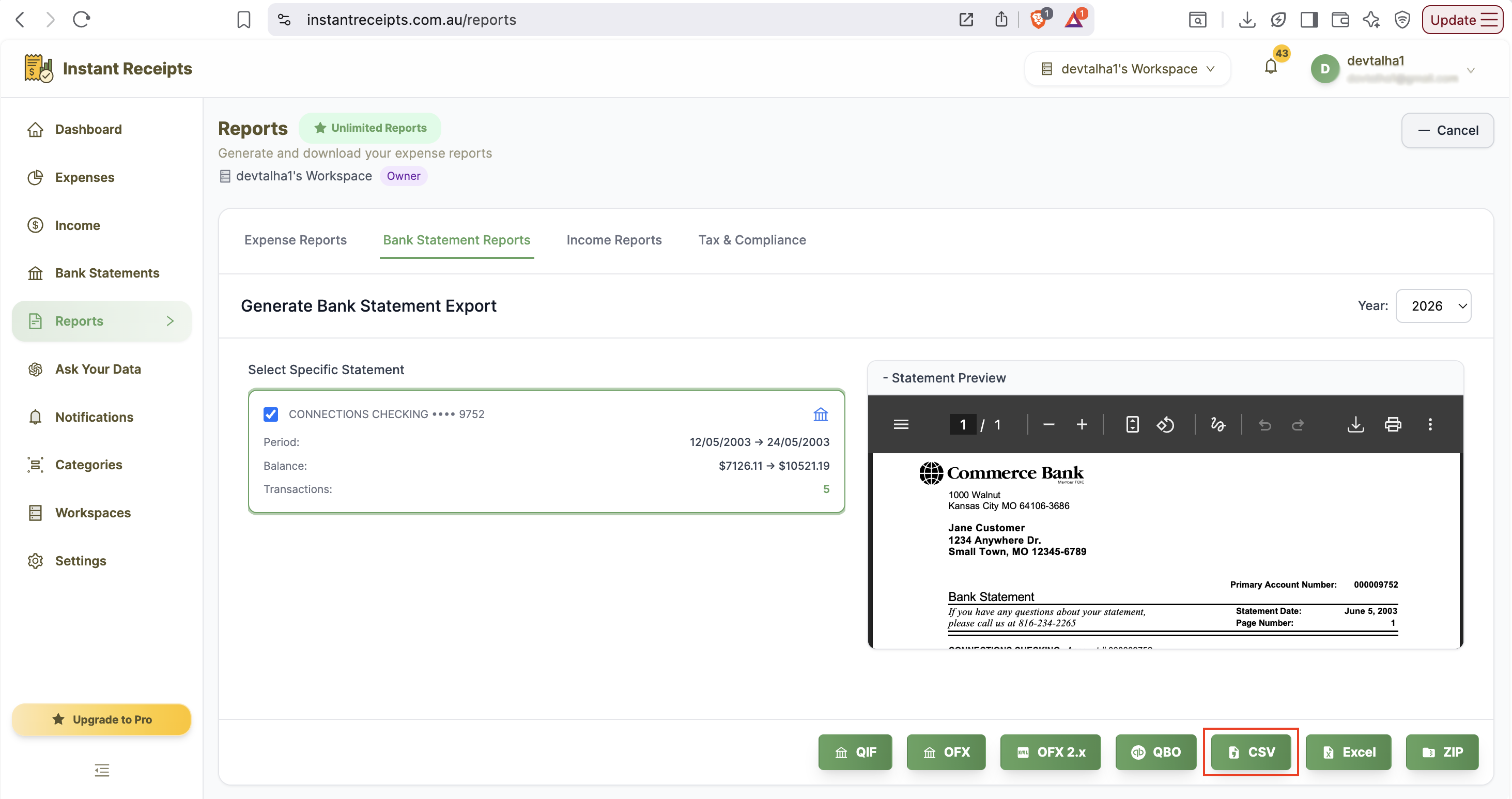
Select the year range
Choose the year filter option to see your bank statements.
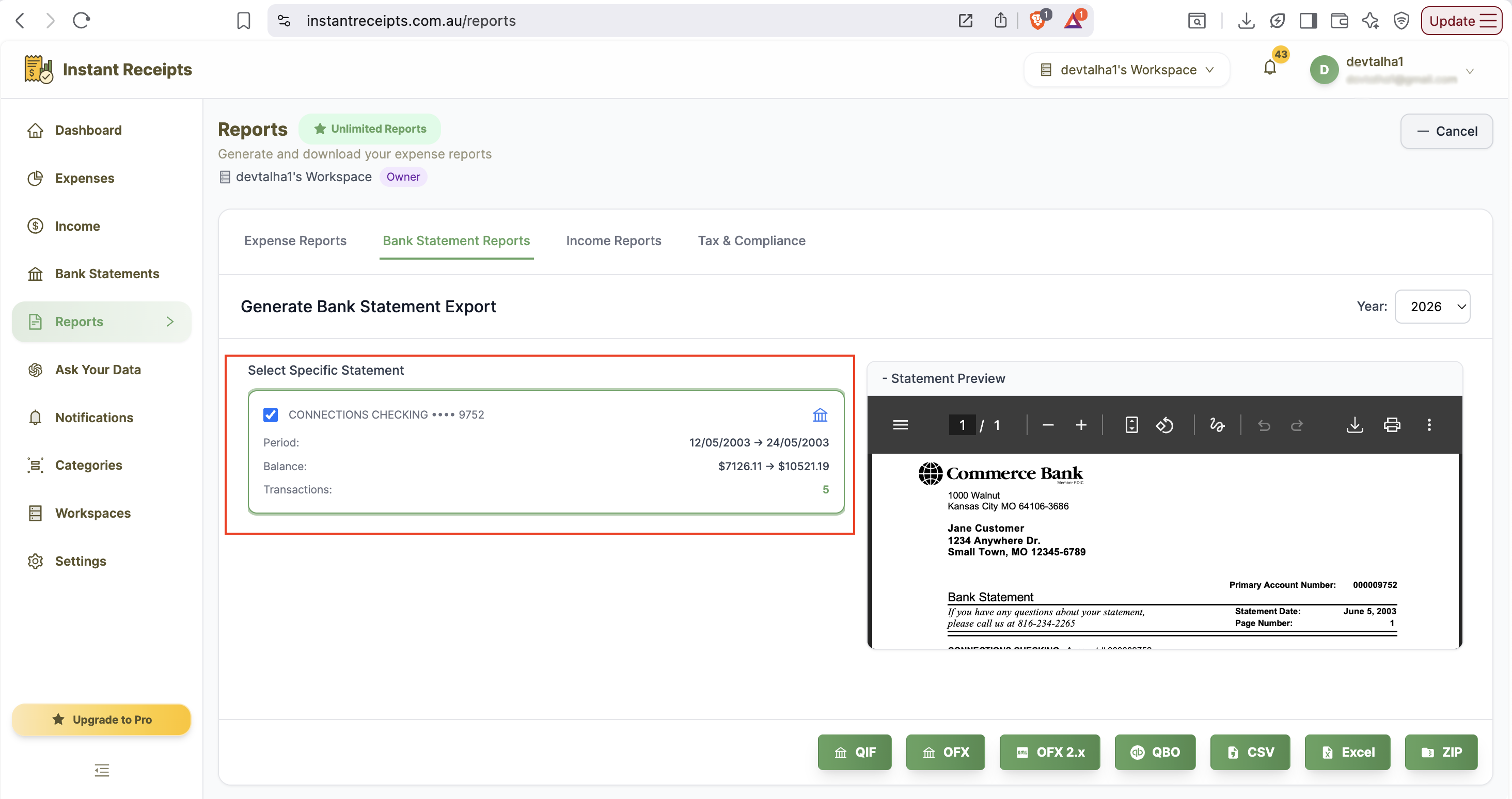
Select the bank statement (mandatory)
You need to select the bank statement first before you can export to different formats.
Click the CSV Button
Click the CSV export button at the bottom of the report generation panel. It will start generating the report straight away
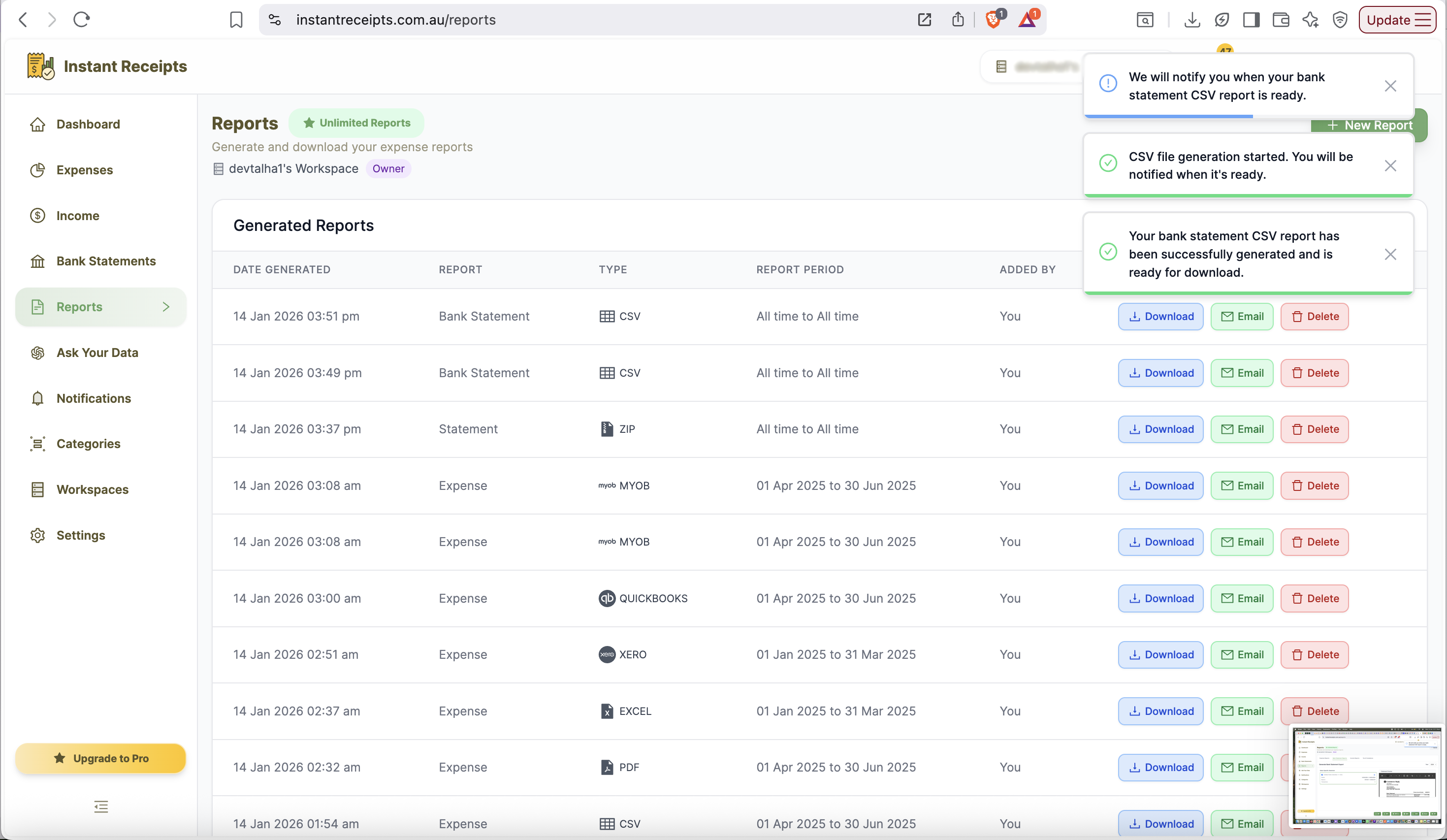
Download and Open CSV File
You can now download the CSV file to open in your editor.
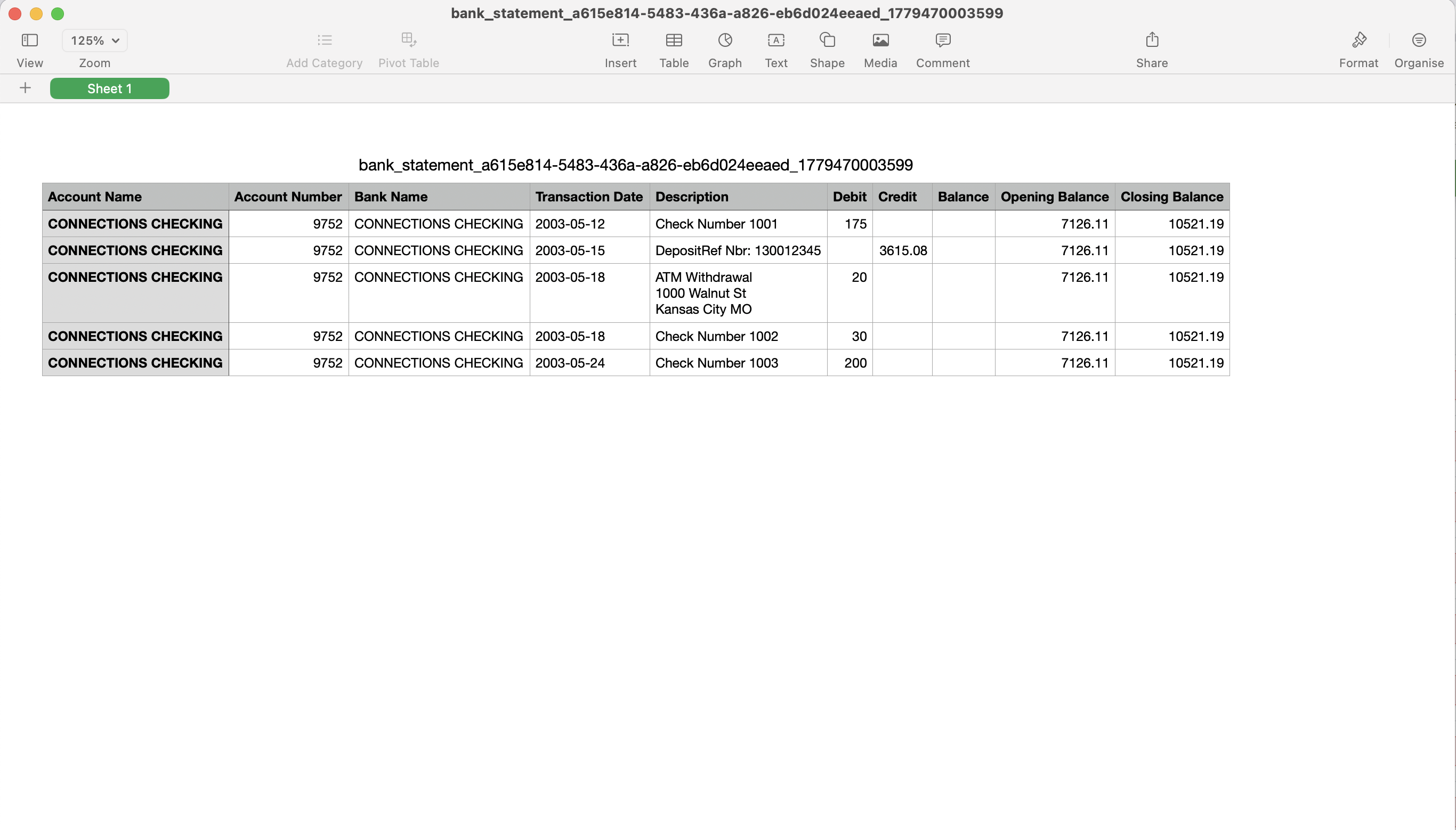
Preview Your CSV Report
Once downloaded, open the CSV file to view your bank statement transactions ready for use. Each row will include key details such as date, transaction description, and amount. You can open it in Excel, Google Sheets, or any accounting tool for further analysis.
Troubleshooting
CSV file opens with strange characters
This is usually an encoding issue. Try opening with Excel and selecting UTF-8 encoding, or use Google Sheets which handles encoding automatically.
Data appears in one column
Your spreadsheet application didn't recognize the comma delimiter. Use the 'Text to Columns' feature in Excel or import the file properly in Google Sheets.
Need more details?
See How to Import Bank Statements for the complete workflow and all available options.