
Export Bank Statements as OFX 2.x
Prerequisites
- ✓You have uploaded your bank statement in the Banking section
- ✓You have access to the Reports page
Outcome
- Latest standard for modern banking and accounting software
- Works seamlessly with newer financial applications
Steps
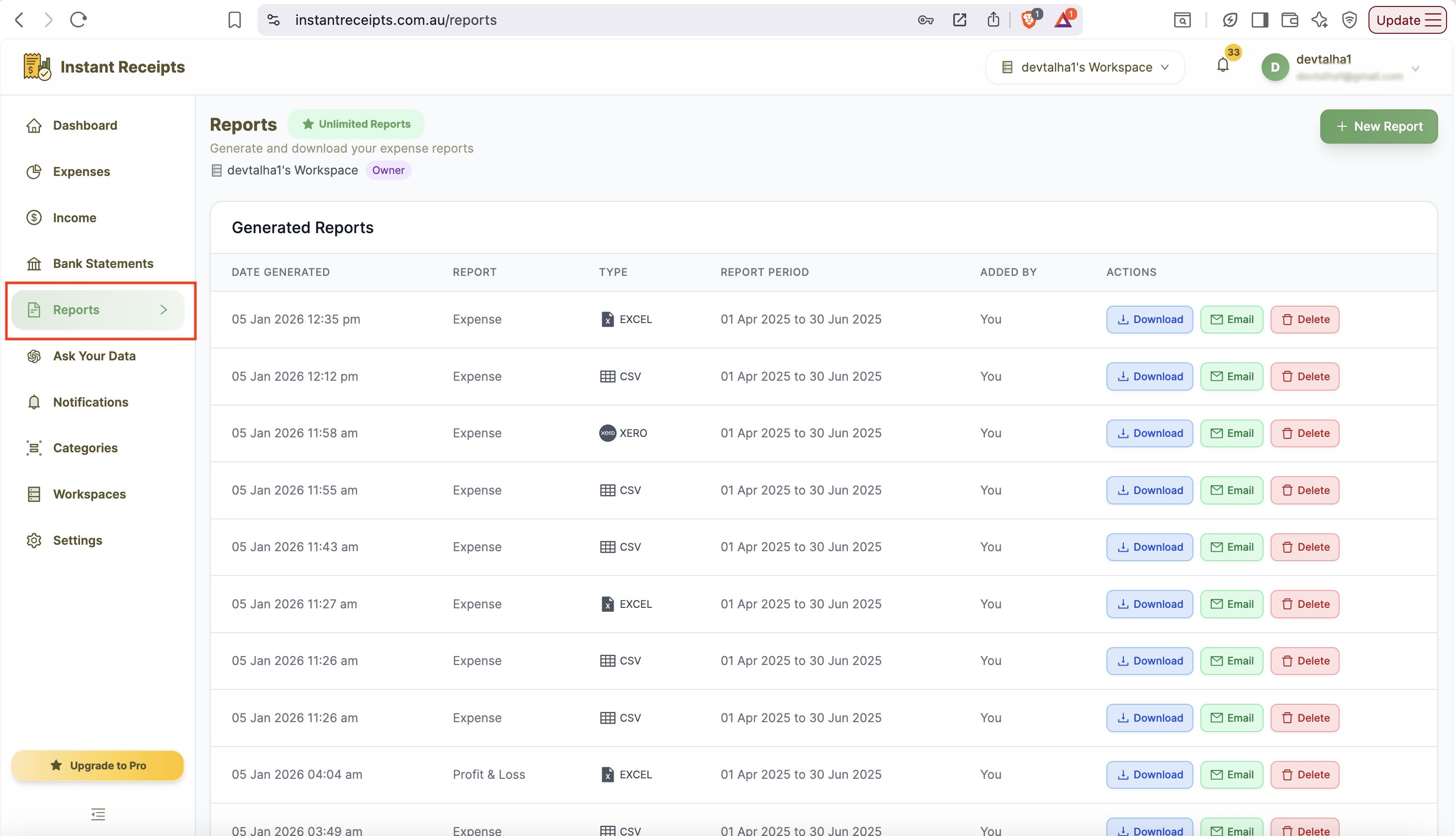
Navigate to Reports
To start, login to your instant receipt account and go to your dashboard. On the dashboard, click on the Report section. After clicking, you will be navigated to the report pages, which will show four tables. These tables include Expense Reports, Bank Statement Reports, Income Reports, and Tax & Compliance.
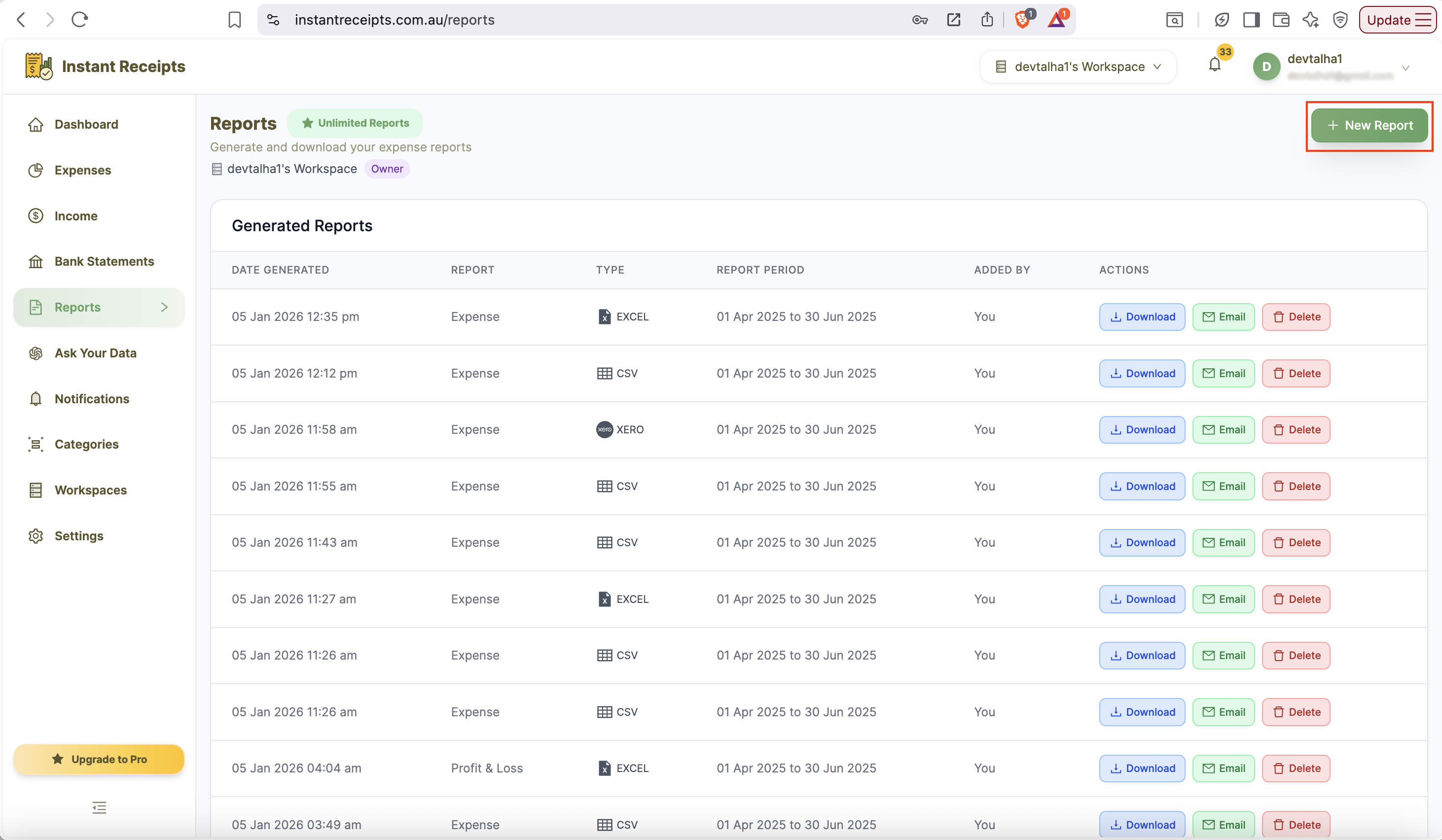
Click New Report
Now, in order to create a new bank statement report, please click on the \"New report button\". As soon as you click, you will see the expanded report panel. It will show all available options for customising your export.
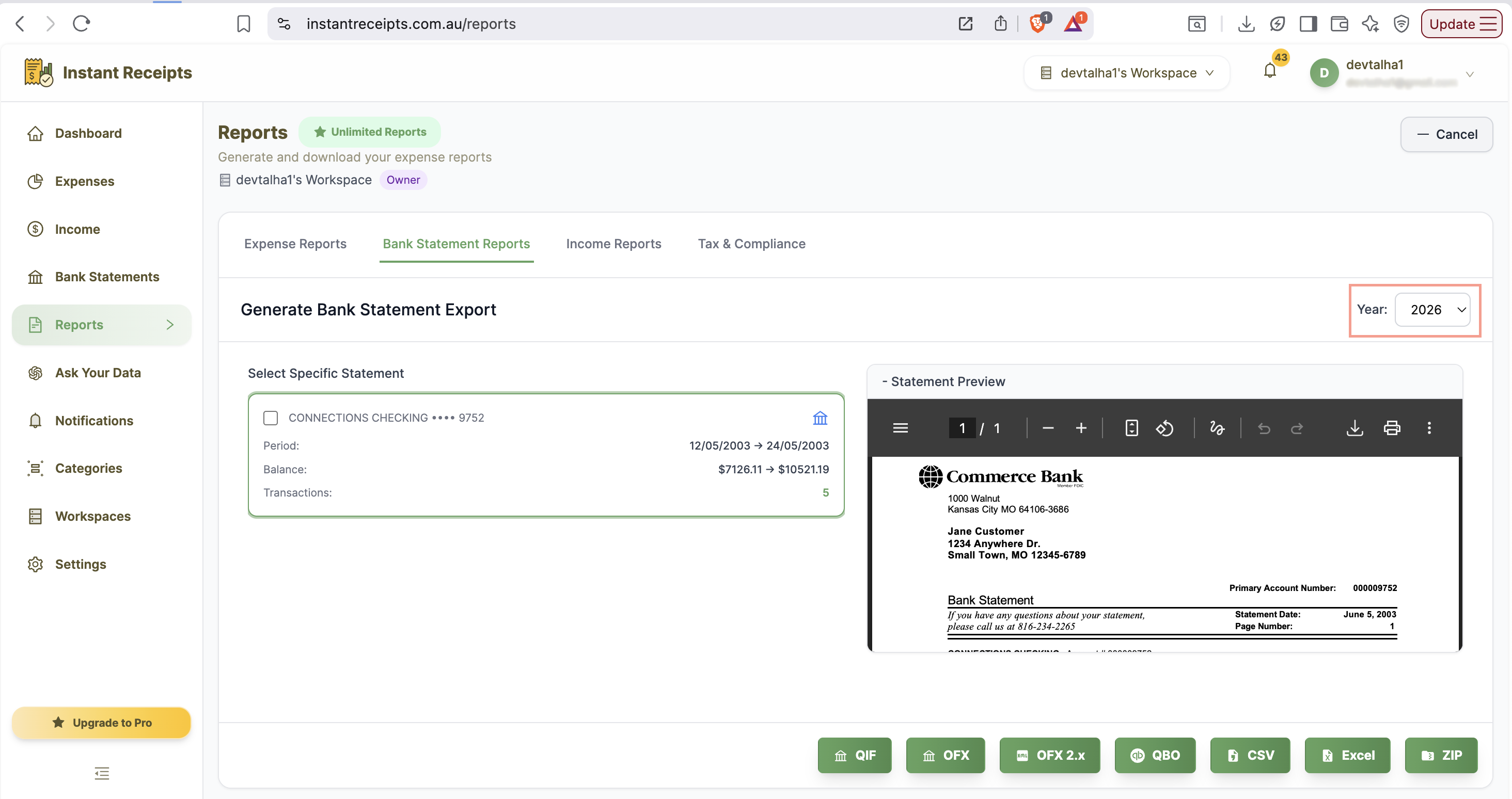
Select Your Date Range
You can either export all your existing bank statement records here just by clicking export, or you can export for a specific date or a date range. For selecting a specific range, you can use Quick Select financial quarters (Q1-Q4) or enter a custom date range.
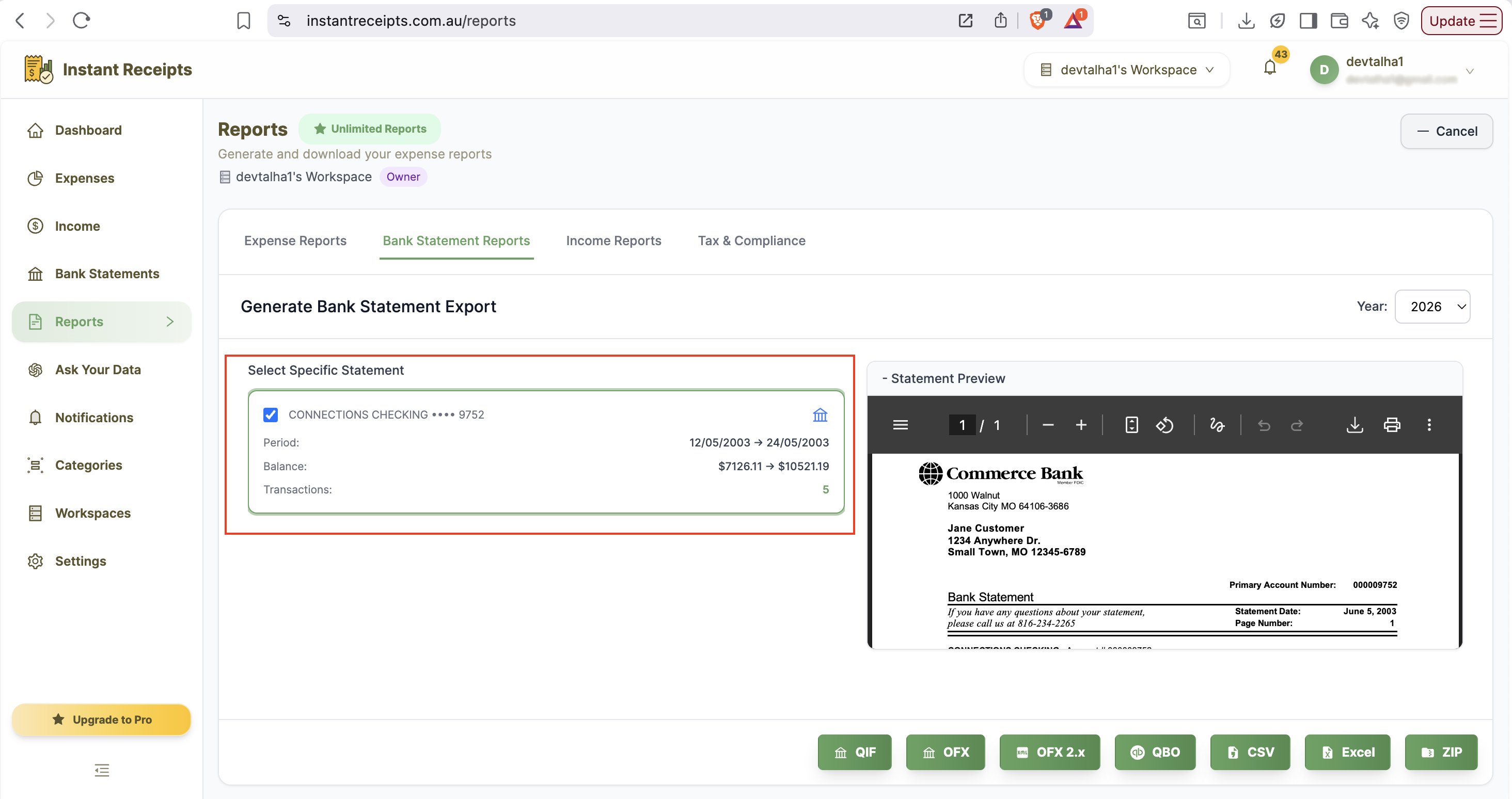
Select Bank Account (Optional)
If you want, you can specify the bank account, then only statements related to that bank will export. It's completely optional and works only if you have uploaded statements for more than one account to instant receipt. You can export statements for a single account or all accounts.
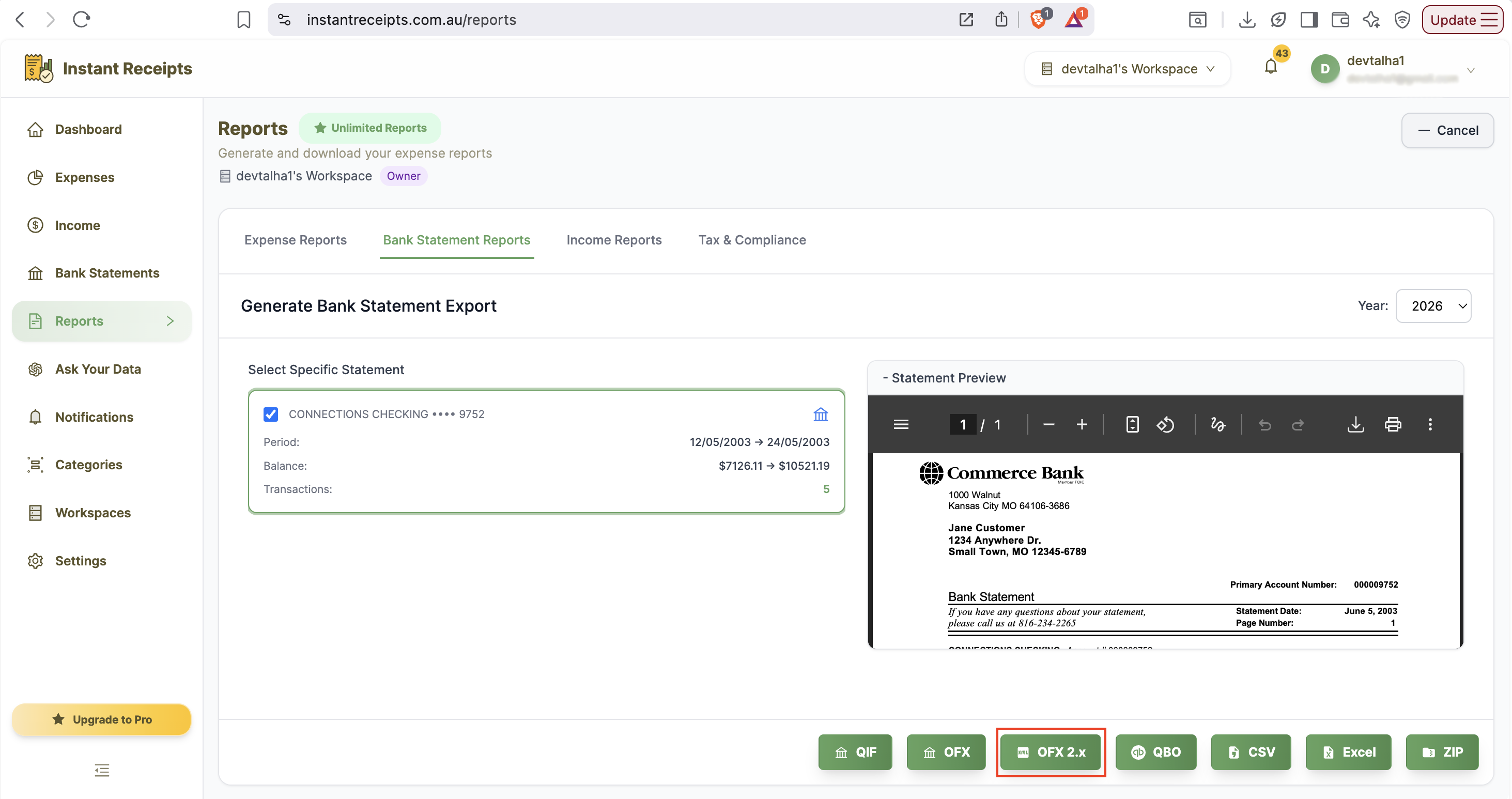
Click OFX 2.x Button
Now, please locate and click the OFX 2.x export button at the bottom of the report generation panel. Click on this button and continue.
Import into Your Banking Software
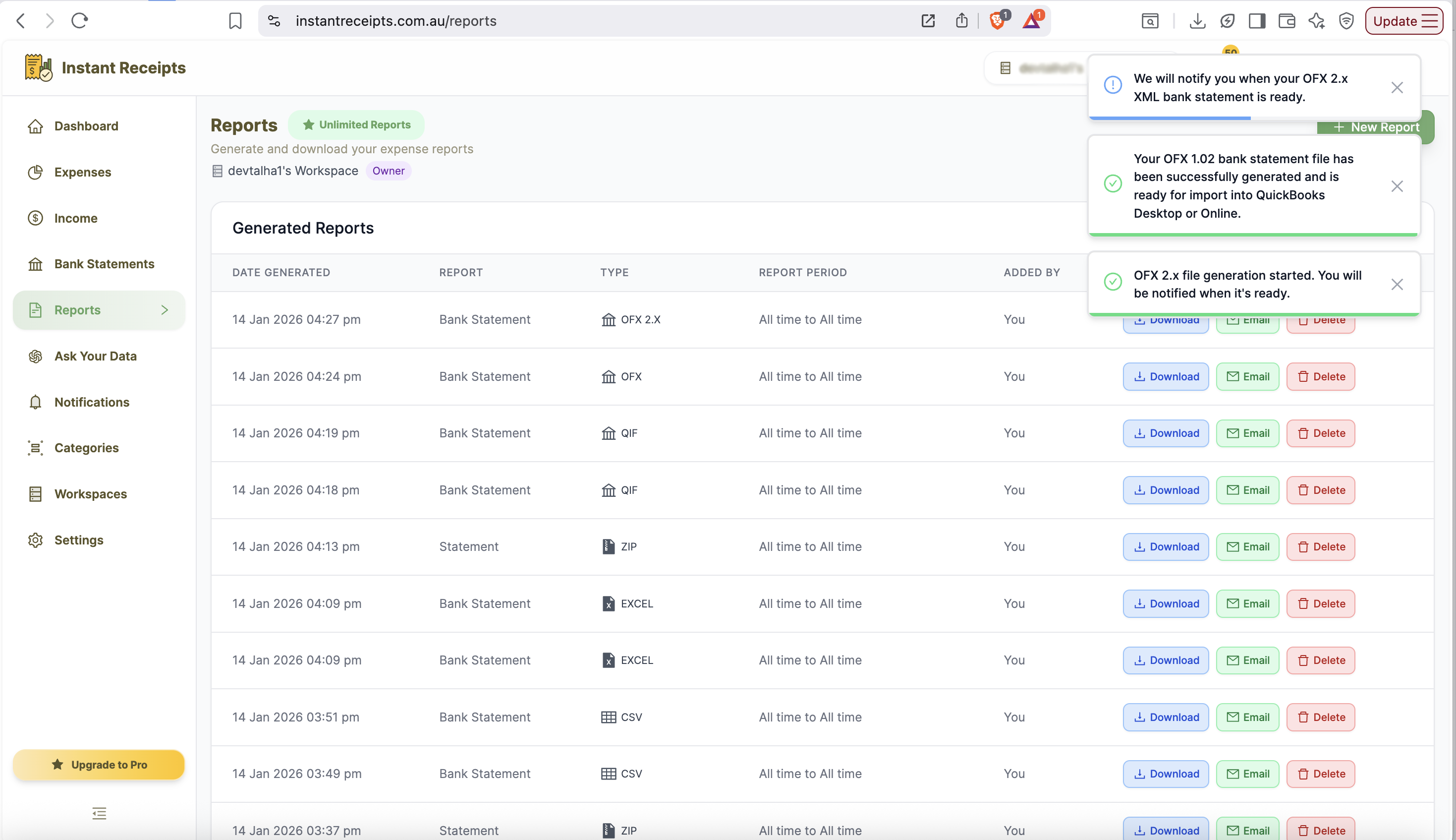
Once clicked, the bank statement will download automatically, and now you can import it into your banking or accounting software.
Troubleshooting
OFX 2.x file won't open
If your OFX 2.x file is not opening please ensure your software supports the OFX 2.x format. Some of the older versions of finance software may not support this; they only support OFX 1.x. In such a case, try the OFX 1.x export instead.
Import fails with a format error
If you see an error showing import fails with format error, please verify that your software is updated to the latest version. Usually, this OFX 2.x format is supported by modern software versions.
Special characters appear incorrectly
This error occurs due to an encoding issue. Try importing with UTF-8 encoding selected in your software.
Need more details?
See How to Import Bank Statements for the complete workflow and all available options.