Export Expenses as PDF
Prerequisites
- ✓You have uploaded expenses in the Expenses section
- ✓You have access to the Reports page
Outcome
- A professional PDF copy of your expense report
- A format suitable for sharing with accountants and auditors
- A print-ready document for record keeping
Steps
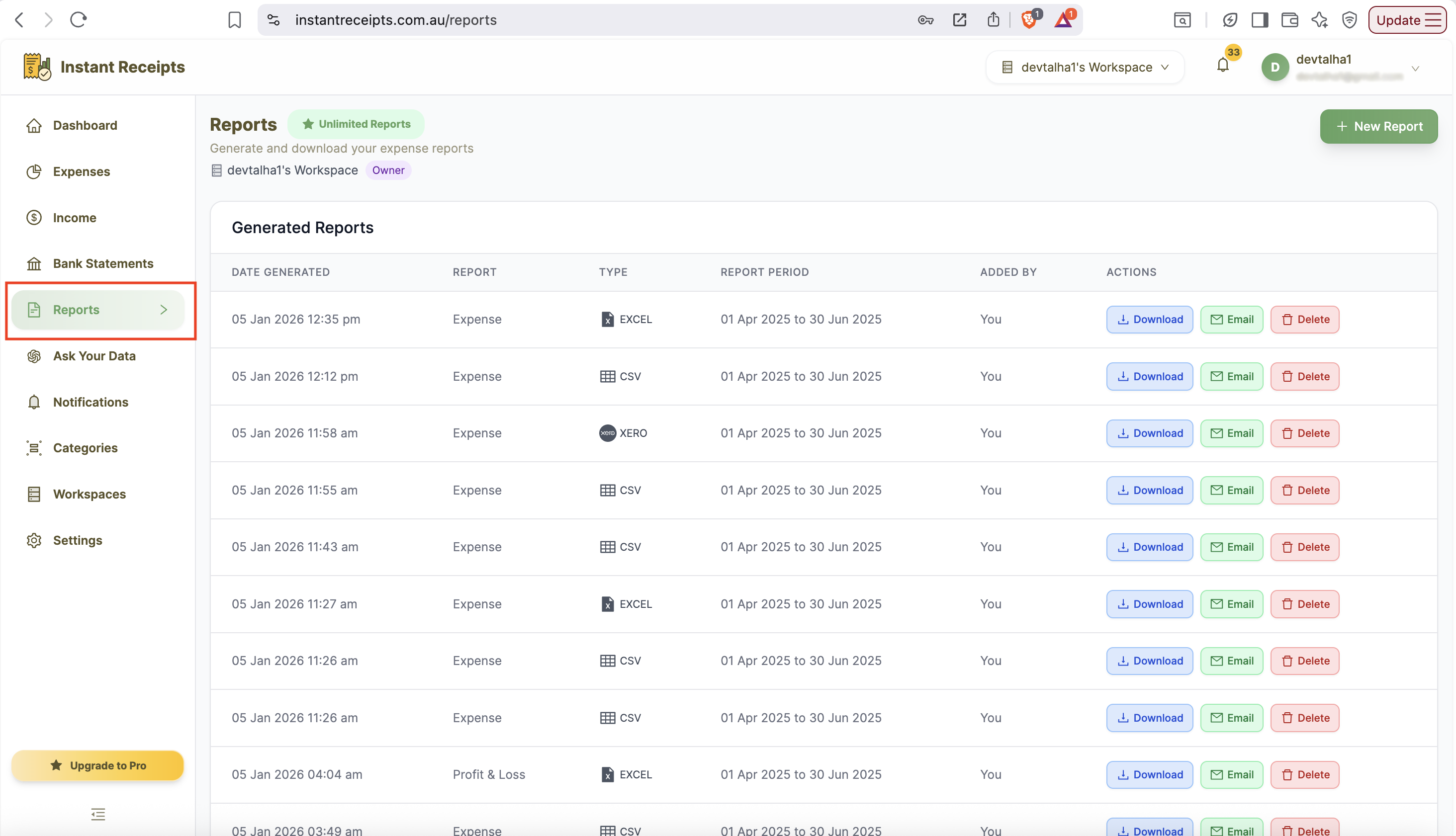
Navigate to Reports
Start by navigating to the report page. For this, go to your dashboard and click on reports. You will find this in the main navigation section. When the report page opens, you will see four tabs. These will include: Expense Reports Bank Statement Reports Income Reports Tax & Compliance.
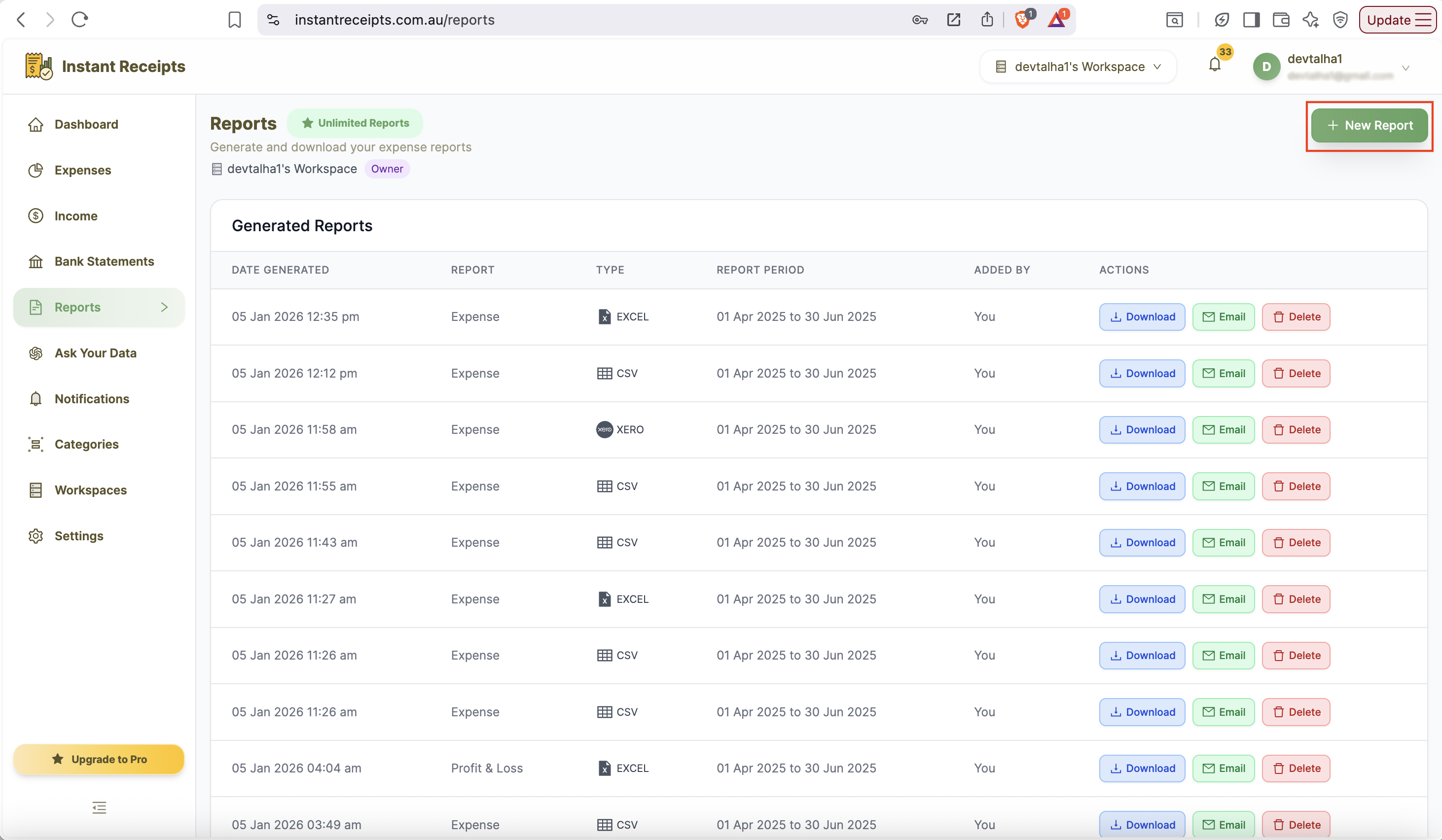
Click New Report
Now you will find a green button for new reports on the top right corner of this page. You can click on this to start creating a new report. After clicking on this button, a new report generation panel will appear. It will show all available options for customisation of your export.
Select Your Date Range
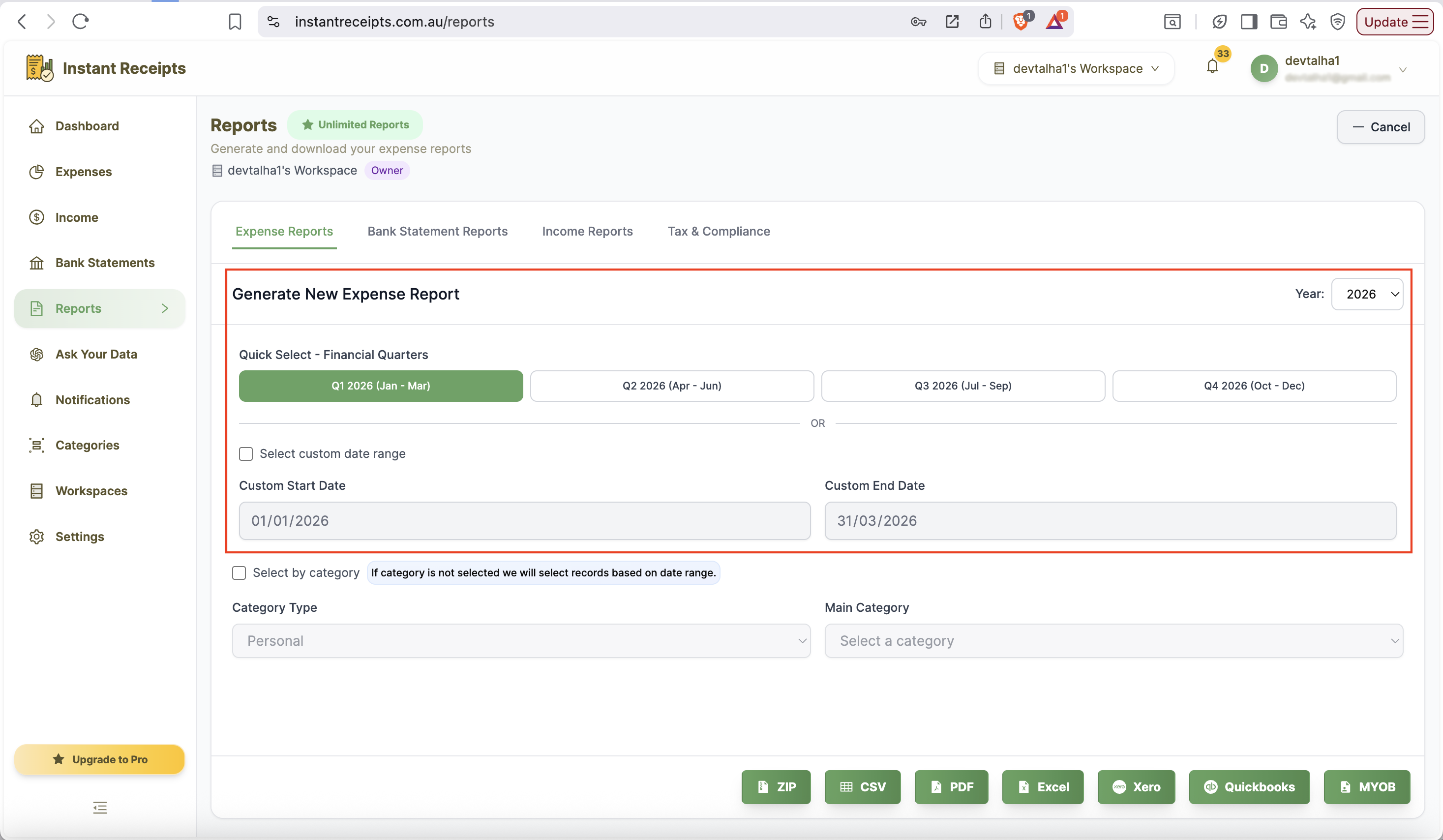
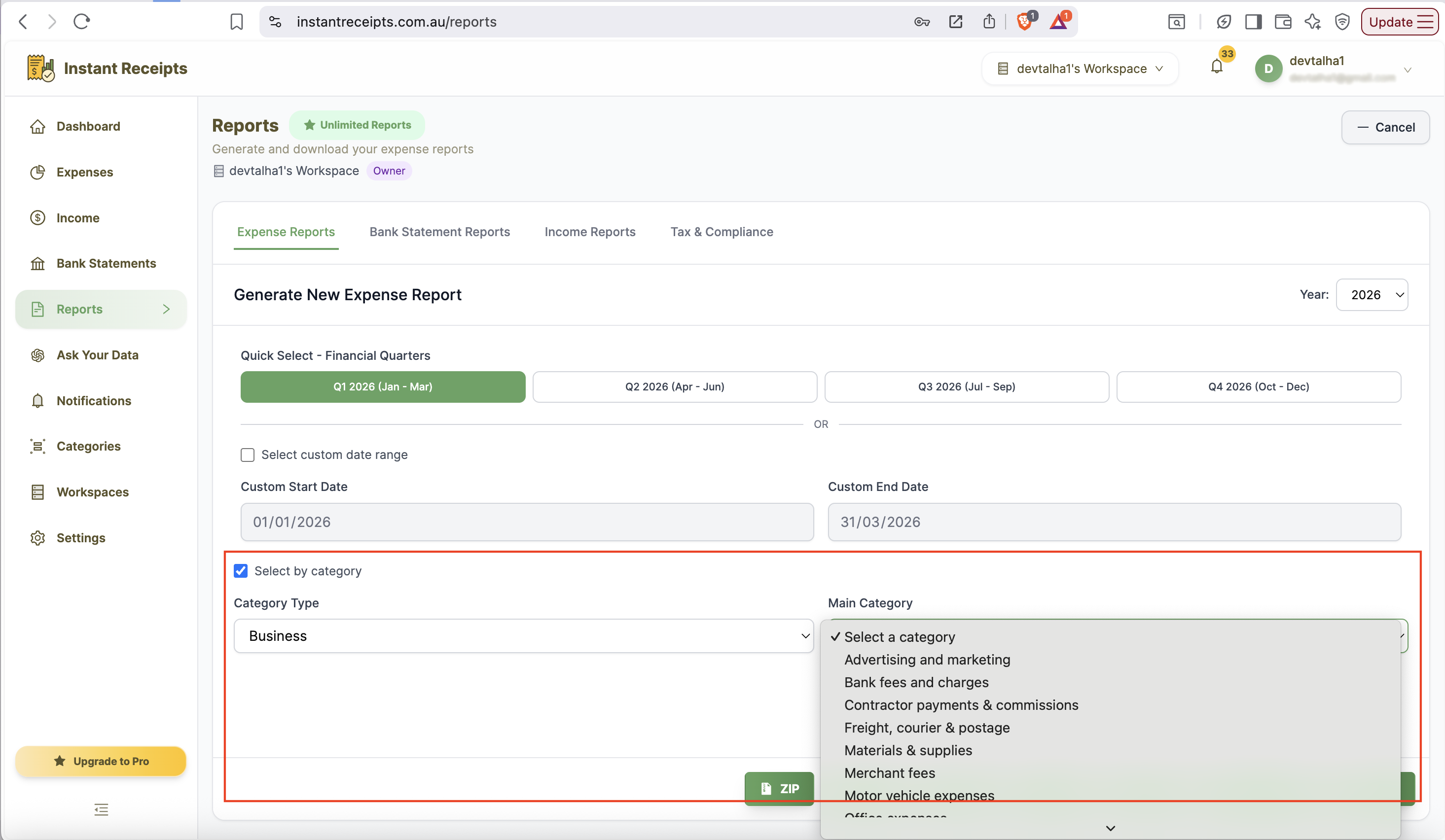
From this new panel, you can select the date range for which you need to export your expenses. There are two ways for this: the first one is Quick Select financial quarters (Q1-Q4). Secondly, you can enter a custom date range manually. If you don't select either, all existing expense records will be included.
Filter by Category (Optional)
Another incredible feature that you can find here is that you can apply a filter. You can select your expense type from the category section, either personal or business. When you select the specific date range and category on those expenses in that duration and category will export.
Click PDF Button
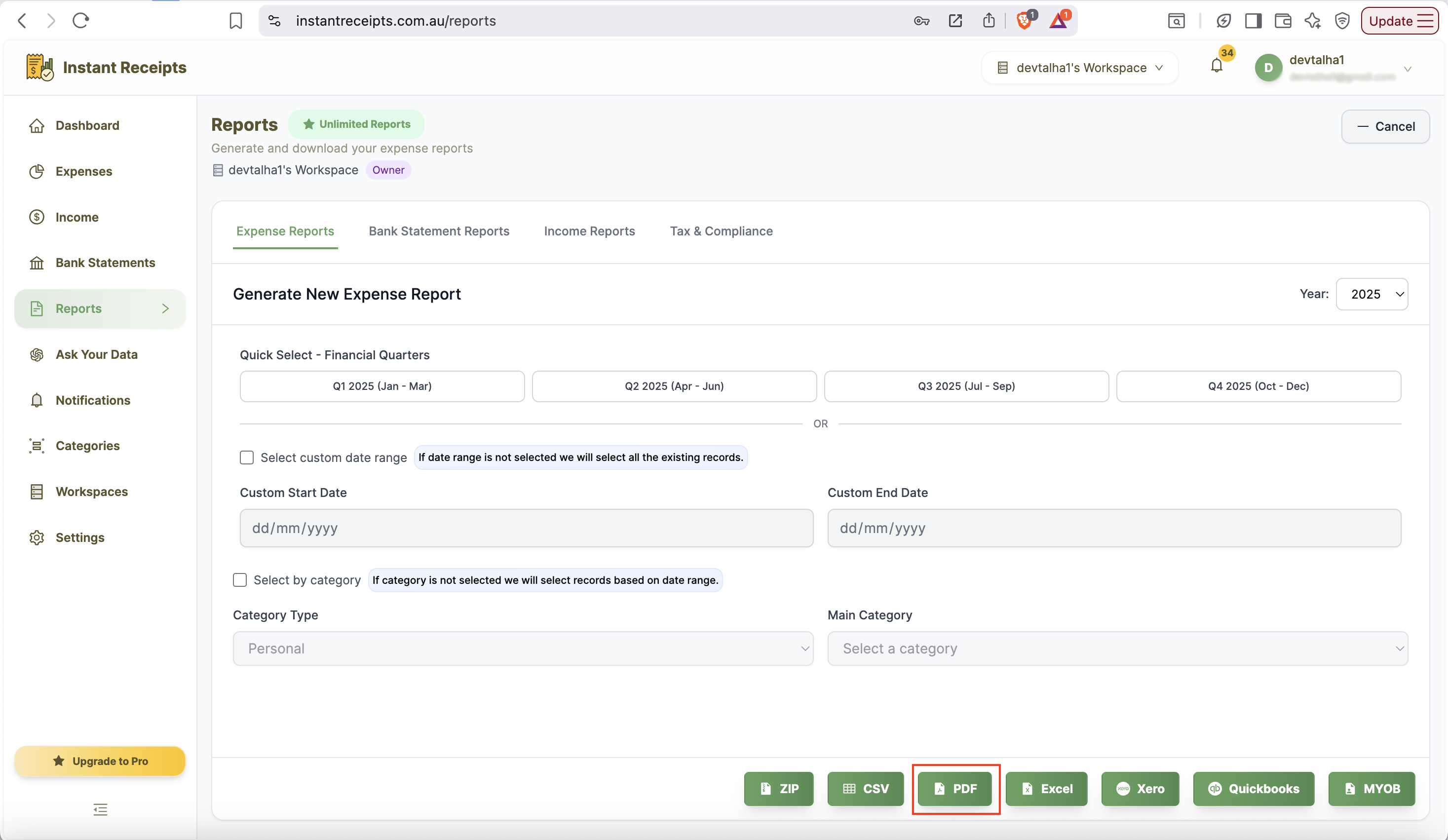
After selecting the date range and the specified filter, you will find multiple format options at the bottom of the report generation for the panel. From there, select the PDF format to get your file in pdf.
Download and Print PDF
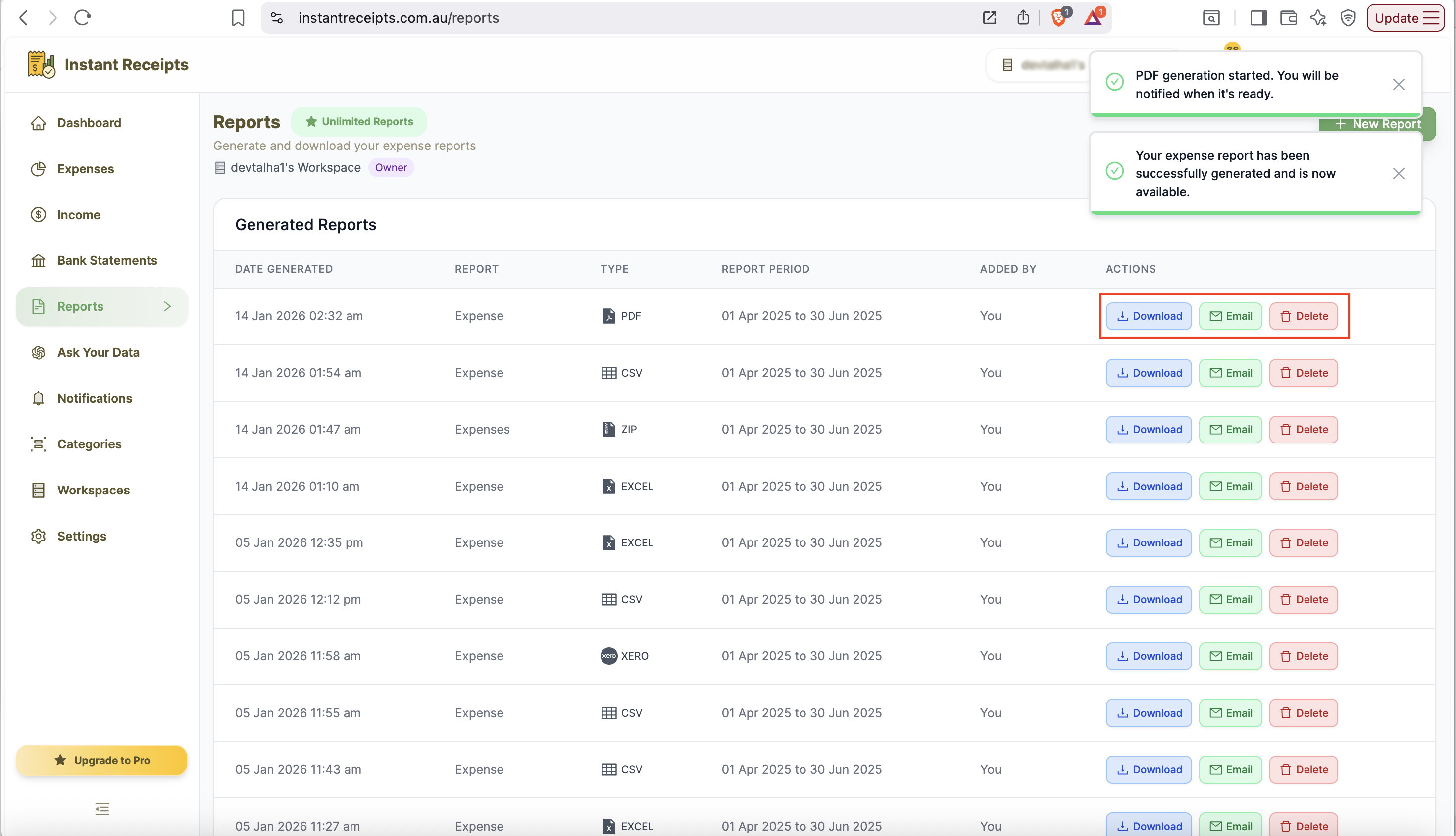
Now you can download your report as a PDF file and print or share as needed.
Preview and Print PDF
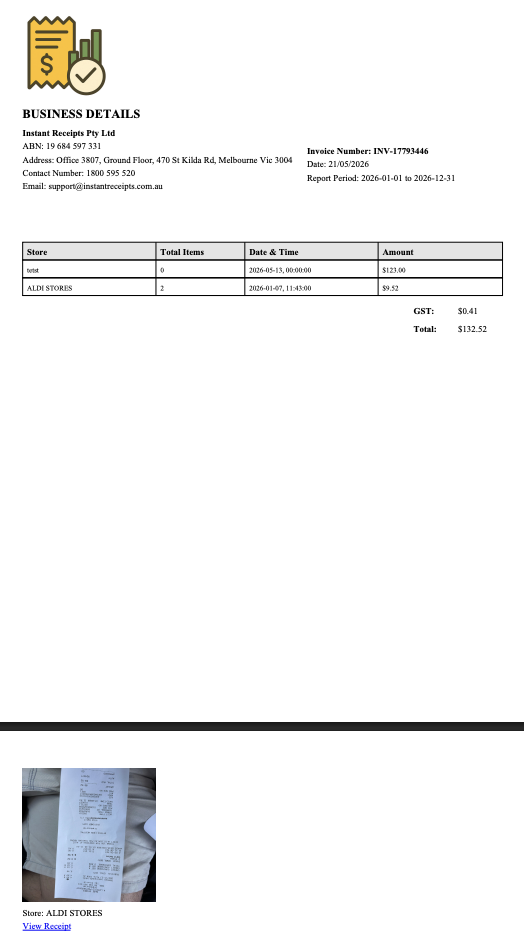
Now you can download your report as a PDF file and print or share as needed.
Troubleshooting
PDF won't open
If your PDF file is not opening, please make sure you have a PDF reader installed (Adobe Reader, Preview on Mac, or any modern browser). If the problem still exists check your internet connection and try downloading again.
PDF looks different when printed
If the setting of the file changes after printing, kindly recheck your printer settings. Try printing to PDF first to preview. You can also adjust page scaling in your PDF reader.
The file size is very large.
Suppose you see the notification that the selected file size is too large. It means you have selected a wide date range, and there are many expenses with receipt images. To resolve this issue, kindly try to export a small date range.
Need more details?
See How to Import Expenses for the complete workflow and all available options.