
Export Expenses as ZIP
Prerequisites
- ✓Make sure that you have uploaded expenses in the Expenses section
- ✓You can export data only if you have access to the Reports page
Outcome
- A ZIP file containing a complete backup of your expense data
- A shareable package suitable for accountants
- An archive-ready copy of your expenses for long-term storage
Steps
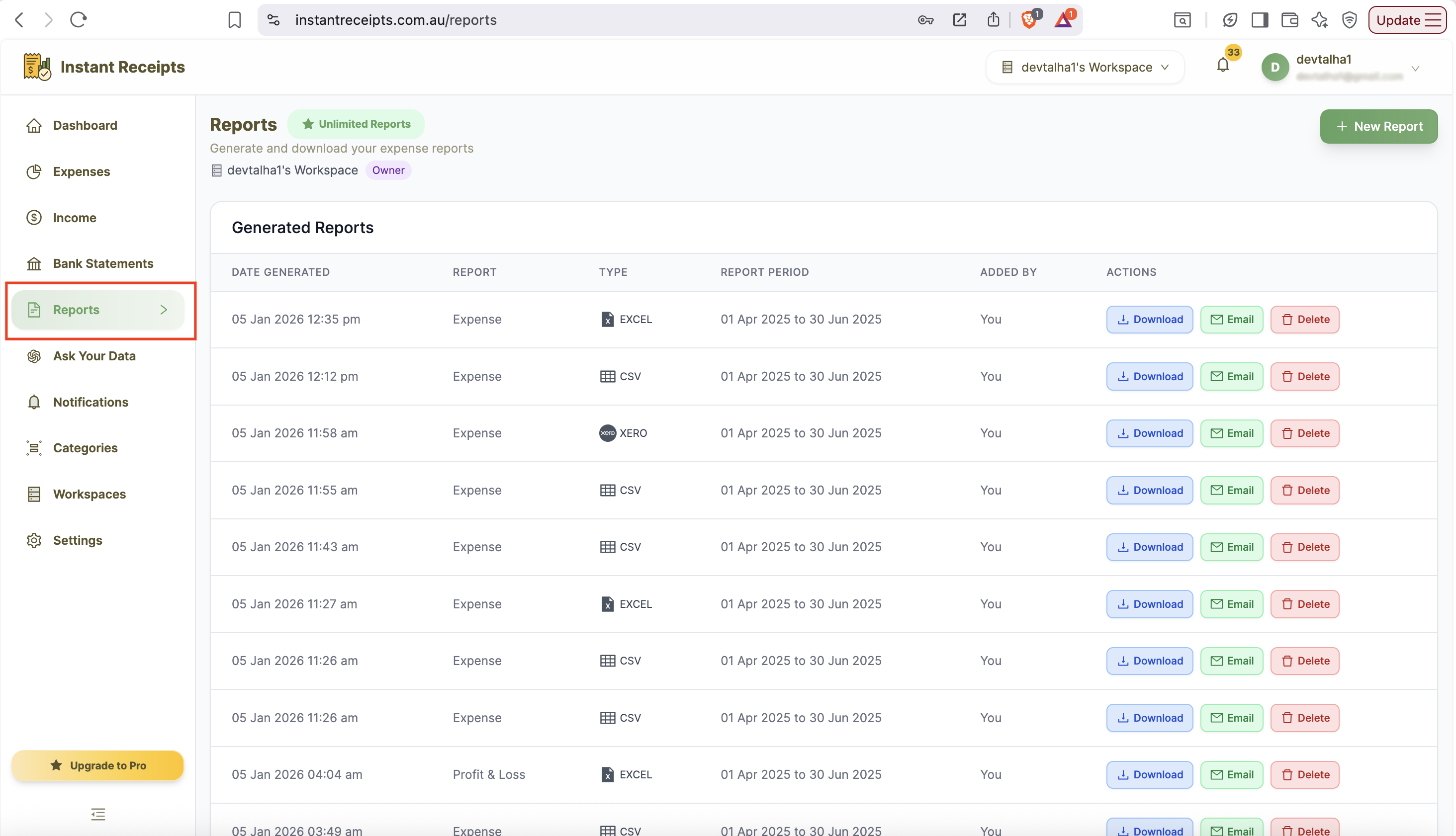
Navigate to Reports
Start by navigating to the report page. For this, go to your dashboard and click on reports. You will find this in the main navigation section. When the report page opens, you will see four tabs. These will include: Expense Reports Bank Statement Reports Income Reports Tax & Compliance.
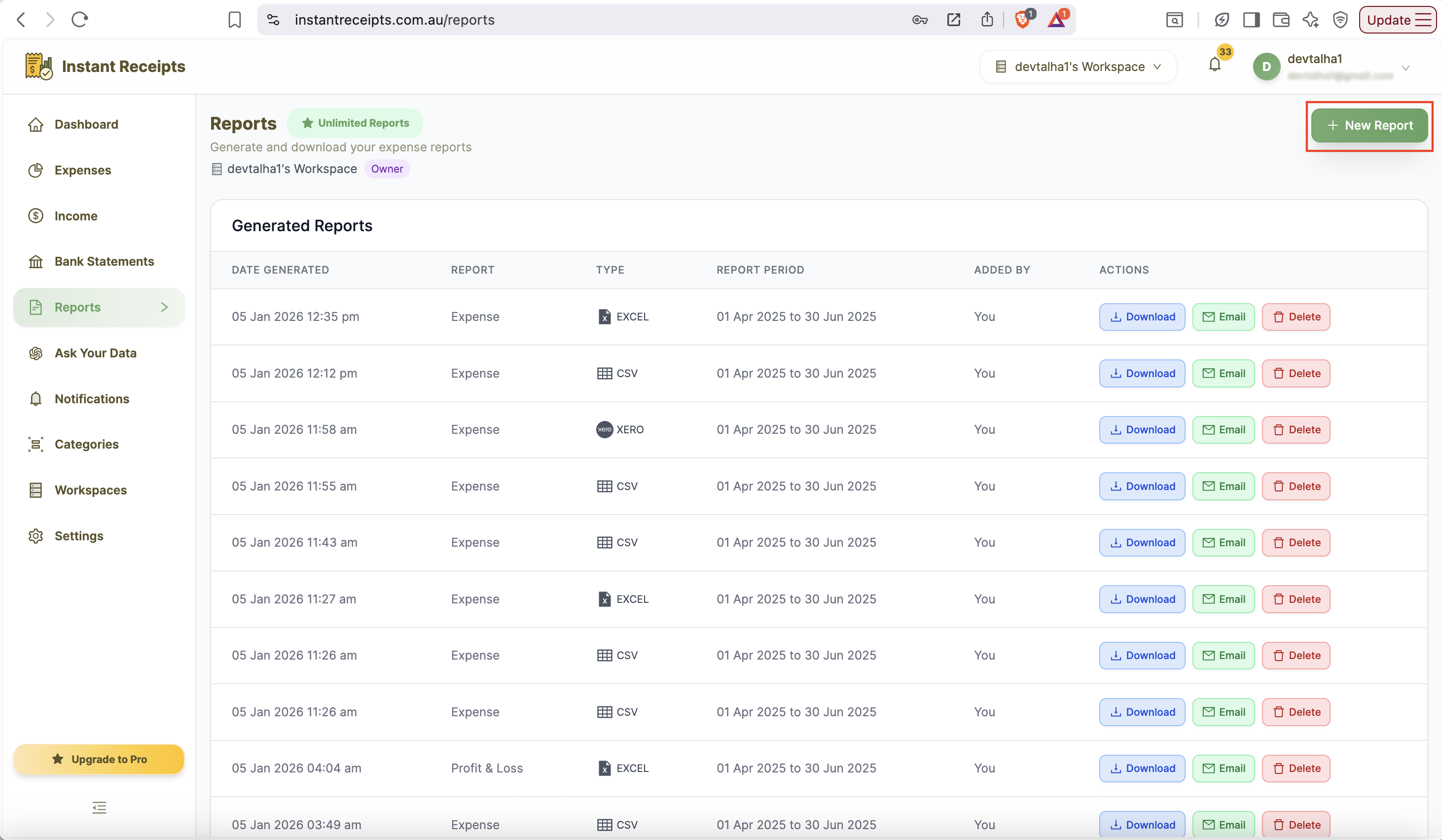
Click New Report
Now you will find a green button for new reports on the top right corner of this page. You can click on this to start creating a new report. After clicking on this button, a new report generation panel will appear. It will show all available options for customisation of your export.
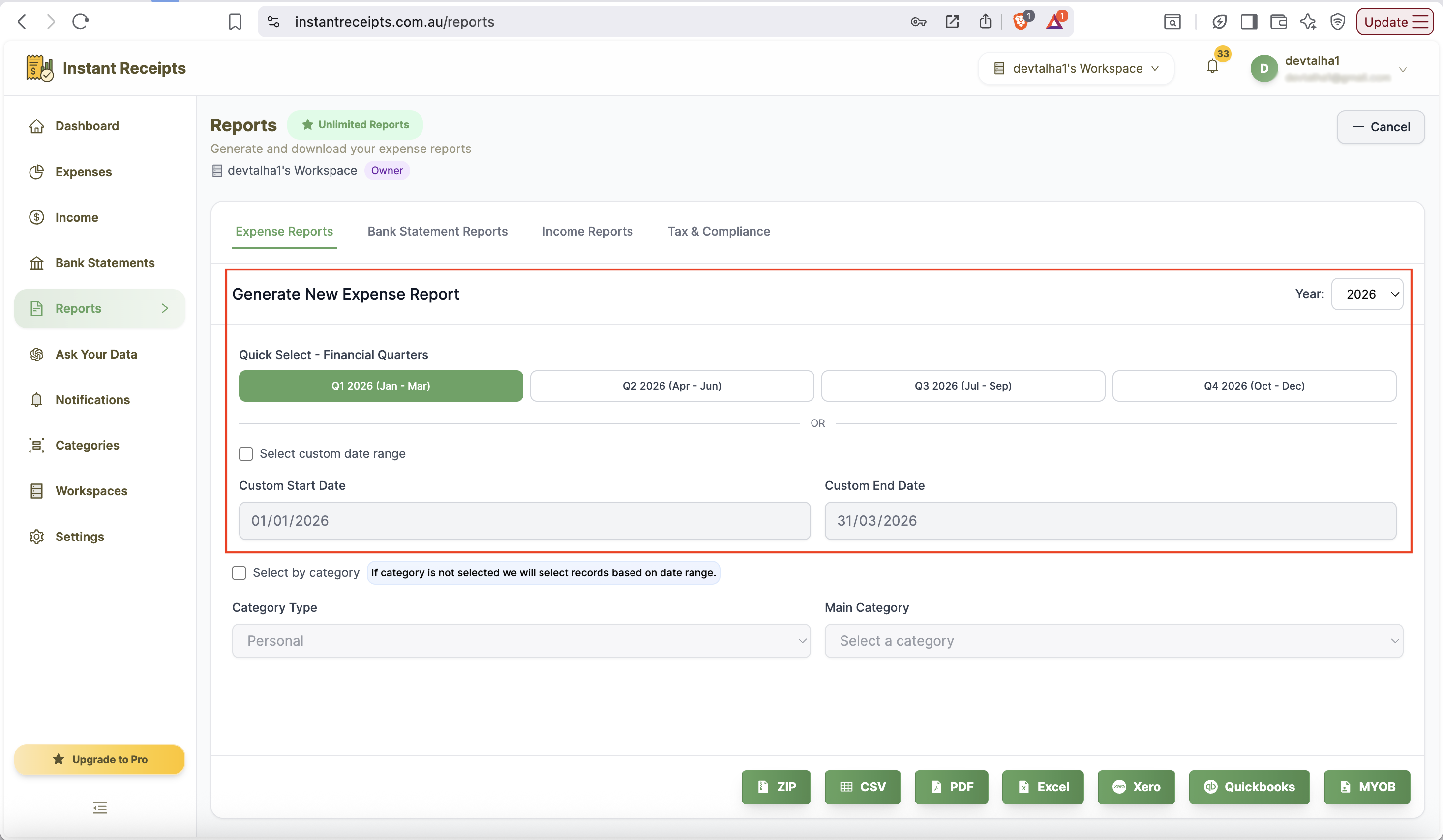
Select Your Date Range
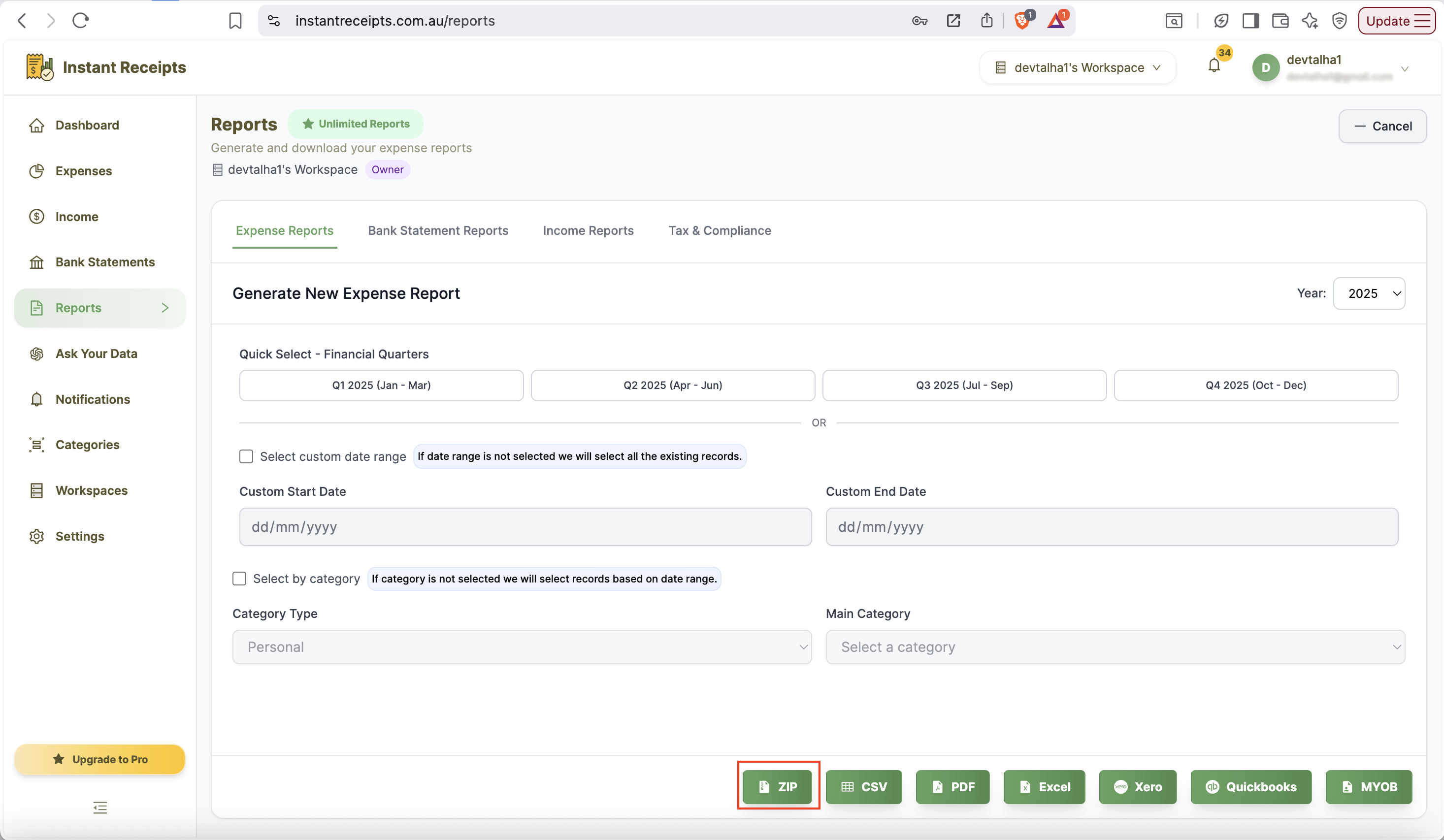
From this new panel, you can select the date range for which you need to export your expenses. There are two ways for this: the first one is Quick Select financial quarters (Q1-Q4). Secondly, you can enter a custom date range manually. If you don't select either, all existing expense records will be included.
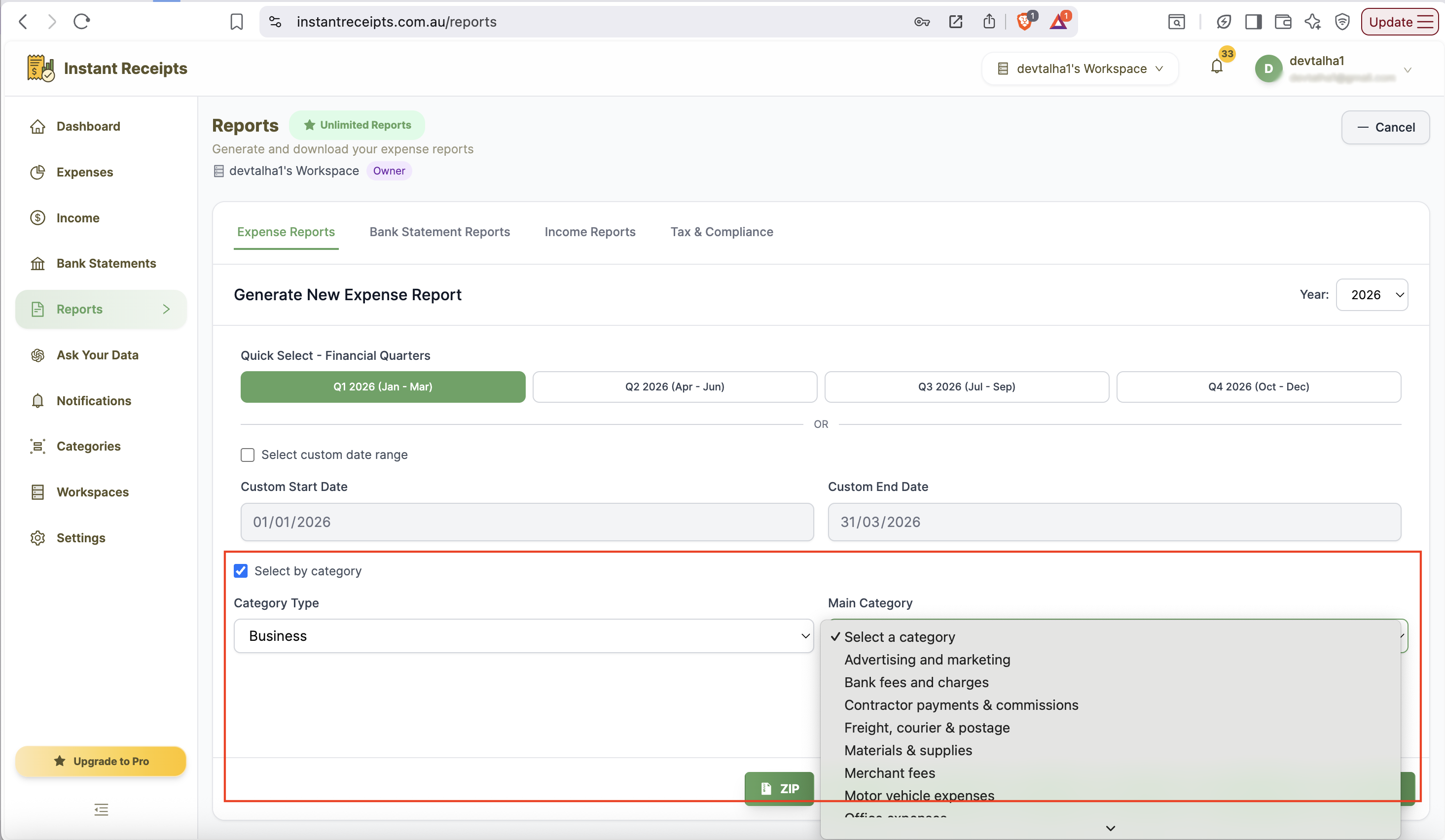
Filter by Category (Optional)
Another incredible feature that you can find here is that you can apply a filter. You can select your expense type from the category section, either personal or business. When you select the specific date range and category on those expenses in that duration and category will export.
Click the ZIP Button
After selecting an appropriate filter at the bottom of the report creation panel, you can see green buttons of the different available formats, from their click on the ZIP format.
Download Your ZIP File
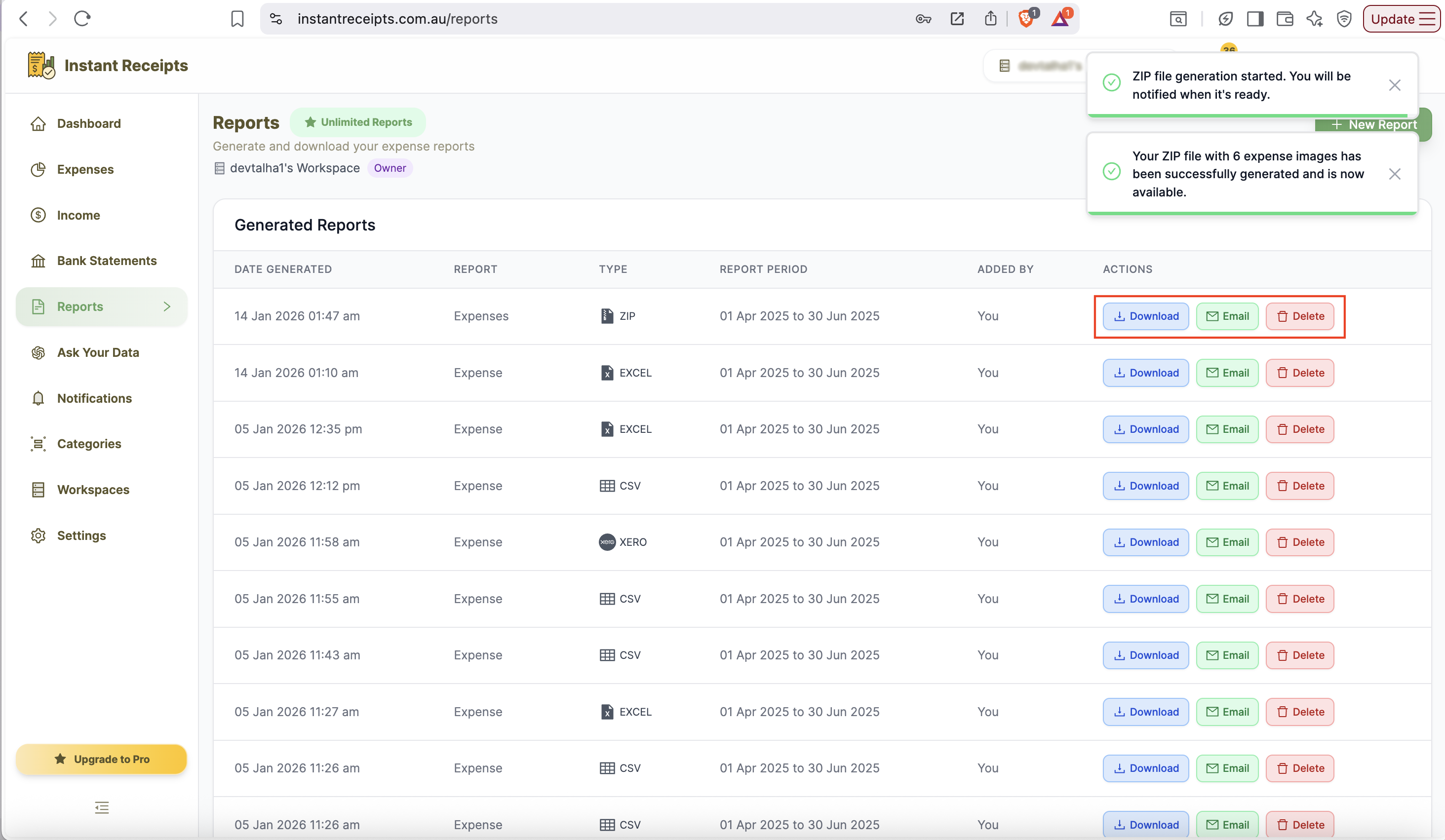
As soon as you click on the ZIP format system will automatically create your expense report in ZIP format. Now you can download it within seconds.
Troubleshooting
The ZIP file is too large.
If you are unable to download your data's ZIP file, the file might be too large. To resolve this issue, try narrowing your date range or filtering by category. It will reduce the file size and will be downloaded easily.
File won't download
If you are still facing the issue in downloading,g please go to the download settings of your browser and check the downloading permission. In browser settings, also ensure that pop-ups are not blocked. If the issue persists, you can opt for a different browser.
Can't extract the ZIP file
If you aren't able to extract the data from a ZIP file, make sure you are using a standard ZIP extraction tool. To extract a ZIP file on Windows, right-click and select 'Extract All'. However, if you are extracting on a Mac, double-click the file files will be extracted.
Need more details?
See How to Import Expenses for the complete workflow and all available options.