
Export Bank Statements as Excel
Prerequisites
- ✓You have uploaded your bank statement in the Bank Statements section
- ✓You have access to the Reports page
- ✓Microsoft Excel or compatible application
Outcome
- Perfect for pivot tables and in-depth reporting
- Export instantly without manual setup.
Steps
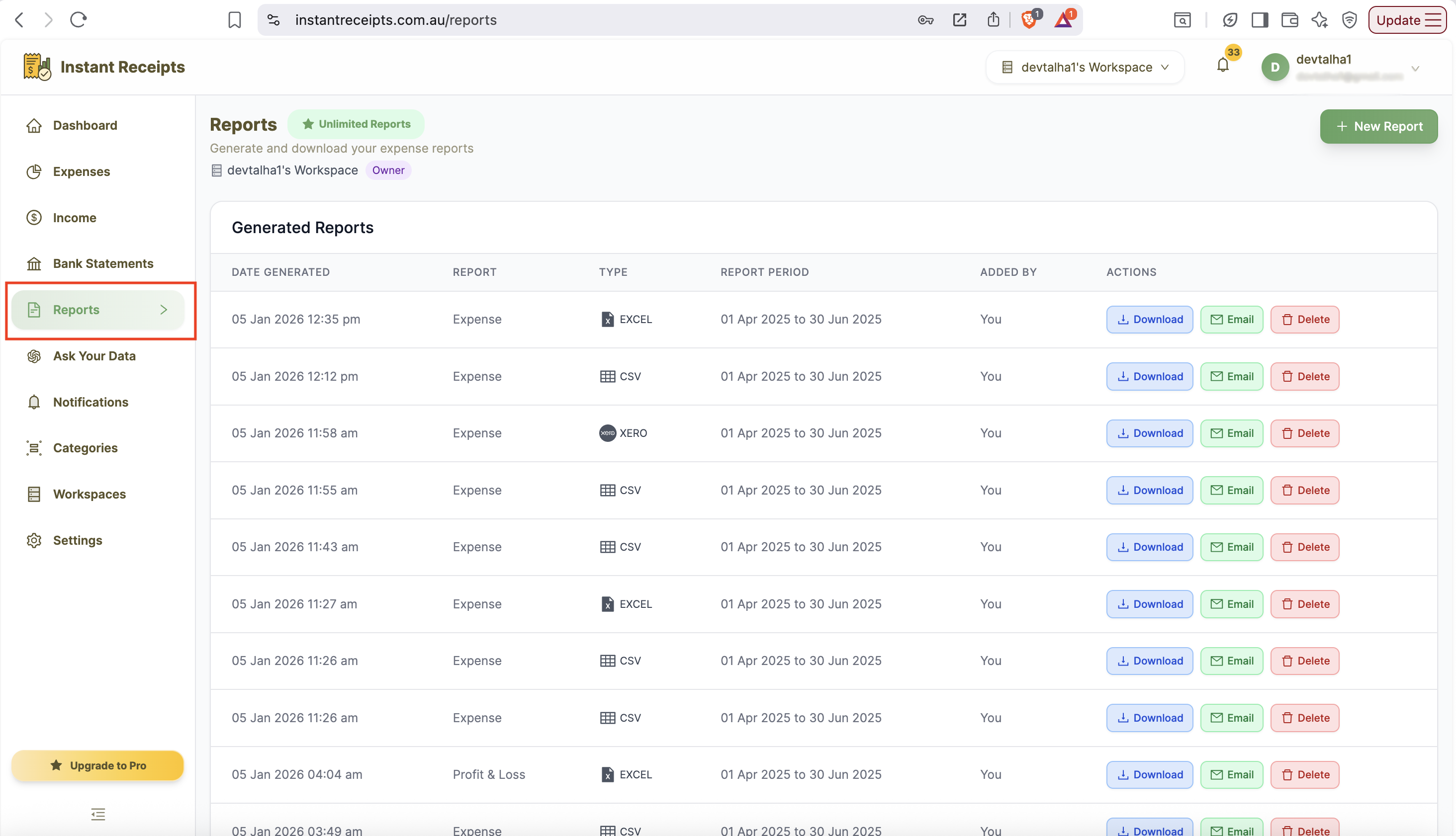
Navigate to Reports
From your dashboard, click on the Reports section in the main navigation.
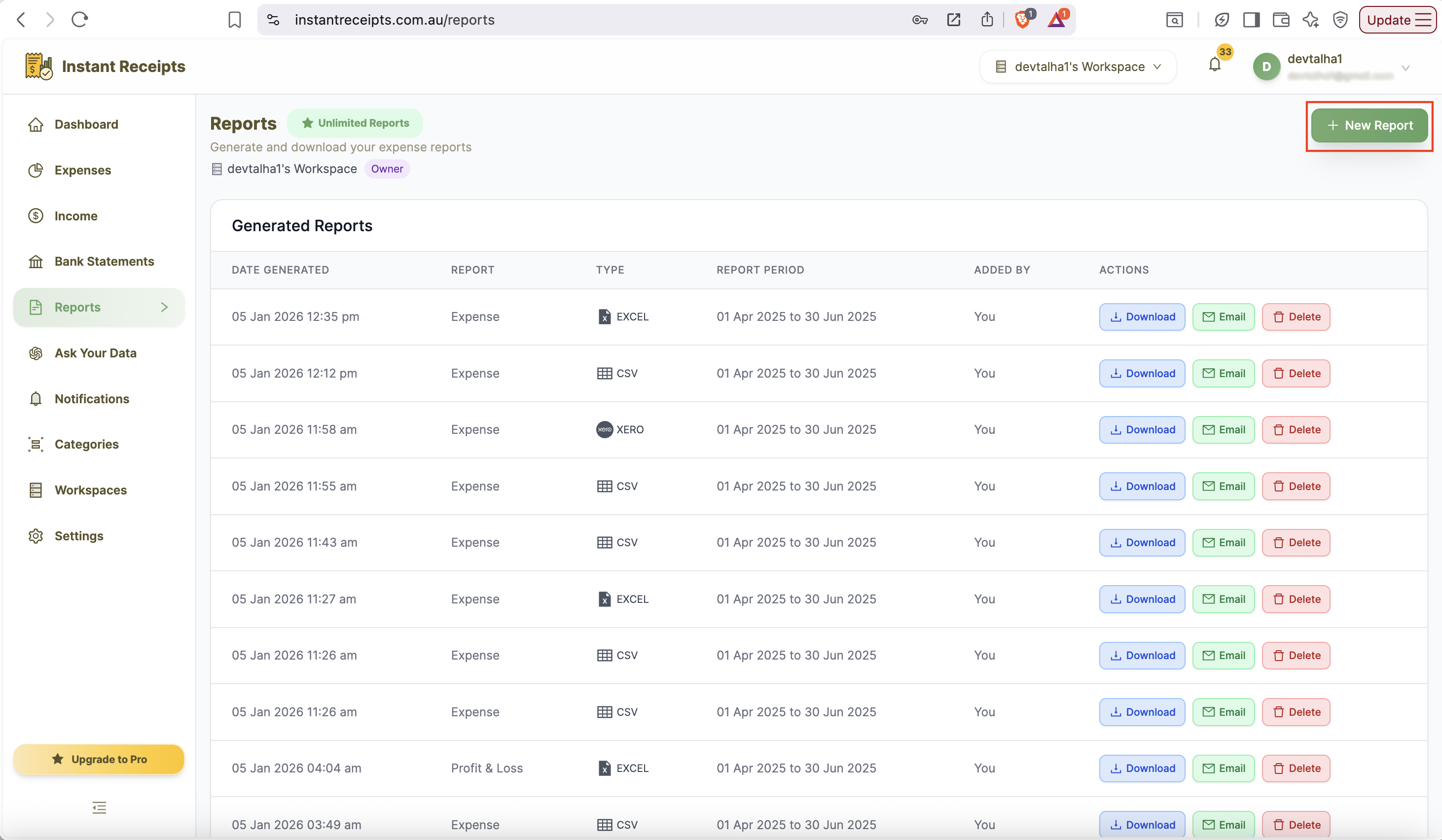
Click New Report
In the top-right corner, click the green New Report button to start creating a new bank statement report.
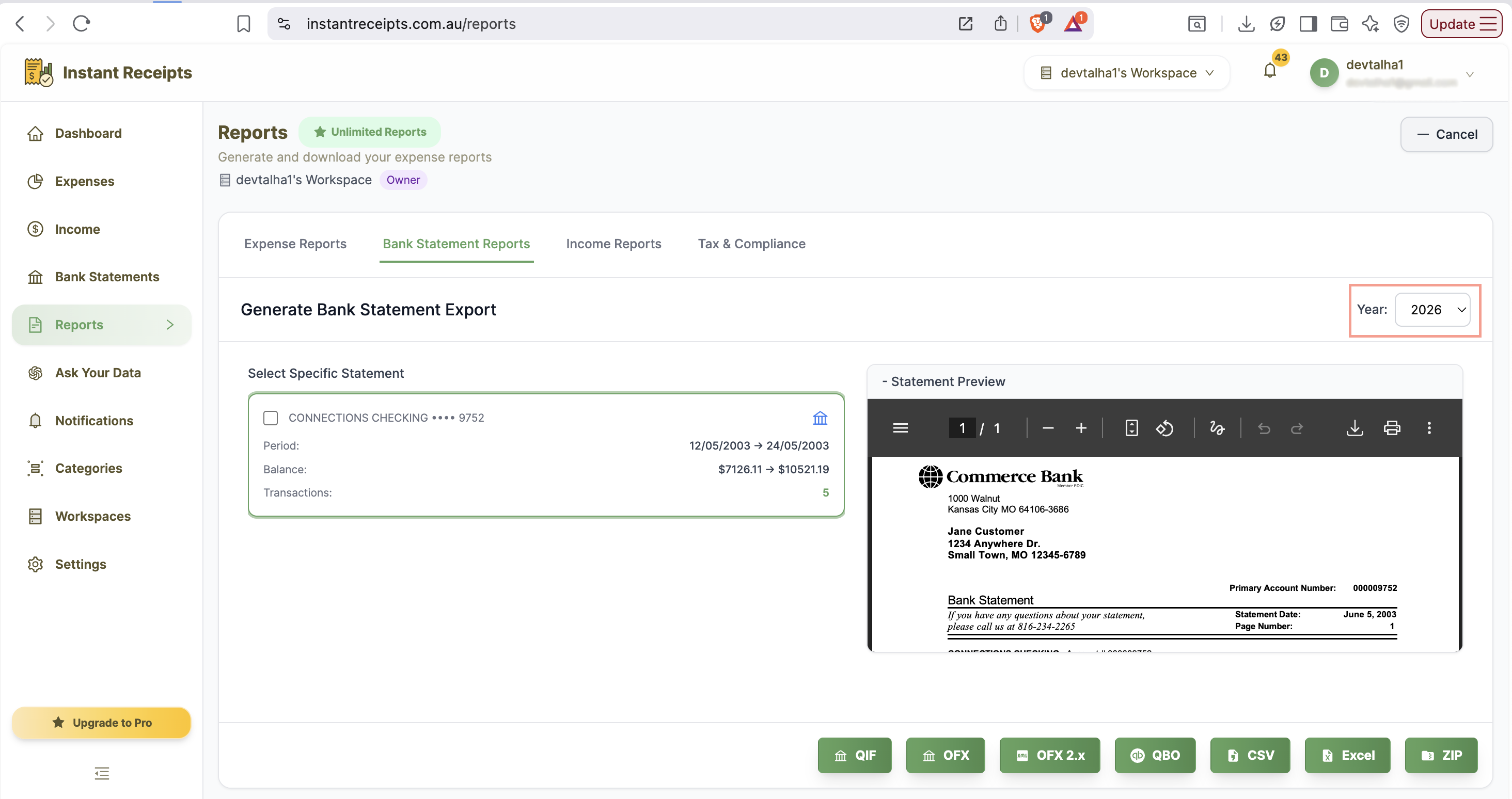
Select Your Date Range
Choose how to filter your bank statements by date using Quick Select quarters or custom date range.
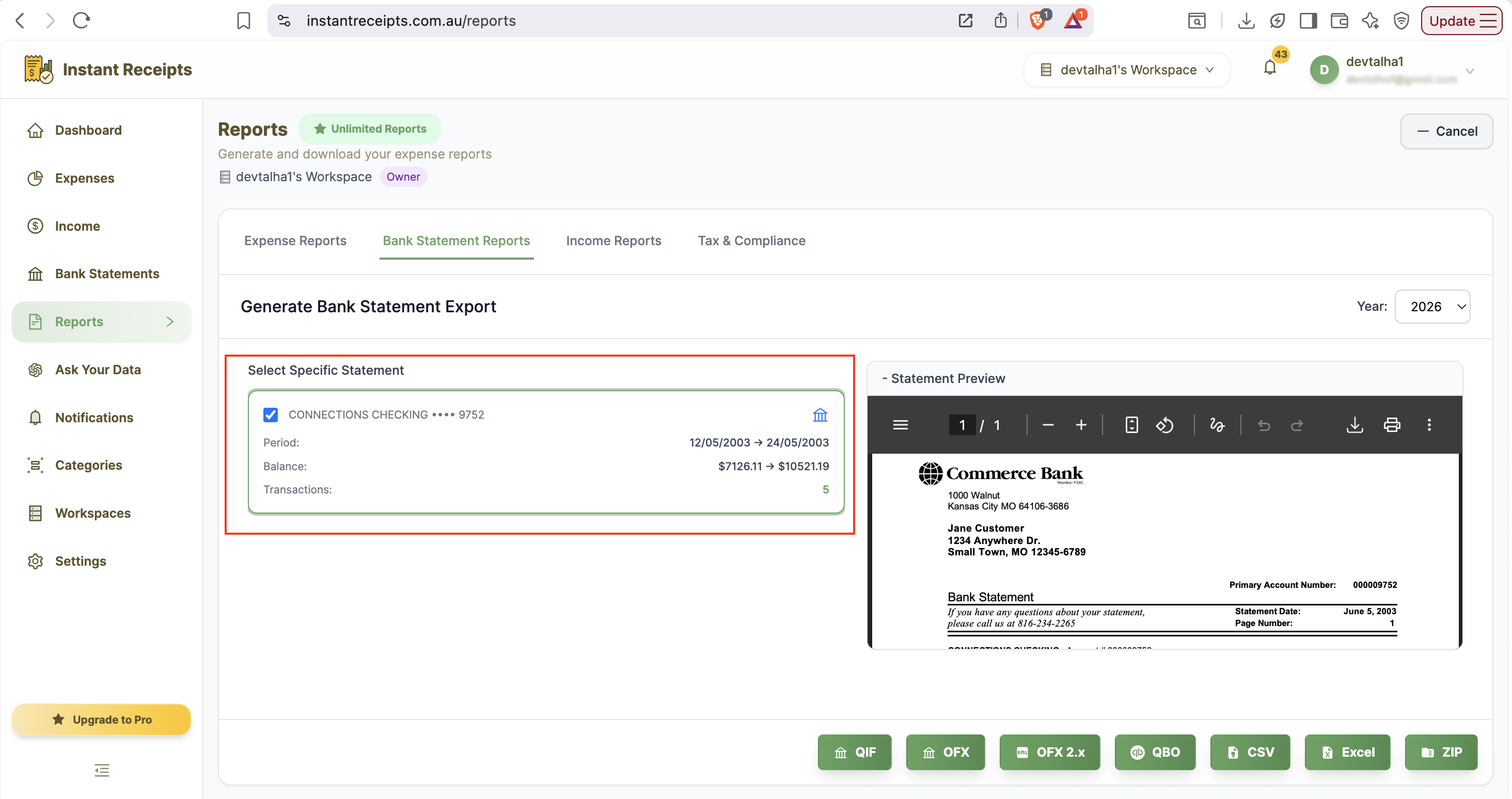
Select Bank Account (Optional)
Optionally filter statements by specific bank account.
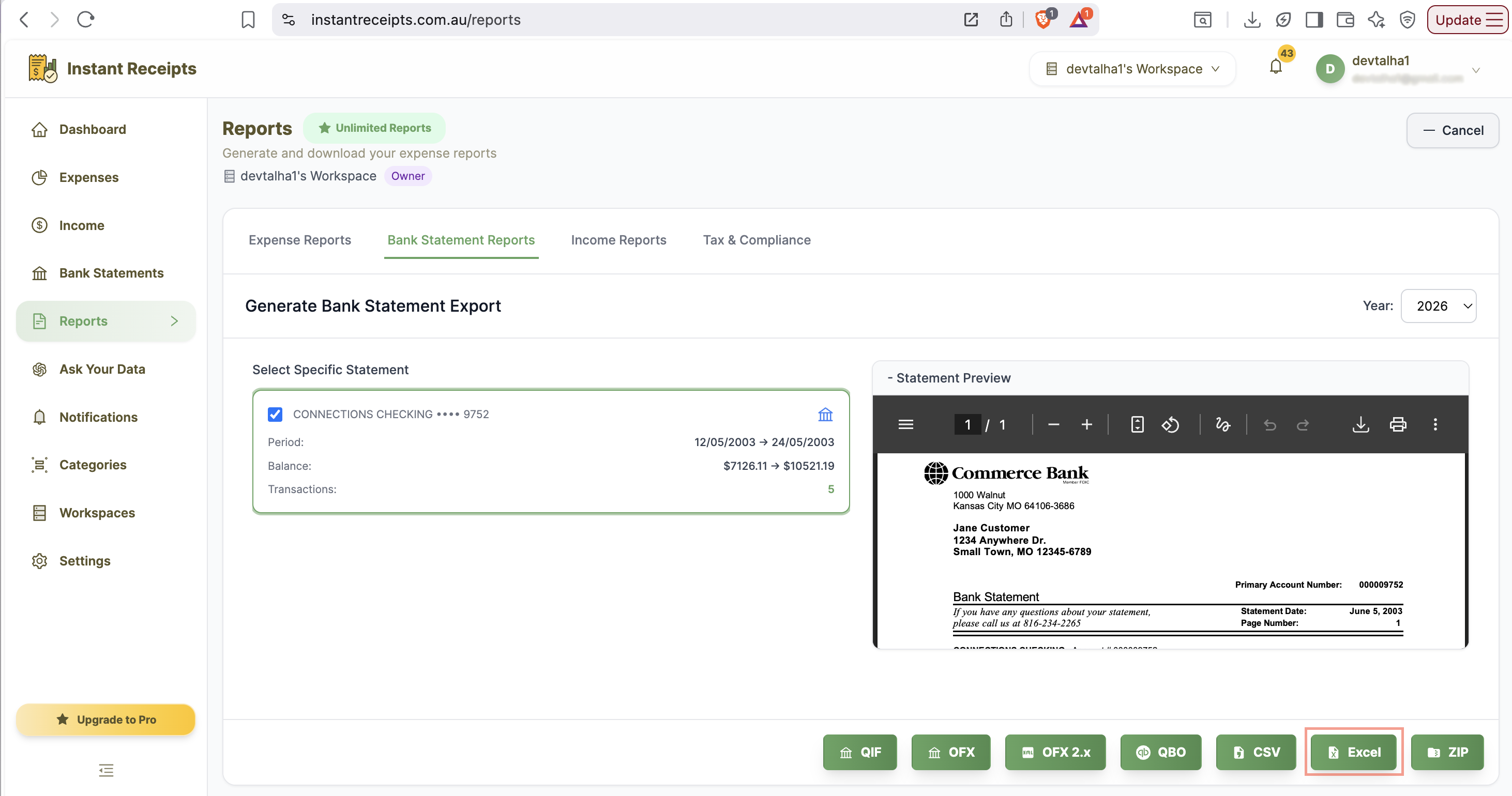
Click Excel Button
Locate and click the Excel export button at the bottom of the report generation panel.
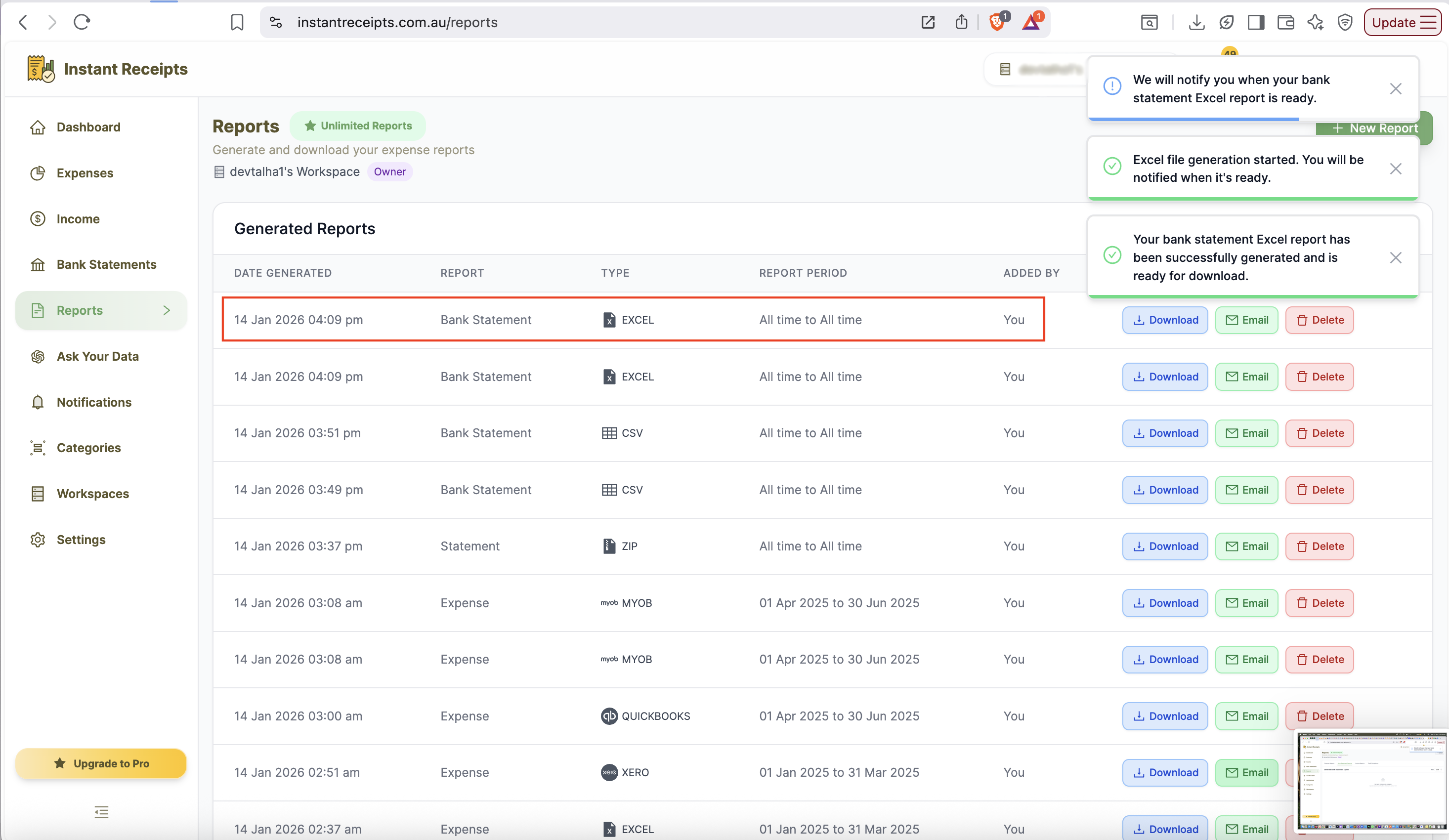
Download and Analyze
Download the Excel file and use advanced features for analysis.
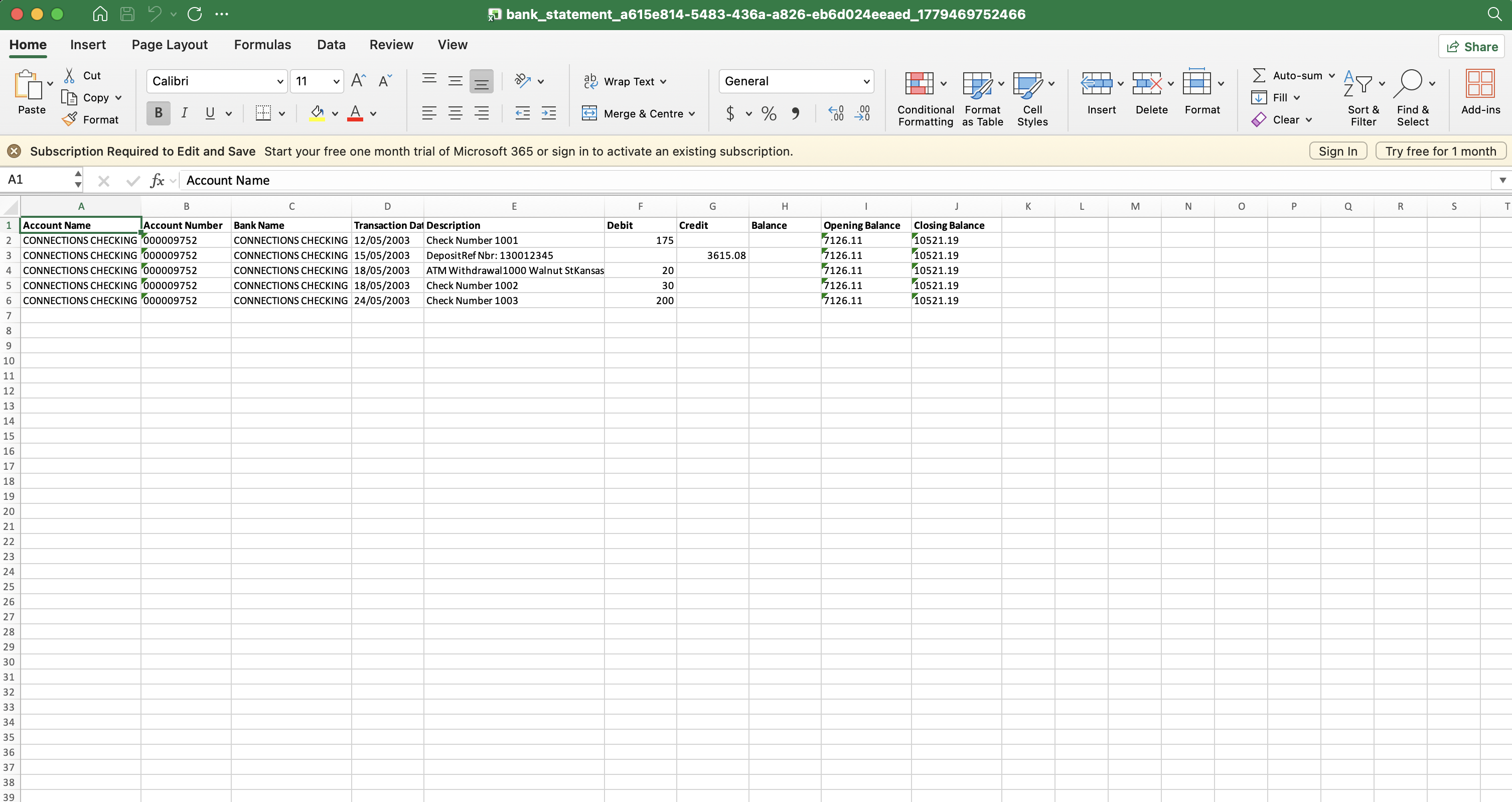
Preview Your Excel Report
Once downloaded, open the Excel file to view your bank statement transactions neatly structured and ready for use. Each entry will include key details such as date, transaction description, and amount. From here you can apply Excel formulas, sort and filter transactions, or share the file with your accountant.
Troubleshooting
Excel file won't open
Make sure you have Excel 2010 or later, or use Google Sheets to open the file online.
Formulas are showing as text
Press Ctrl+` (grave accent) to toggle formula view, or check your Excel settings.
Can I convert a PDF bank statement to Excel directly?
Yes. Upload your PDF bank statement into Instant Receipts first, then export it as Excel from the Reports page, no manual data entry or third-party converter required.
Need more details?
See How to Import Bank Statements for the complete workflow and all available options.